Counterparty monitoring
Automatic ongoing monitoring and scheduled AML/CFT screenings based on counterparty risk levels
Introduction
Counterparty monitoring enables automatic ongoing surveillance of your counterparties through scheduled name screenings based on their assigned risk levels. Financial sector professionals must comply with Anti-Money Laundering (AML) and Countering the Financing of Terrorism (CFT) obligations, which include conducting ongoing monitoring such as name screening against official sanctions lists.
While LYNKS provides manual KYC screening capabilities, counterparty monitoring automates this process by conducting regular screenings at intervals determined by each counterparty's risk classification. This ensures that potential risks are identified promptly and appropriate measures can be taken in a timely manner, reducing the manual burden on compliance teams while maintaining regulatory compliance.
Prerequisites
Counterparty monitoring requires the KYC screening feature to be enabled for your tenant, and counterparties must have risk levels assigned before monitoring rules can apply to them.
Permissions
| Permission | Description |
|---|---|
TENANT_SETTINGS_READ | View counterparty monitoring configuration and rules |
TENANT_SETTINGS_WRITE | Create, edit, enable, and disable monitoring rules |
Feature flags
Feature flag requiredCounterparty monitoring requires the KYC_MONITORING tenant flag to be enabled. Contact [email protected] to enable this feature for your tenant.
The following related feature flags may also be relevant:
| Feature Flag | Description |
|---|---|
KYC_MONITORING | Enables the counterparty monitoring functionality |
KYC_SCREENING | Enables KYC name screening capabilities (required for monitoring) |
KYC_RISK | Enables risk level assignment for counterparties |
Counterparty monitoring overview
Counterparty monitoring allows administrators to define specific monitoring rules for each risk level. The system automatically screens counterparties at configured intervals, creating or updating screening cases without manual intervention.
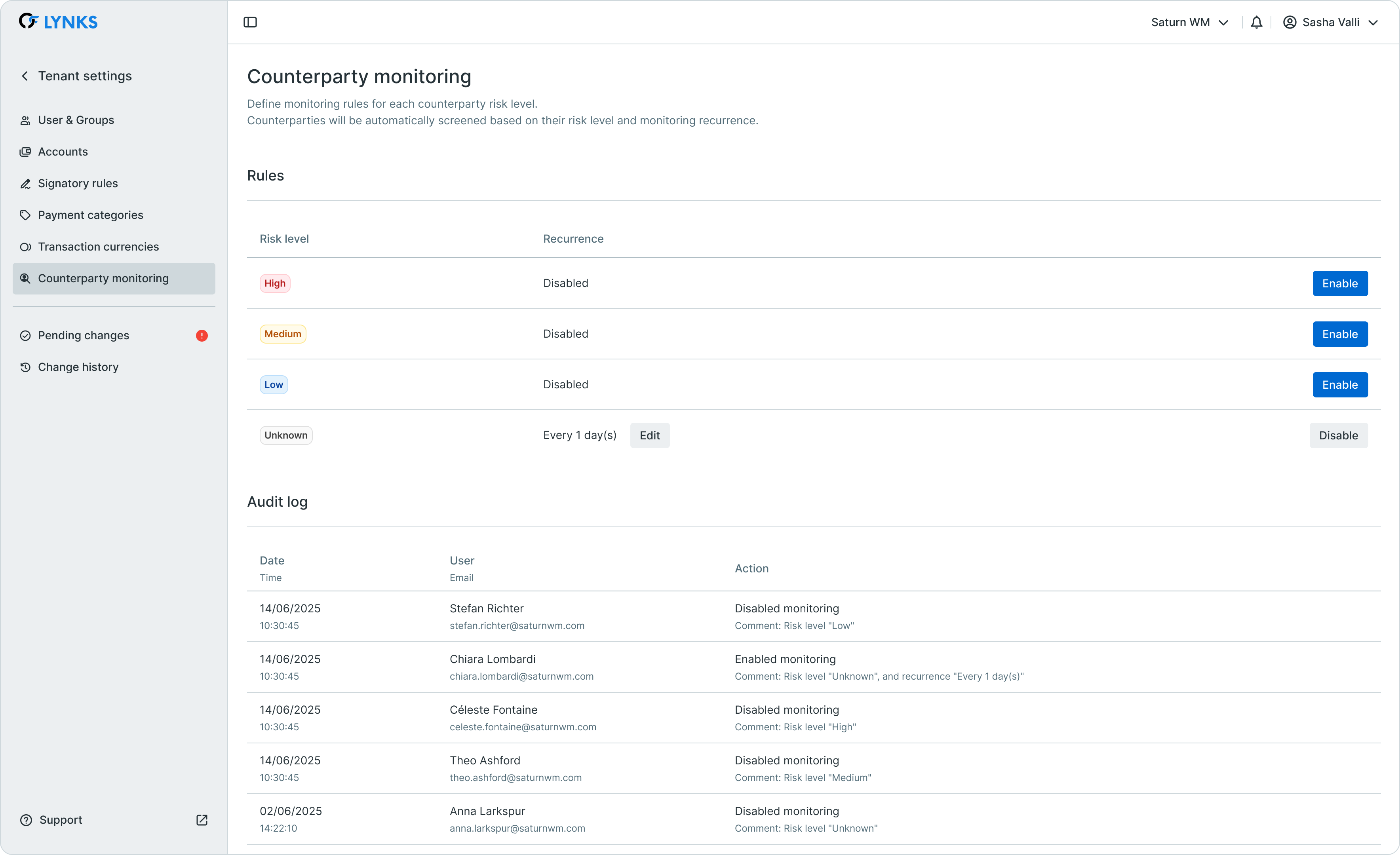
Counterparty monitoring configuration interface
Key components
The counterparty monitoring configuration consists of:
- Risk level rules - Define screening frequency for each risk classification (high, medium, low, unknown)
- Recurrence settings - Specify how often counterparties of each risk level are screened
- Monitoring scheduler - System scheduler that runs daily to identify counterparties due for screening
- Automatic case creation - Primary screening cases are created automatically when a counterparty has no linked screening matching their name
Accessing counterparty monitoring
Counterparty monitoring is configured within Tenant Settings, accessible to administrators with the appropriate permissions.
Navigation
To access counterparty monitoring:
- Navigate to Tenant Settings in the main menu
- Select Counterparty monitoring from the settings menu
- The interface displays monitoring rules for each risk level
Location changeCounterparty monitoring was previously located under "KYC Control" and was moved to Tenant Settings in version 5.4. The permissions required changed from KYC-specific rights to
TENANT_SETTINGS_READandTENANT_SETTINGS_WRITE.
Risk level assignment
Counterparties can be assigned one of four risk levels, which determine their monitoring frequency. Risk levels support AML/CFT compliance by enabling differentiated treatment based on assessed risk.
Risk level categories
| Risk Level | Description | Typical Use |
|---|---|---|
| High | Counterparties with elevated risk indicators | PEP matches, sanctions concerns, high-risk jurisdictions |
| Medium | Counterparties with moderate risk factors | Standard business relationships with some risk indicators |
| Low | Counterparties with minimal risk factors | Established, low-risk business relationships |
| Unknown | Counterparties without an assigned risk level | New counterparties pending risk assessment |
Risk levels are assigned through the counterparty details page in the KYC risk section. Users with KYC_RISK_LOG_WRITE permission can update risk levels and provide supporting evidence.
Risk level featureRisk level assignment requires the KYC_RISK tenant flag to be enabled. When enabled, the risk level column appears on the counterparties list and a KYC risk section displays on counterparty detail pages.
Configuring monitoring rules
Each risk level can have its own monitoring recurrence configured, allowing organizations to apply more frequent screening to higher-risk counterparties.
Enabling monitoring for a risk level
To enable monitoring for a specific risk level:
- Navigate to Tenant Settings > Counterparty monitoring
- Locate the risk level you want to configure
- Click the toggle to enable monitoring for that risk level
- Set the recurrence interval (frequency of screening)
- Save the configuration

Enabling monitoring recurrence for a risk level
Monitoring frequency settings
Configure how often counterparties at each risk level are automatically screened:
| Risk Level | Recommended Frequency | Rationale |
|---|---|---|
| High | Monthly or quarterly | Frequent monitoring for elevated risk |
| Medium | Quarterly or semi-annually | Regular monitoring for moderate risk |
| Low | Annually | Periodic monitoring for established relationships |
| Unknown | Quarterly | Regular checks until proper risk assessment completed |
The actual frequency settings depend on your organization's risk appetite, regulatory requirements, and internal compliance policies.
Monitoring workflows per risk level
The monitoring system executes different workflows based on counterparty status and screening state.
Automatic screening workflow
When the monitoring scheduler runs, the following logic applies:
| Counterparty Status | Linked Screenings | Monitoring Action |
|---|---|---|
| Active | Yes, in "Review completed" status | Re-screen all linked screenings |
| Active | Yes, in "Pending review" status | Skip (existing reviews must be completed first) |
| Active | No linked screening matching name | Create primary screening using counterparty details |
| Pending | Any | Skip (only active counterparties are monitored) |
| Deactivated | Any | Skip (only active counterparties are monitored) |
| Rejected | Any | Skip (only active counterparties are monitored) |
Screening data used
When creating a primary screening for a counterparty, the system uses different data based on counterparty type:
| Counterparty Type | Screening Data |
|---|---|
| Individual | First name, last name, gender, date of birth |
| Organisation | Company name |
Scheduled monitoring execution
The monitoring scheduler operates automatically to identify and screen counterparties due for monitoring.
Scheduler operation
The monitoring scheduler:
- Runs once per day at a configured time
- Checks all active counterparties against their risk level monitoring rules
- Identifies counterparties due for screening based on their last monitored date
- Places identified counterparties in a processing queue
- Processes counterparties one by one, creating or updating screening cases
- Updates the
last_monitored_ontimestamp after successful screening
Processing logic
For each counterparty in the queue:
- Check if counterparty status is Active (skip if Pending, Deactivated, or Rejected)
- Check if linked screenings exist in "Review completed" status
- If yes, re-screen those cases
- If no linked screening matches the counterparty name, create a primary screening
- Skip any screenings in "Pending review" status
- Update the counterparty's last monitored timestamp
Queue processingA single queue processes counterparties from all tenants. After all counterparties are checked, the system waits for the next scheduled cycle.
Alert notifications and escalation
When monitoring screenings produce results (hits), the compliance team is alerted through LYNKS notification system.
Notification triggers
Monitoring-related notifications are sent when:
- A scheduled screening produces new results requiring review
- A primary screening case is automatically created
- Screening results include potential matches against sanctions lists or PEP databases
Escalation workflow
- Screening executed - System runs automatic screening based on monitoring rules
- Results received - Screening provider returns results (matches or no matches)
- Case updated - Results are stored in the screening case
- Notification sent - Compliance users receive notification if results require attention
- Manual review - Compliance officers review and resolve screening results
Configure notification preferences to ensure the appropriate team members receive alerts for KYC screening events. See Notifications - Configure notification preferences and channels for configuration details.
Audit trail
All counterparty monitoring activities are tracked in the audit log for compliance and review purposes.
Tracked events
The audit log records:
- Monitoring rule changes (enable, disable, frequency updates)
- Scheduled screening executions
- Primary screening case creation
- Re-screening of existing cases
- Last monitored timestamp updates
Access the audit log from the counterparty monitoring page to review historical monitoring activity and configuration changes.
Best practices
Follow these recommendations for effective counterparty monitoring:
- Assign risk levels promptly - Ensure all counterparties have appropriate risk levels assigned to benefit from automated monitoring
- Align frequency with policy - Configure monitoring frequencies that match your organization's AML/CFT policies and regulatory requirements
- Review pending screenings - Regularly check and resolve screening results in "Pending review" status to ensure monitoring can continue
- Monitor unknown risk levels - Configure monitoring for counterparties with unknown risk levels to ensure no entities slip through without assessment
- Document rationale - When adjusting risk levels or monitoring frequencies, document the reasoning in the risk assessment log
- Coordinate with compliance - Work with your compliance team to establish appropriate monitoring thresholds and escalation procedures
Related documentation
Explore related sections for more information:
- Feature Flags - Available features and enablement - Understanding tenant-level feature configuration
- Counterparties - Investor and beneficiary management - Managing counterparty records and risk assessments
- Risk Management - KYC screening and risk assessment - KYC screening processes and compliance workflows
- User & Groups - User management and access configuration - Configuring user permissions for monitoring access
- Pending Changes - Configuration change management - Approval workflow for tenant settings changes
- Change History - Audit trail for configuration - Audit trail for configuration changes
- Notifications - Configure notification preferences and channels - Configuring alerts for compliance events
Support
For assistance with counterparty monitoring configuration or questions about compliance workflows, contact [email protected].
Updated 3 months ago