
Accounts
Configure ordering party accounts, manage account groups, and maintain account properties in tenant settings
Introduction
The accounts settings section provides administrative control over your organization's ordering party accounts within LYNKS. This interface enables administrators to view account details, configure account properties, manage account aliases, and organize accounts into logical groups for better management and signatory rule configuration.
While accounts cannot be created directly through the user interface (this requires customer support assistance), administrators can edit account properties, manage group memberships, and deactivate accounts that are no longer needed. Account groups provide organizational structure that can be used to scope permissions, define signatory rules, and simplify account management across business units or functional areas.
Account monitoring vs. account configurationThis section covers administrative account configuration in Tenant Settings. For viewing account balances, transactions, and statements, see Cash Accounts - Account balances and bank statements.
Prerequisites
Before managing account settings, ensure you have the appropriate administrative permissions and understand the approval workflow for configuration changes.
Permissions
| Permission | Description |
|---|---|
TENANT_SETTINGS_READ | View account configurations, properties, and group memberships |
TENANT_SETTINGS_WRITE | Edit account details, manage group membership, deactivate accounts |
TENANT_SETTINGS_APPROVE | Approve pending account configuration changes |
ORDERING_PARTY_ACCOUNT_CREATE | Create ordering party accounts via API (not available in UI) |
Permission inheritanceUsers with
ORDERING_PARTY_BALANCE_READpermission can view accounts in the Bank Accounts section but cannot modify account configurations in Tenant Settings.
Feature flags
| Feature Flag | Description |
|---|---|
TENANT_SETTINGS_FOUR_EYES_REVIEW | When enabled, all account configuration changes require approval before taking effect. See Pending Changes - Configuration change management. |
Accounts overview
The accounts section in Tenant Settings displays all ordering party accounts configured for your tenant, organized in a table format with key account properties visible at a glance. Administrators can switch between viewing individual accounts and viewing accounts organized by account groups.
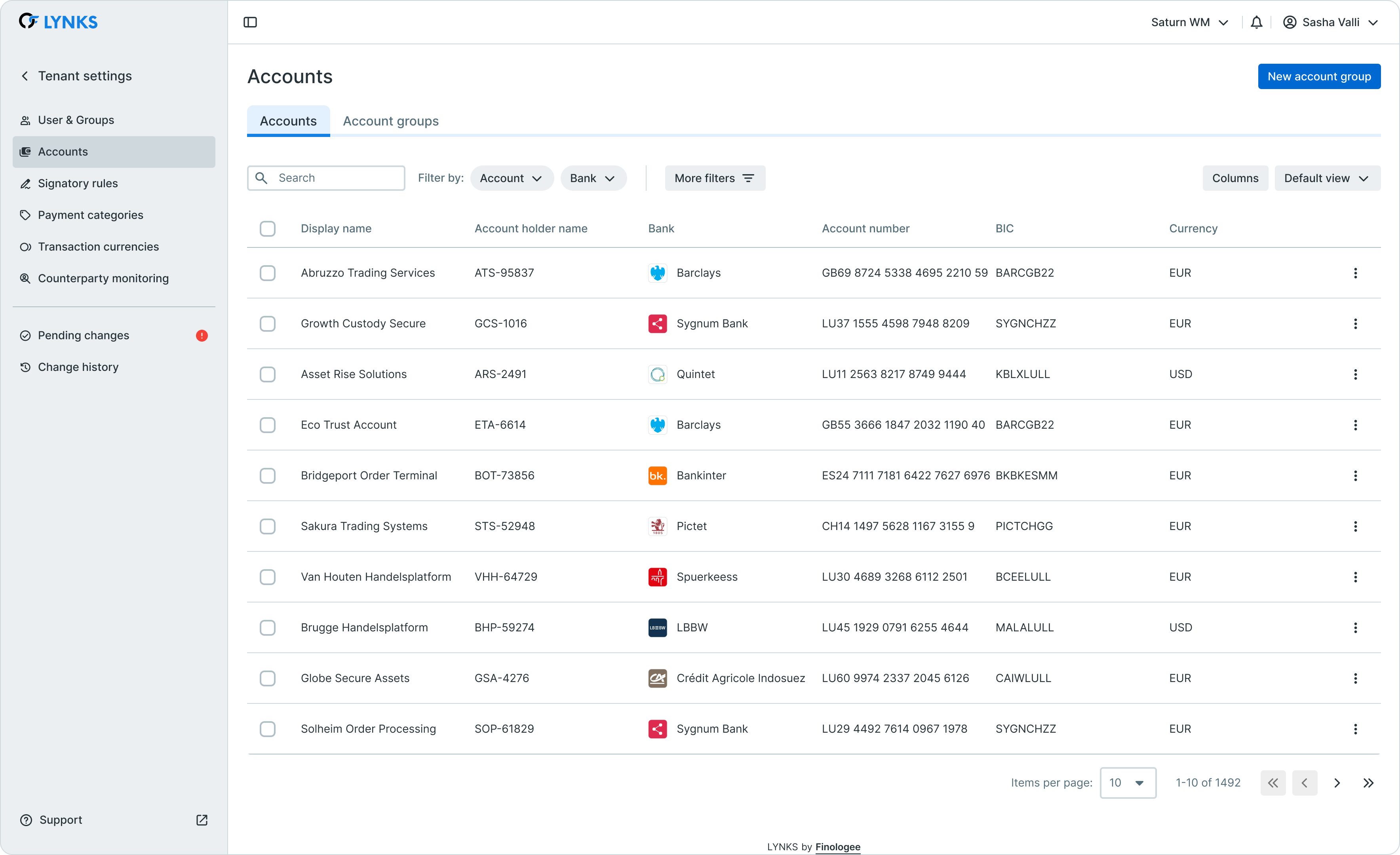
Accounts list in tenant settings showing account properties and actions
The accounts list displays essential information for each account including bank name, IBAN, BIC, currency, ordering party name, and current balance information. Each account row provides access to actions through the action menu, enabling quick access to editing, group management, and deactivation functions.
Key components
The accounts interface consists of two main views:
| View | Purpose |
|---|---|
| Accounts list | Displays all ordering party accounts with their properties and status |
| Account groups | Shows defined account groups and their member accounts |
Administrators can toggle between these views to manage individual accounts or work with account groupings depending on the task at hand.
Viewing account details
Each account in the list can be expanded to view detailed information about the account configuration, bank relationship, and current status.
Account properties
The account details screen displays comprehensive information organized into logical sections:
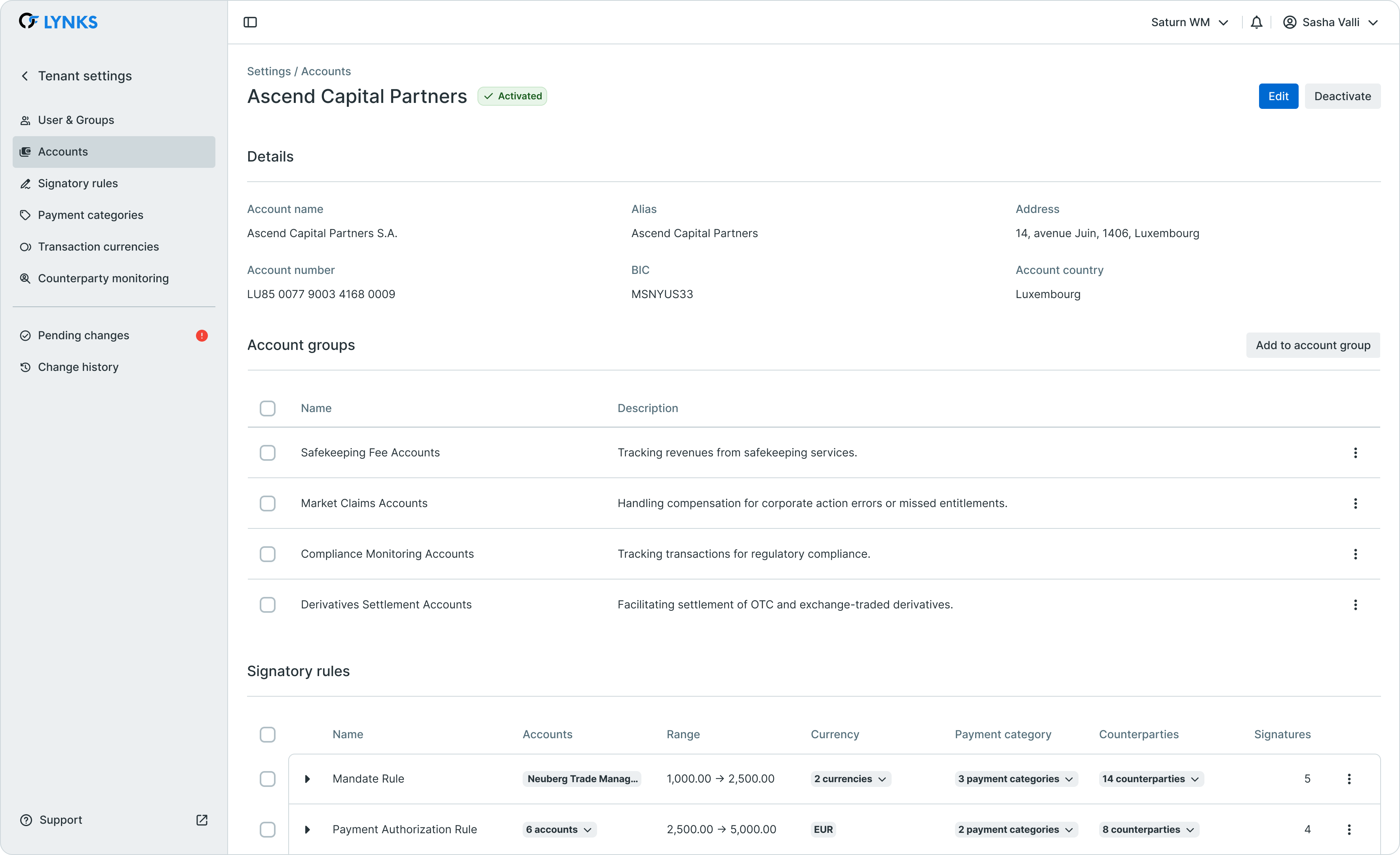
Account detail view showing properties, bank information, and configuration
| Property | Description |
|---|---|
| IBAN | International Bank Account Number (immutable after creation) |
| BIC/SWIFT | Bank Identifier Code for the account's bank |
| Currency | Account denomination currency |
| Bank name | Name of the banking institution |
| Country | Country of account jurisdiction (immutable after creation) |
| Ordering party name | Legal entity name displayed on payment instructions |
| Alias | User-defined identifier for easier account recognition |
| Account groups | Groups to which this account belongs |
Balance information
The account details include current balance data received from bank statements:
| Balance Type | Description |
|---|---|
| Closing balance | Most recent end-of-day balance from bank statements |
| Intraday balance | Latest intraday balance reflecting same-day transactions |
| Balance date | Date and time of the most recent balance update |
Balance data sourceBalance information displayed in Tenant Settings is derived from received bank statements (MT940/CAMT.053). For detailed balance monitoring and evolution tracking, see Cash Accounts - Account balances and bank statements.
Editing account details
Administrators can modify certain account properties to maintain accurate information and improve account identification within the organization.
Editable properties
The following account properties can be updated through the settings interface:
| Property | Editable | Notes |
|---|---|---|
| Ordering party name | Yes | Name displayed on payment instructions |
| Alias | Yes | Internal identifier for easier recognition |
| Account group membership | Yes | Add or remove group associations |
| IBAN | No | Immutable after account creation |
| BIC | No | Determined by bank relationship |
| Currency | No | Fixed at account level |
| Country | No | Jurisdiction cannot be changed |
Editing an account
To edit account properties:
- Navigate to Settings → Accounts
- Locate the account to edit in the list
- Click the action menu (three dots) and select Edit, or click on the account row and then the Edit button
- Modify the editable properties as needed
- Save the changes
When the four-eyes review feature is enabled, changes enter a pending state and require approval before becoming effective.
Ordering party name and alias
The ordering party name appears on payment instructions sent to banks and identifies your organization on bank statements. The alias provides an internal reference that can be customized for easier identification, particularly useful when managing multiple accounts with similar names or across different business units.
Account groups
Account groups provide a mechanism to organize accounts into logical collections based on business structure, functional purpose, currency, region, or any organizational criteria relevant to your operations.
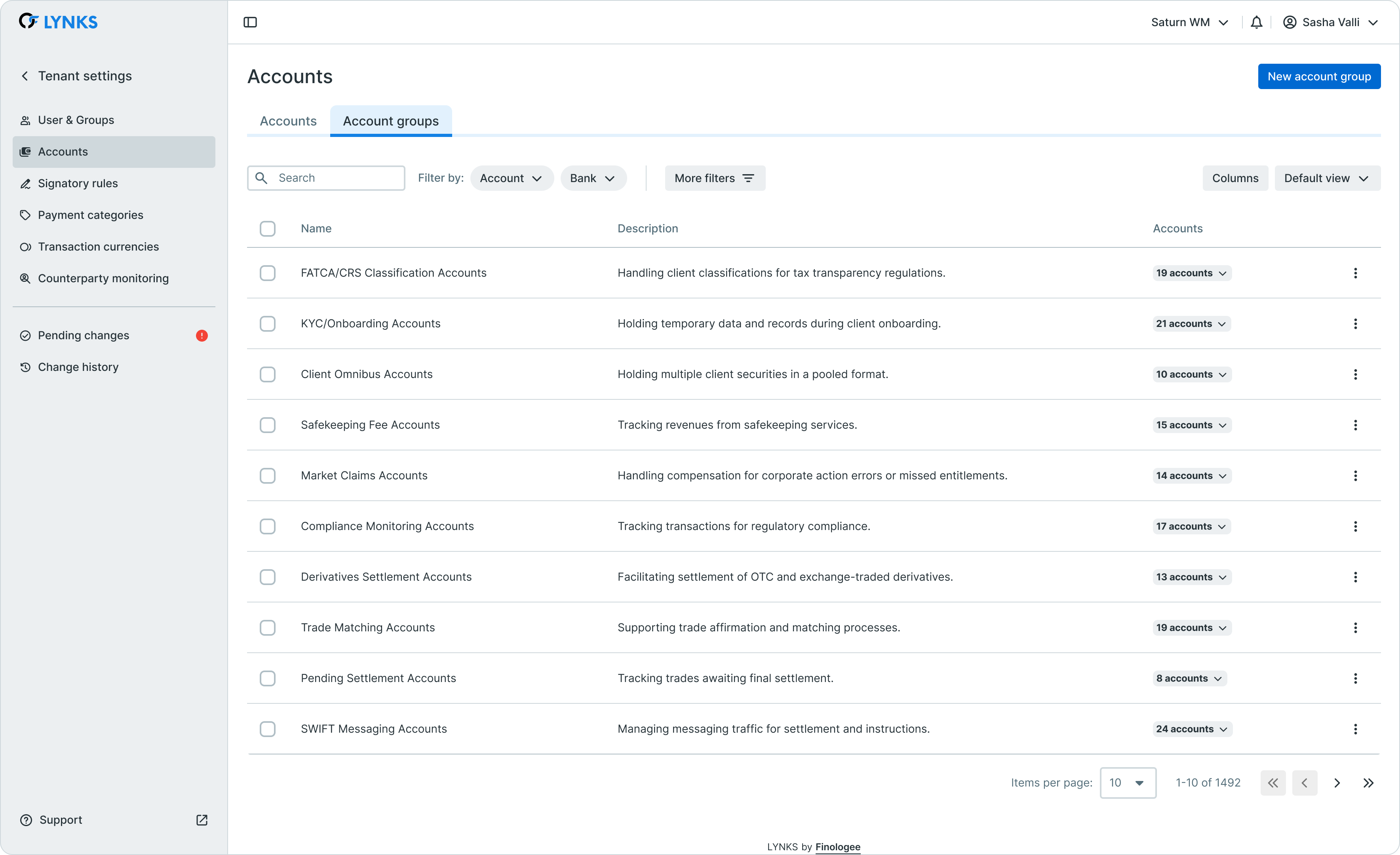
Account groups view showing group structure and member accounts
Benefits of account groups
Account groups serve multiple purposes within LYNKS:
| Use Case | Description |
|---|---|
| Organizational structure | Reflect business units, subsidiaries, or departments |
| Signatory rule scoping | Define approval requirements at group level rather than individual accounts |
| Permission scoping | Grant users access to specific account groups |
| Reporting and analysis | View aggregated data by account group in dashboards |
| Simplified management | Apply changes to groups rather than individual accounts |
Creating an account group
To create a new account group:
- Navigate to Settings → Accounts and switch to the Account Groups view
- Click New account group
- Enter a descriptive group name
- Optionally add member accounts during creation or add them later
- Save the group
Account group details
Each account group displays summary information including the group name, number of member accounts, and aggregated balance across all accounts in the group (converted to the tenant's base currency).
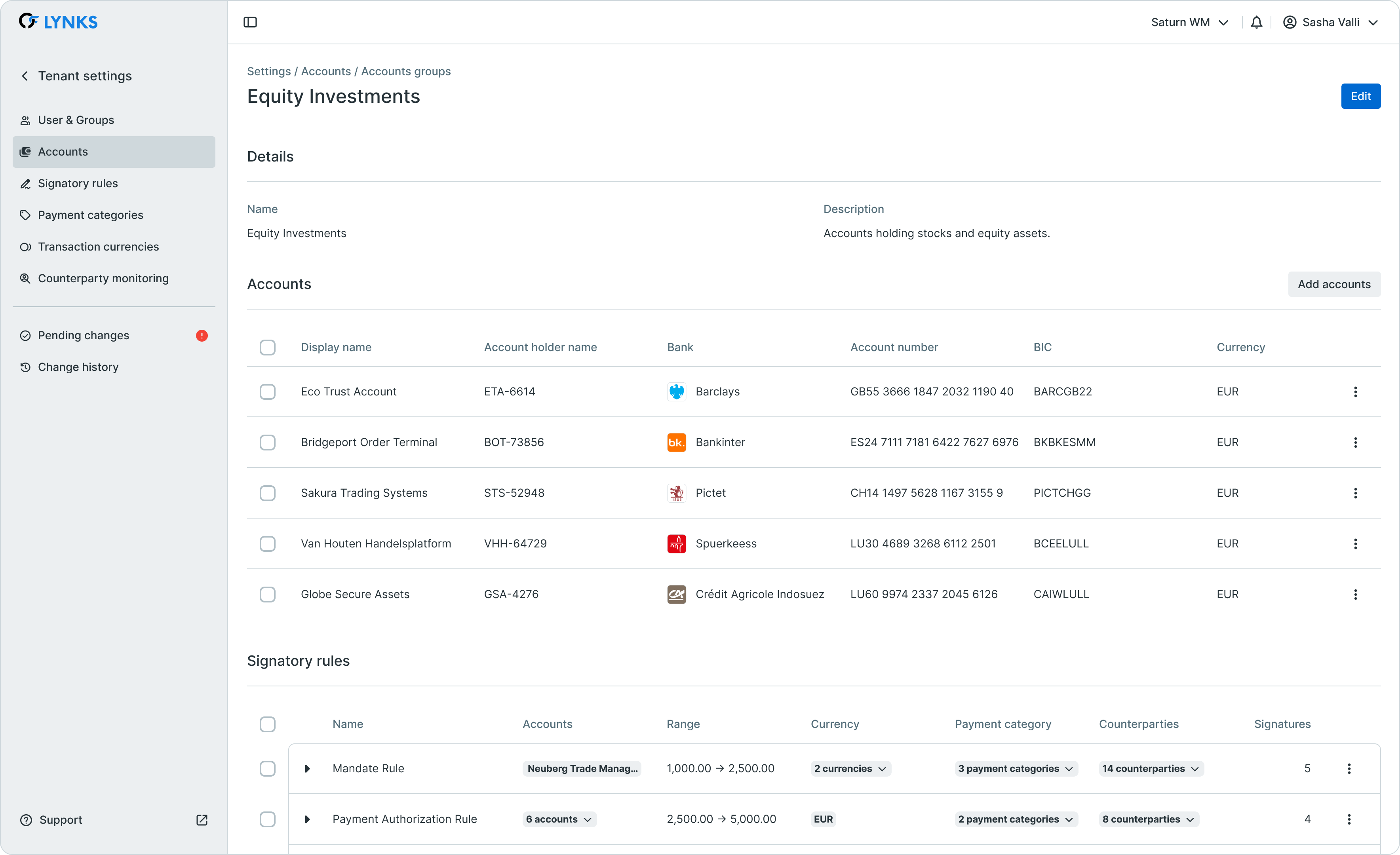
Account group detail showing member accounts and aggregated information
Managing group membership
Accounts can belong to multiple account groups simultaneously, enabling flexible organizational structures that reflect complex business relationships.
Adding accounts to groups
To add an account to one or more groups:
- Navigate to Settings → Accounts
- Locate the account in the list
- Click the action menu and select Add to groups, or open the account details and manage group membership from there
- Select the groups to which the account should belong
- Confirm the selection
Alternatively, from the account groups view, open a group and add member accounts directly.
Removing accounts from groups
To remove an account from a group:
- Navigate to the account details or account group details
- Locate the group membership section
- Click the remove action on the group membership to be removed
- Confirm the removal
Approval workflowWhen the four-eyes review feature is enabled, group membership changes require approval before taking effect. This ensures proper oversight of organizational structure changes.
Adding new accounts
New bank accounts cannot be created directly through the LYNKS user interface. Account creation requires coordination with Finologee customer support to establish the necessary bank connectivity and configuration.
Adding new accountsTo add a new bank account to your organization, contact [email protected]. Note that this process may require formal authorization from your organization depending on your contractual arrangements.
The account creation process involves:
- Formal request to customer support with account details
- Bank connectivity configuration by Finologee operations team
- Account activation and initial statement synchronization
- Account configuration in your tenant (alias, group membership)
For organizations with API integration, accounts can be created programmatically using the external API with the ORDERING_PARTY_ACCOUNT_CREATE permission.
Deactivating accounts
Accounts that are no longer needed can be deactivated through the settings interface. Deactivation is a permanent action that cannot be reversed.
Deactivation process
To deactivate an account:
- Navigate to Settings → Accounts
- Locate the account to deactivate
- Click the action menu and select Deactivate, or open the account details and click Deactivate
- Confirm the deactivation
Account deactivation is permanentOnce an account has been deactivated, it cannot be reactivated. Any pending payments associated with the deactivated account that have not yet been sent to the bank will be automatically cancelled. Review all pending transactions before deactivating an account.
Considerations before deactivation
Before deactivating an account, verify:
- No pending payments are awaiting authorization or bank submission
- No standing orders reference the account
- No cash concentration rules depend on the account
- Signatory rules do not exclusively reference the account (which would create gaps)
- Users are informed of the change if they regularly work with the account
Search and filtering
The accounts list supports search and filtering to help administrators quickly locate specific accounts or identify accounts meeting certain criteria.
Search capabilities
The search function enables quick lookup by:
- Bank name
- Account number (IBAN)
- Ordering party name
- Account alias
Filter options
Advanced filtering options include:
| Filter | Description |
|---|---|
| Bank | Filter by banking institution |
| Currency | Filter by account currency |
| Country | Filter by country of jurisdiction |
| Balance range | Filter by balance thresholds (minimum/maximum) |
| Account group | Filter by group membership |
For more information about table filtering and customization, see Platform Navigation - Detailed guide to the head-up display, table views, filters, and search functionality.
Integration with other features
Account configuration in Tenant Settings integrates with several other LYNKS features, providing centralized control that impacts multiple areas of the platform.
Signatory rules
Account groups can be used as parameters when defining signatory rules, enabling approval requirements to be specified at the group level rather than for individual accounts. This simplifies signatory rule management and ensures consistent approval workflows across related accounts.
For signatory rule configuration, see Signatory Rules - Approval workflow configuration.
Permission scoping
User permissions can be scoped to specific accounts or account groups, controlling which accounts users can view or interact with. This enables fine-grained access control based on organizational responsibilities.
For permission configuration, see Users & Groups - User management and permission assignment.
Cash concentration
Cash concentration automation rules reference accounts configured in this section. Account groups can be used to define sweeping relationships and fund flow hierarchies.
For cash concentration configuration, see Cash Concentration - Automated liquidity management.
Best practices
Follow these recommendations to maintain effective account configuration:
- Use meaningful aliases - Configure aliases that clearly identify accounts within your organization, making account selection easier for users creating payments
- Establish logical groupings - Create account groups that reflect your organizational structure, enabling efficient permission and signatory rule management
- Review before deactivation - Always verify no active transactions or automation rules depend on an account before deactivating it
- Document group purposes - Maintain internal documentation describing the purpose of each account group for administrative continuity
- Coordinate with signatory rules - When adding or removing accounts from groups, review the impact on existing signatory rules to avoid gaps or unintended overlaps
- Regular audits - Periodically review account configurations to ensure aliases, group memberships, and access permissions remain current and accurate
Related documentation
Explore these related sections to learn more about account management:
Core Concepts:
- Platform Navigation - Detailed guide to the head-up display, table views, filters, and search functionality - Tables, filters, search, and view customization
- Permissions - Comprehensive explanation of access control and role-based permissions - Understanding access control and account scoping
- Approvals - How approval workflows and signature processes function - Approval workflows for configuration changes
Platform Features:
- Cash Accounts - Account balances and bank statements - Viewing balances, transactions, and statements
- Cash Concentration - Automated liquidity management - Automated cash pooling using account structures
- Users & Groups - User management and permission assignment - User management and permission assignment
- Signatory Rules - Approval workflow configuration - Approval rules using account parameters
- Pending Changes - Configuration change management - Reviewing and approving configuration changes
- Change History - Audit trail for configuration - Audit trail for account configuration changes
Support
For assistance with account configuration, adding new accounts to your tenant, or questions about account management, contact [email protected].
Updated 3 months ago