
Payment categories
Configure and manage payment categories for classification, approval routing, and permission scoping
Introduction
Payment categories provide a classification system for organizing and managing payments within LYNKS. Every payment created in the platform must be assigned to a category, making this a required field during payment creation. Categories enable organizations to classify payments by purpose, type, or business function according to their operational needs.
Beyond simple classification, payment categories serve as a foundational element for several platform features. They can be used as parameters in signatory rules to apply different approval requirements based on payment type, as scoping criteria for user permissions to control who can create or approve specific types of payments, and as filtering dimensions in reports and analytics for financial analysis.
Prerequisites
Before configuring payment categories, ensure you have the appropriate administrative permissions and understand how categories integrate with other tenant settings.
Permissions
| Permission | Description |
|---|---|
TENANT_SETTINGS_READ | View payment category configurations |
TENANT_SETTINGS_WRITE | Create, edit, deactivate, and reactivate payment categories |
TENANT_SETTINGS_APPROVE | Approve pending payment category changes |
Feature flags
| Feature Flag | Description |
|---|---|
TENANT_SETTINGS_FOUR_EYES_REVIEW | When enabled, all changes to payment categories require approval before taking effect. See Pending Changes - Configuration change management. |
Payment categories overview
The payment categories section in Tenant Settings provides a centralized interface for managing all payment classifications configured for your organization. Administrators can view existing categories, create new ones, and manage the lifecycle of categories through this interface.
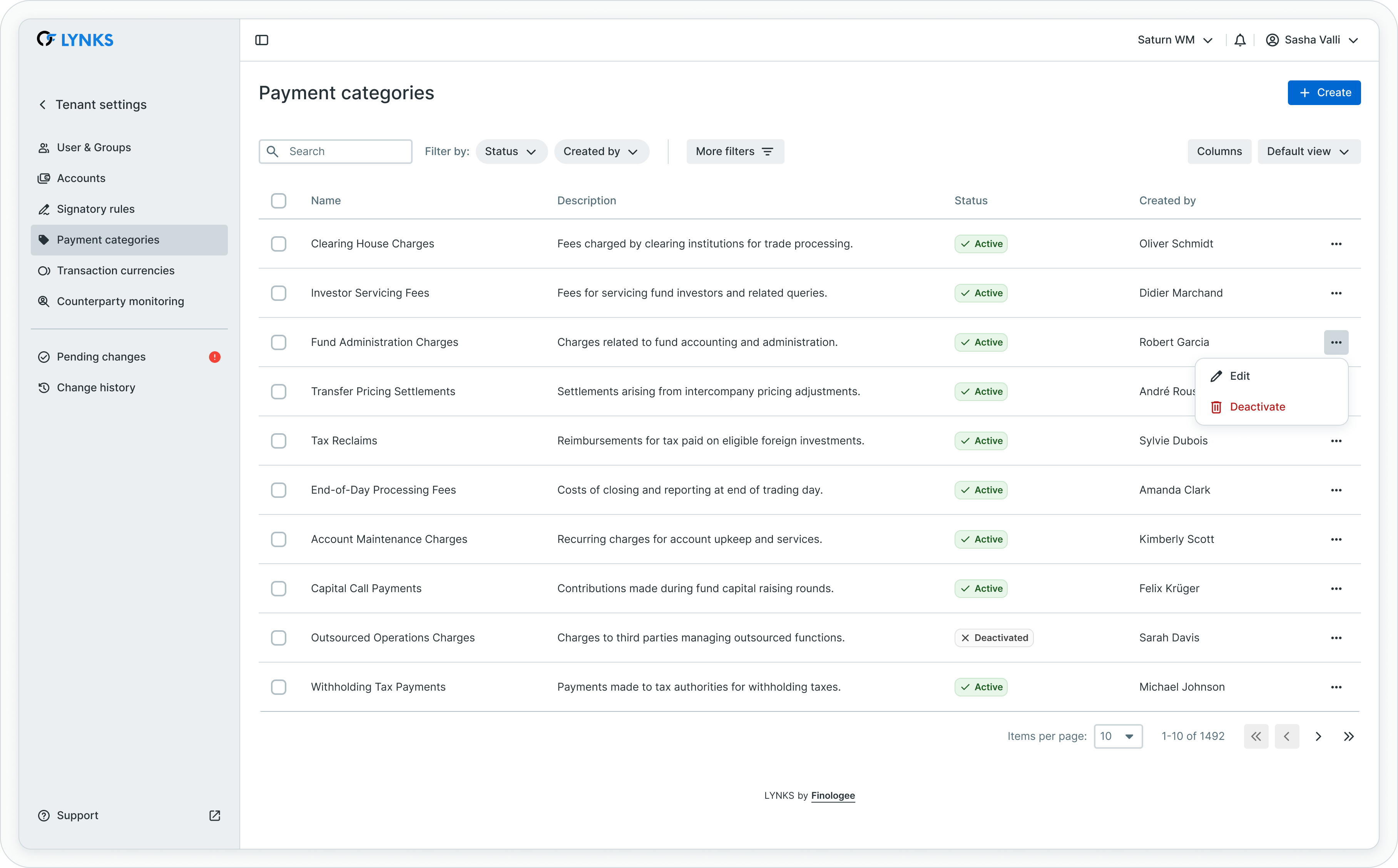
Payment categories management interface
The categories list displays each category with its name, description, and current status. Categories can be in one of two states: active (available for use in payments) or inactive (deactivated and no longer available for new payments).
Key characteristics
Payment categories in LYNKS have the following characteristics:
| Characteristic | Description |
|---|---|
| Mandatory assignment | Every payment must be assigned to exactly one category |
| Tenant-specific | Categories are configured per tenant and not shared across organizations |
| Translatable names | Category names can be displayed in the user's selected language |
| Configurable scope | Categories can be used in signatory rules and permission configurations |
Creating payment categories
Administrators can create new payment categories to match their organization's classification requirements. Each category requires a name and can optionally include a description to clarify its intended use.
Creating a new category
To create a payment category:
- Navigate to Settings → Payment Categories
- Click New payment category
- Enter the category name (required)
- Enter a description (optional but recommended)
- Save the category
The new category becomes available for use in payments and can be selected as a parameter in signatory rules and permission configurations.
Category naming considerations
When defining category names, consider:
- Use clear, descriptive names that users can identify during payment creation
- Align category names with your organization's internal terminology and accounting practices
- Consider how categories will appear in reports and analytics
- Maintain consistency with any external system integrations that reference payment categories
Editing payment categories
Existing payment categories can be modified to update their name or description. This enables organizations to refine their classification system without disrupting existing workflows.
Editing a category
To edit a payment category:
- Navigate to Settings → Payment Categories
- Locate the category to edit
- Click the action menu (three dots) and select Edit, or click on the category row to open details
- Modify the name or description as needed
- Save the changes
Impact on existing paymentsChanges to category names affect how the category is displayed throughout the platform, including in existing payments that use the category. Historical payments retain their category assignment but display the updated name.
Deactivating and reactivating categories
Payment categories that are no longer actively used can be deactivated to prevent their selection in new payments. Unlike deletion, deactivation preserves the category for historical reference and reporting purposes.
Deactivating a category
To deactivate a payment category:
- Navigate to Settings → Payment Categories
- Locate the category to deactivate
- Click the action menu and select Deactivate
- Confirm the deactivation
Deactivated categories are no longer available for selection when creating new payments but remain visible in historical payment records and reports.
Reactivating a category
To reactivate a previously deactivated category:
- Navigate to Settings → Payment Categories
- Locate the inactive category (may require filtering to show inactive items)
- Click the action menu and select Reactivate
- Confirm the reactivation
The category becomes available again for use in new payments and can be selected in signatory rules and permissions.
Deactivation considerationsBefore deactivating a category, review any signatory rules or user permissions that reference the category. Deactivated categories remain assigned to existing rules but cannot be used for new payments, which may affect how those rules apply.
Integration with signatory rules
Payment categories serve as a key parameter when defining signatory rules, enabling organizations to apply different approval requirements based on payment classification.
Category-based approval rules
When configuring signatory rules, administrators can specify which payment categories the rule covers. This enables scenarios such as:
| Scenario | Configuration |
|---|---|
| Higher approval for capital expenditure | Signatory rule with "Capital Expenditure" category requiring two signatures |
| Streamlined approval for routine payments | Auto-approve rule for "Payroll" or "Utilities" categories |
| Restricted payment types | Auto-reject rule for specific categories requiring additional review |
Rule coverage
Each payment category should be covered by at least one signatory rule to ensure payments can be processed. The gaps analysis in signatory rules identifies parameter combinations (including categories) not covered by any rule.
For detailed signatory rule configuration, see Signatory Rules - Approval workflow configuration.
Permission scoping
Payment categories can be used to scope user permissions, controlling which types of payments users can view, create, or approve. This enables fine-grained access control based on organizational responsibilities.
Category-based permission control
When configuring user permissions, administrators can restrict access to specific payment categories. Permission scoping by category enables:
| Use Case | Description |
|---|---|
| Department isolation | Treasury team can only create payments in treasury-related categories |
| Role-based creation | Accounts payable users restricted to vendor payment categories |
| Approval segregation | Approvers assigned to specific category types based on their authority |
Configuring category permissions
Category-based permission scoping is configured in the Users & Groups settings when assigning permissions to users or groups. Users can be granted access to all categories or restricted to specific ones.
For user permission configuration, see Users & Groups - User management and permission assignment.
Reporting and analytics
Payment categories provide a dimension for filtering and grouping payment data in reports and analytics, enabling organizations to analyze spending patterns and payment volumes by classification.
Category-based analysis
Categories enable reporting capabilities including:
- Payment volume analysis by category over time periods
- Spend tracking and budgeting by payment type
- Approval workflow analysis per category
- Export filtering by category for external analysis
Dashboard integration
Dashboard widgets and filters can use payment categories to display targeted information, allowing users to focus on specific payment types relevant to their responsibilities.
For reporting capabilities, see Reports - Account balance reports and statement exports.
Feature dependencies
Payment categories are a prerequisite for several advanced LYNKS features. Organizations planning to use these features should configure appropriate categories as part of their setup process.
Cash concentration
Cash concentration functionality requires a dedicated payment category for automated cash management transactions. When cash concentration is enabled, a system category is created to classify all automated fund movements.
For cash concentration configuration, see Cash Concentration - Automated liquidity management.
WebDAV integration
The WebDAV file-based payment integration requires a designated payment category for uploaded payments. The WebDAV feature flag configuration specifies which category should be applied to payments created through WebDAV file uploads.
WebDAV category configurationWebDAV integration requires specifying a
paymentCategoryIdin the feature flag configuration. Contact [email protected] to configure WebDAV with the appropriate payment category.
External system integration
When integrating with external systems (ERP, accounting software), payment categories often serve as a mapping dimension to align LYNKS classifications with external system codes or categories.
Best practices
Follow these recommendations for effective payment category management:
- Define a clear taxonomy - Establish a logical category structure that reflects your organization's payment types and approval requirements before configuration
- Align with approval needs - Design categories with signatory rules in mind, grouping payment types that require similar approval workflows
- Use descriptive names - Choose category names that are immediately recognizable to users during payment creation
- Document category purposes - Maintain internal documentation describing each category's intended use and any special handling requirements
- Review periodically - Regularly assess whether categories remain relevant and aligned with organizational needs
- Coordinate with permissions - When creating new categories, consider whether permission scoping adjustments are needed for affected users
- Plan for integrations - Consider how categories will map to external systems if ERP or WebDAV integrations are planned
Related documentation
Explore these related sections to learn more about payment categories:
Core Concepts:
- Permissions - Comprehensive explanation of access control and role-based permissions - Understanding access control and category scoping
- Approvals - How approval workflows and signature processes function - Approval workflows using category parameters
Platform Features:
- Credit Transfers - Review payment details before approval - Category selection during payment creation
- Reports - Account balance reports and statement exports - Category-based reporting and filtering
- Cash Concentration - Automated liquidity management - Cash management category requirements
- Users & Groups - User management and permission assignment - User permission scoping by category
- Signatory Rules - Approval workflow configuration - Category-based approval rules
- Pending Changes - Configuration change management - Reviewing and approving category changes
- Change History - Audit trail for configuration - Audit trail for category configuration
Support
For assistance with payment category configuration or questions about category-based approval workflows, contact [email protected].
Updated 3 months ago