
LYNKSDrive (WebDAV)
Connect your ERP system to LYNKS using a locally mounted folder to automate payment uploads and bank statement retrieval.
Introduction
LYNKSDrive provides a file-based integration between LYNKS and ERP systems through a locally mounted network folder using the WebDAV protocol. Instead of building a direct API connection, your ERP communicates with LYNKS by reading and writing files to a shared drive — a method natively supported by ERP systems such as Bob50, Sage100, and SAP.
The integration supports two automated workflows: uploading outgoing payment files from your ERP to LYNKS, and retrieving bank statements from LYNKS into your ERP for reconciliation.
Prerequisites
LYNKSDrive requires activation by the Finologee support team before it can be used. Contact [email protected] to request setup, confirm your technical user credentials, and configure the required payment category.
Permissions
| Permission | Description |
|---|---|
LYNKS WebDAV | Technical role required for WebDAV integration. Assigned to the dedicated technical user that mounts and accesses the drive. |
Feature flags
Feature flag requiredLYNKSDrive requires the
WEBDAVfeature flag to be enabled on your tenant, along with a configuredpaymentCategoryId. Contact [email protected] to enable this feature. For more information on feature flags, see Feature Flags.
LYNKSDrive overview
Once mounted, LYNKSDrive appears as a standard network drive on your local computer or server. It exposes two folders:
| Folder | Direction | Purpose |
|---|---|---|
/payments | ERP → LYNKS | Drop pain.001 payment files here to create payments in LYNKS |
/statements | LYNKS → ERP | Retrieve camt.053 bank statements delivered by LYNKS |
Your ERP system reads and writes to these folders as part of its normal file-based workflow, with no custom API development required.
Setting up LYNKSDrive
On a local computer
There are two ways to mount LYNKSDrive on a Windows computer.
Option 1: PowerShell
Run the following command, replacing <tenant> with your tenant name:
net use x: https://<tenant>.lynks.lu/drive /persistent:noWhen prompted, enter the credentials of your technical user. Contact [email protected] to confirm your credentials.
Option 2: Windows Explorer
- In Windows Explorer, right-click and select Map network drive.
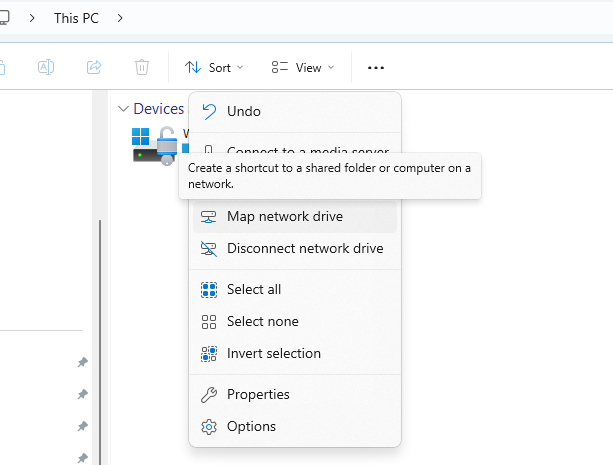
Map network drive option in Windows Explorer context menu
- Enter
https://<tenant>.lynks.lu/driveas the folder path and follow the prompts. - When prompted for credentials, enter the username and password for your technical user:
Enter the user name for '<tenant>.lynks.lu': Enter the password for '<tenant>.lynks.lu': - Once connected, navigate to the drive to see the
/statementsand/paymentsfolders.
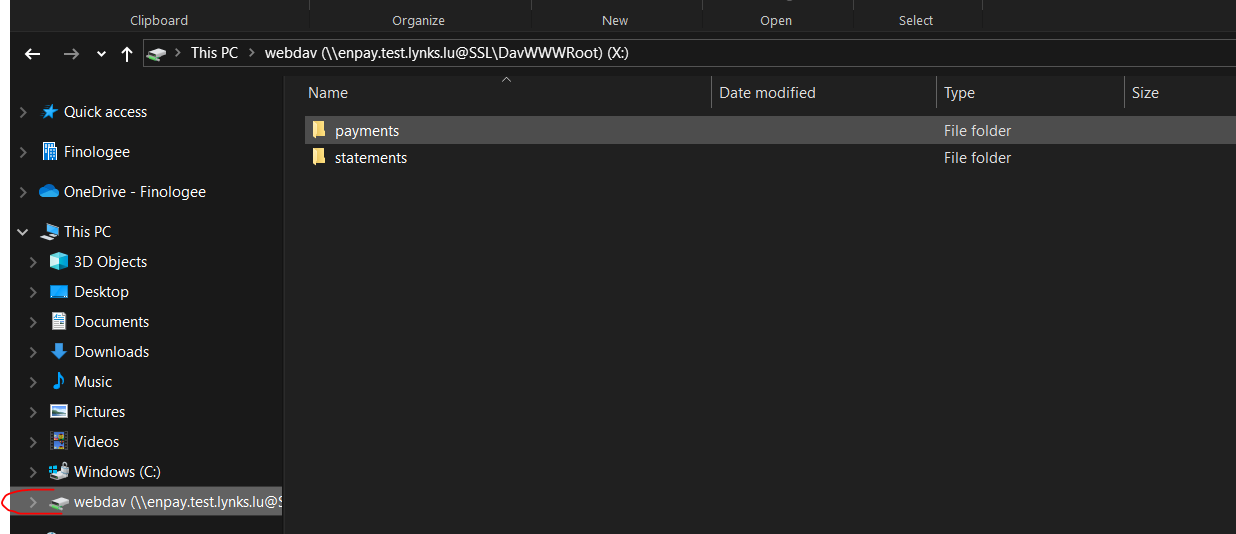
LYNKSDrive mounted with statements and payments folders visible
Drive visibilityIt may take a few minutes for the drive to appear after mounting. If the drive does not appear, wait briefly and refresh Windows Explorer.
Switching credentialsTo connect with a different technical user, unmount the drive, restart your computer, and repeat the setup steps using the new credentials.
On a Windows Server
If you are running a Windows Server and the standard mounting steps above do not work, verify that the WebDAV Redirector feature is installed on your server.
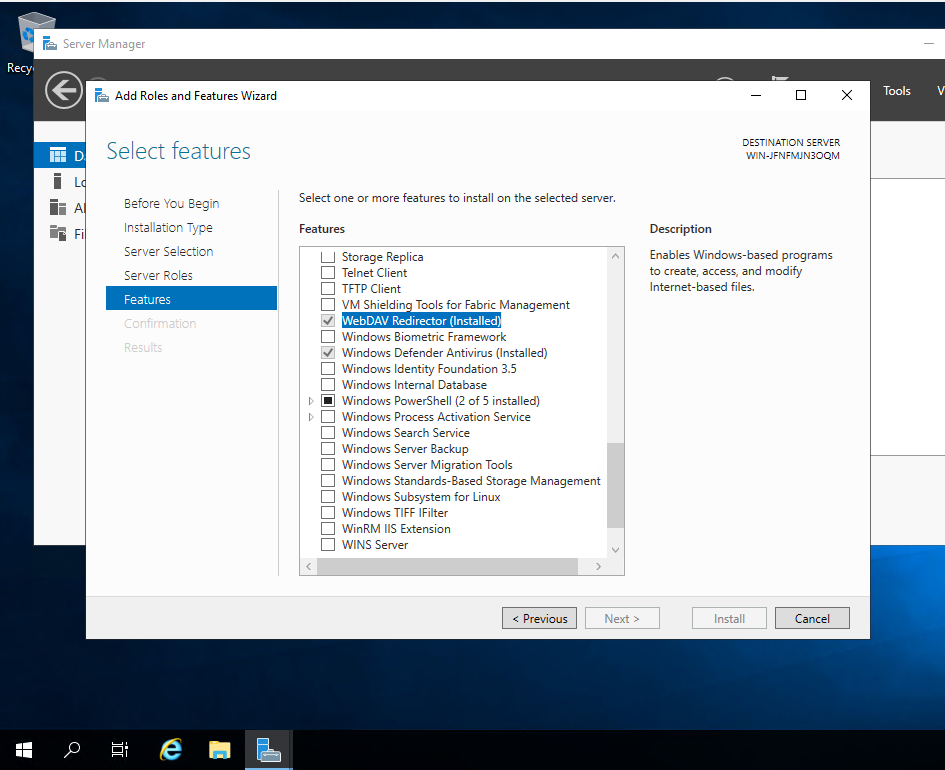
WebDAV Redirector feature in Windows Server roles and features
Contact your system administrator to install this feature if it is not present, then repeat the mounting steps above.
Payment creation
To create payments in LYNKS from your ERP, drop a pain.001 file into the /payments folder on the mounted drive.
- Both single credit transfers and batch payments (including batch bookings) are supported.
- Once the file is dropped, LYNKS processes it and creates the corresponding payment, which then appears in the LYNKS UI.
- Successfully processed files are moved to a
/payments/successsubfolder automatically.
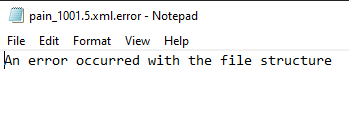
Payment folder structure showing success, error, and archive subfolders
If a file cannot be processed, both the original file and an error file with the reason for failure are placed in the /payments/error subfolder.
Automatic archivingFiles older than a configured number of days are automatically moved to an
/archivefolder. The retention period is set by the Customer Success team and cannot be changed by users. Manual archiving is not supported.
For more information about credit transfers and batch payment formats, see Outgoing Payments.
Statement handling
LYNKS delivers bank statements to the /statements folder on the mounted drive as soon as they are received from the bank.
| Property | Detail |
|---|---|
| Format | camt.053 (enriched for compatibility with Bob50) |
| Trigger | Statements are added as soon as LYNKS receives them from the bank |
| Intra-day statements | Available via LYNKSDrive, delivered in camt.053 format |
Your ERP can read these files directly from the /statements folder as part of its standard import workflow.
For more information about bank statement formats and downloads, see Reports.
Technical specifications
Supported file formats
| Format | Direction | Description |
|---|---|---|
| pain.001 | Upload (ERP → LYNKS) | ISO 20022 payment initiation file for credit transfers and batch payments |
| camt.053 | Download (LYNKS → ERP) | ISO 20022 bank-to-customer statement, enriched for Bob50 compatibility |
Supported ERP systems
LYNKSDrive is designed for ERP systems that natively support file-based bank integration, including:
- Bob50
- Sage100
- SAP
Other ERP systems that support WebDAV or file-based payment and statement workflows may also be compatible. Contact [email protected] to discuss compatibility with your system.
Best practices
Follow these recommendations for a reliable LYNKSDrive integration:
- Use a dedicated technical user — Mount the drive with a dedicated
LYNKS WebDAVtechnical user rather than a personal account, to ensure uninterrupted access independent of individual user changes. - Validate pain.001 files before upload — Ensure your ERP generates valid, SEPA-compliant pain.001 files. Check the
/errorsubfolder regularly to catch and resolve processing failures. - Monitor the
/errorsubfolder — Set up a monitoring process on your ERP or server side to alert your team when files appear in/error. - Do not manually move files — Avoid manually reorganizing files within the drive folders, as LYNKS manages file lifecycle (success, error, archive) automatically.
- Plan for archiving — Design your ERP import workflows to process statement files promptly, before automatic archiving moves them.
- Test in a sandbox environment — Before going live, validate the full payment and statement cycle in a LYNKS sandbox tenant.
Related documentation
Explore related sections to deepen your understanding:
Core Concepts
Platform Features
- Outgoing payments - Credit transfers and batch payments
- Reports - Bank statements and file formats
- Payment categories - Configure categories for WebDAV payments
Support
For assistance with LYNKSDrive setup, credential configuration, or troubleshooting, contact the Finologee support team at [email protected].
Updated 11 days ago