Getting started
Your first steps with LYNKS: initial login, understanding roles and permissions, exploring the interface, and common workflows by user role.
Introduction
Welcome to LYNKS, the enterprise payments platform designed for corporate treasurers, financial controllers, and payment approvers. This guide provides your first steps with the platform, from initial login through understanding your role and exploring the interface based on your responsibilities.
LYNKS streamlines treasury operations, payment processing, and cash management with secure workflows and compliant processes. Whether you're managing payments, approving transactions, or administering the system, this guide helps you navigate your first experience with confidence.
Initial login and authentication setup
Before accessing LYNKS for the first time, you need proper credentials and an authentication method configured by your system administrator.
Accessing LYNKS
LYNKS is available through two environment URLs:
- Production environment:
https://[your-tenant].lynks.lu - Sandbox environment:
https://uat-[your-tenant].lynks.lu(for testing and training)
Your system administrator provides your tenant name and environment URL during onboarding.
Authentication methods
LYNKS supports multiple authentication methods configured per tenant:
- Single Sign-On (SSO) - Corporate identity provider integration
- LuxTrust - Qualified electronic signatures with eIDAS compliance
- LYNKS Mobile App - Mobile authentication with biometric support
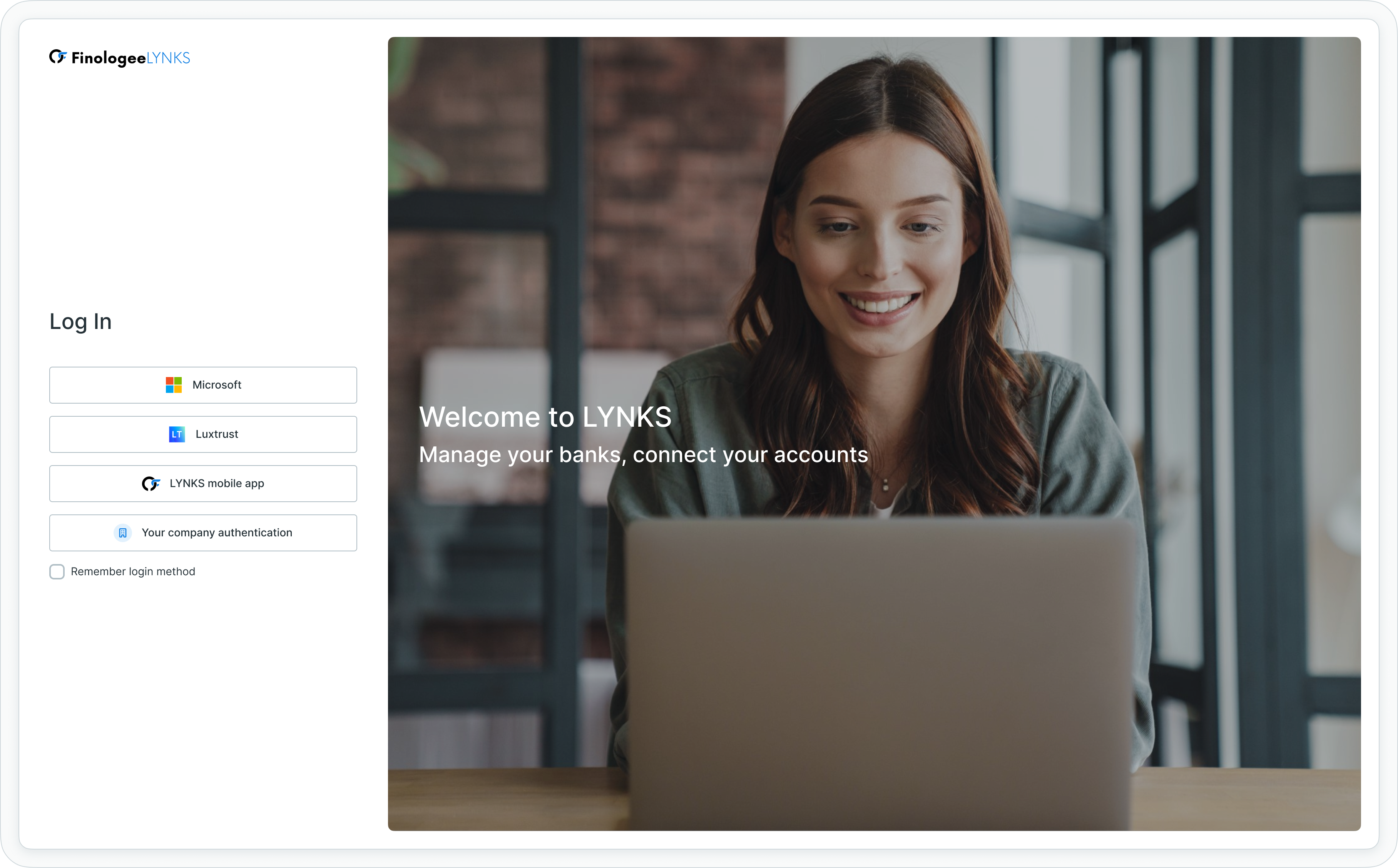
LYNKS login screen displaying available authentication methods for your tenant
Your organization determines which methods are available based on security requirements. For detailed setup instructions for each authentication method, see Authentication Methods - Detailed setup and usage of SSO, LuxTrust, and mobile app authentication.
First login steps
When accessing LYNKS for the first time:
- Navigate to your tenant URL provided by your administrator
- Select your configured authentication method from the login screen
- Complete authentication using your credentials or device
- Review and accept any terms of service or policy agreements
- Verify your user profile information is correct
- Configure your notification preferences for alerts and updates
Multi-Factor AuthenticationAll authentication methods in LYNKS implement multi-factor authentication for enhanced security. You may need to verify your identity through multiple steps during first login.
Understanding your role and permissions
LYNKS uses role-based access control to manage what you can see and do. Your permissions determine which modules appear in your navigation, what actions you can perform, and which data you can access.
Common user roles
Organizations typically implement these role types:
| Role | Description |
|---|---|
| Administrator | Can manage accounts settings and users |
| Accountant | Can view account balances and generate reports |
| Office Manager | Can view account balances, create payments and generate reports |
| Head of Accounting | Can manage accounts, payments, authorise counterparty accounts and perform KYC screenings |
| LYNKS WebDAV | Technical role for WebDAV integration |
| Administrator (approve only) | Approver of tenant settings changes |
| External API | External API rights limited to Counterparties |
How permissions work
Navigation visibility - Features you cannot access do not appear in the navigation panel. If a module is visible, you have at least read permission for that feature.
Action availability - Specific actions (create, edit, approve, delete) are only available if you have corresponding permissions.
Data scope - Your permissions may be scoped to specific accounts, payment categories, or counterparty groups.
If you need access to additional features, contact your system administrator. For complete details on the permission system, see Permissions - Comprehensive explanation of access control and role-based permissions.
Exploring the interface and navigation
The LYNKS interface uses consistent navigation patterns across all modules, making it easy to find features and work efficiently.
Sidebar navigation
The sidebar navigation on the left side of your screen provides access to all LYNKS modules you have permission to use.
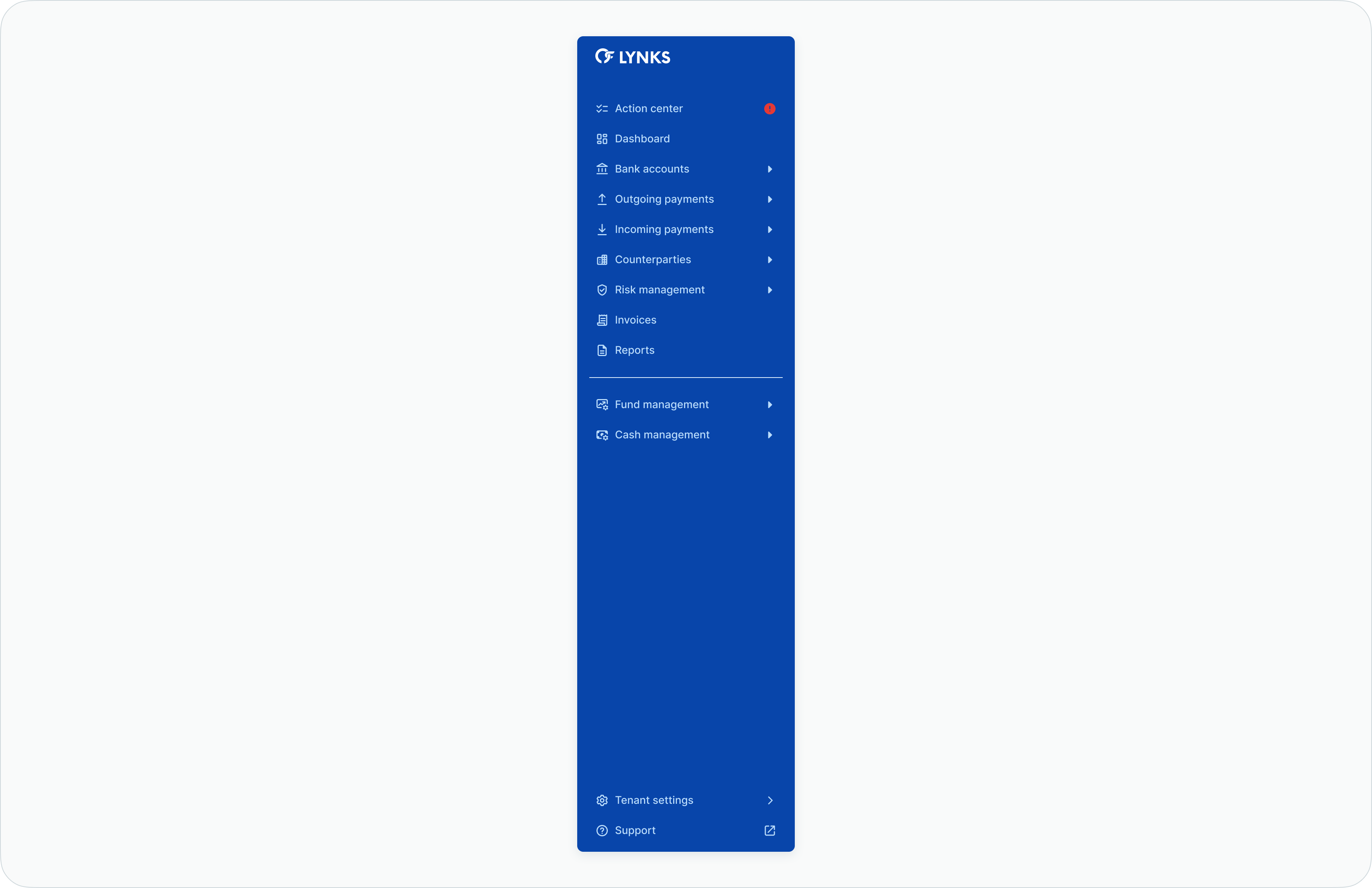
Sidebar navigation panel showing available modules
Take time to explore the available modules in your sidebar navigation. Common starting points include:
- Dashboard - Financial overview and key metrics
- Action Center - Tasks and approvals requiring your attention
- Bank Accounts - Account monitoring and transaction history
- Outgoing Payments - Create and manage credit transfers
- Tenant Settings - Administrative configuration (if you're an administrator)
Modules not visible in your sidebar navigation are either disabled for your tenant or require permissions you do not have.
Top bar features

Top bar showing notification bell, user profile, and tenant switcher
Notification bell - Click the bell icon to view pending actions and system updates.
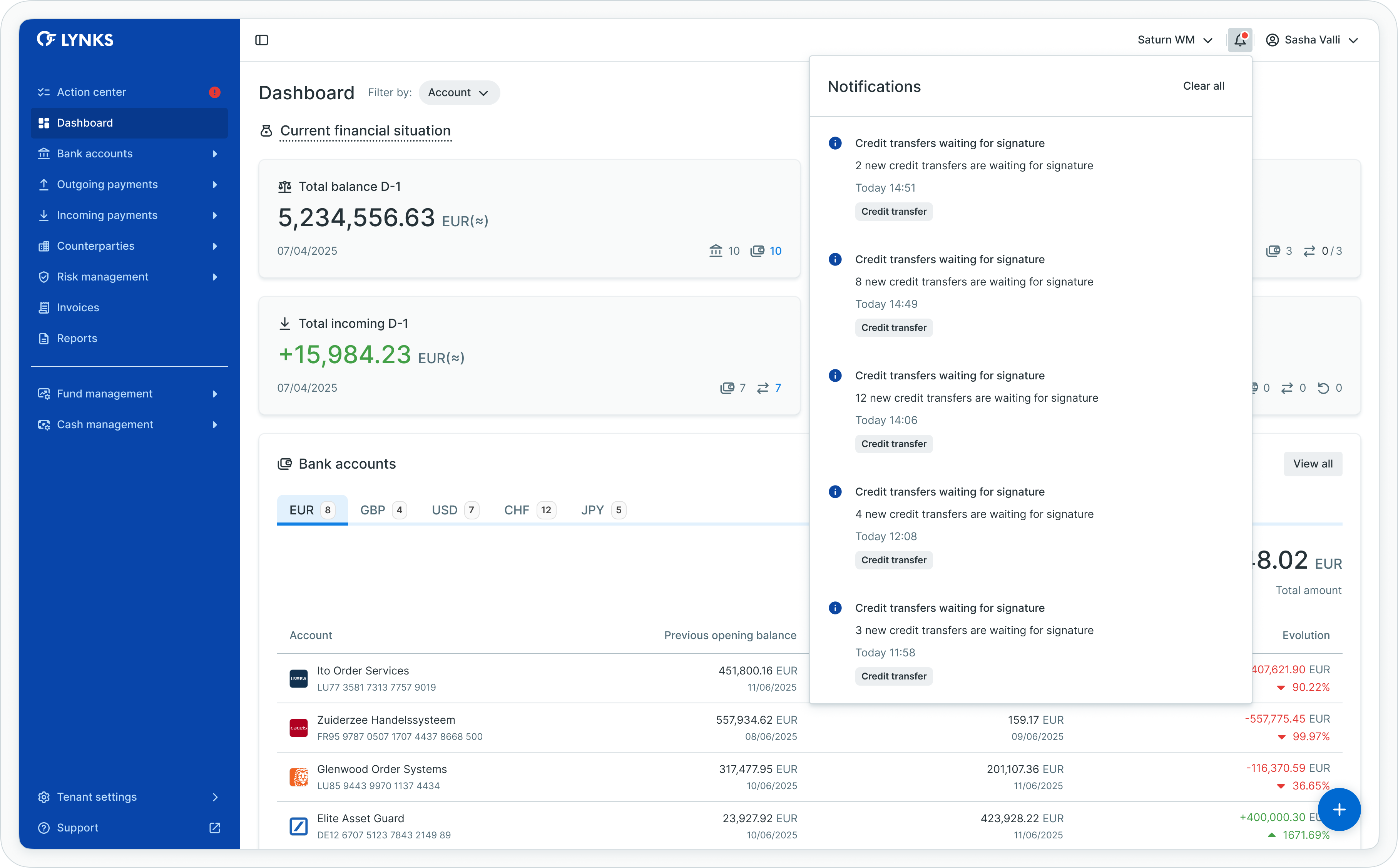
Notification panel displaying pending actions and updates
User profile menu - Access account settings, notification preferences, and language selection.
Tenant switcher - If you have access to multiple organizations, switch between them here.
Working with tables
LYNKS uses consistent table functionality across all modules for managing payments, accounts, counterparties, and transactions.

Table toolbar with search, filters, column customization, and view options
Key table features:
- Search - Quickly locate specific entries
- Filters - Narrow down data using multiple criteria
- Column customization - Show, hide, and reorder columns
- Saved views - Save your preferred table configurations
All tables work the same way, so learning them once applies everywhere. For comprehensive navigation details including advanced filtering, view management, and sorting, see Platform Navigation - Detailed guide to the head-up display, table views, filters, and search functionality.
Common workflows by user role
Understanding typical workflows for your role helps you navigate LYNKS efficiently and complete tasks quickly. The following sections outline common activities for each user type.
Treasury manager workflows
Treasury managers focus on payment creation, account monitoring, and liquidity management.
Daily activities
Morning review - Check the dashboard for overnight transactions, account balances, and any failed payments requiring attention. Review the action center for pending approvals or tasks assigned to you.
Payment creation - Create credit transfers manually using the payment form or upload bulk payments from your accounting system. Attach supporting documents and select appropriate payment categories for routing.
Account monitoring - Review account balances and transaction history to track cash positions. Monitor scheduled payments and standing orders for upcoming executions.
Standing order management - Configure recurring payments for routine obligations like rent, subscriptions, or regular supplier payments. Set up recurrence patterns and validity periods.
Common tasks
- Create single or bulk credit transfers with proper documentation
- Monitor account balances across all accounts and currencies
- Review transaction history for reconciliation purposes
- Configure standing orders for recurring payments
- Generate reports for cash flow analysis
- Manage counterparties and beneficiary information
For detailed payment creation steps, see Credit Transfers - Review payment details before approval.
Payment approver / signatory workflows
Approvers review and authorize payments according to signatory rules and approval limits.
Daily activities
Action center review - Start your day by checking the action center for payments awaiting your signature. Payments are organized by urgency and priority to help you focus on time-sensitive approvals.
Payment review - Open each payment to review details including beneficiary information, amount, category, execution date, and attached documents. Verify accuracy before approving.
Digital signing - Approve payments using your configured authentication method (SSO, LuxTrust, or LYNKS Mobile App). Your approval moves the payment to the next stage in the workflow.
Rejection handling - If a payment contains errors or lacks proper documentation, reject it with a comment explaining the issue. The creator receives notification and can correct the payment.
Common tasks
- Review pending payments in the action center
- Verify payment details and supporting documents
- Approve payments within your authorization limits
- Reject incorrect or incomplete payments with feedback
- Monitor payment execution status after approval
- Track approval history for audit purposes
For approval workflow details, see Approvals - How approval workflows and signature processes function and Signatory Rules - Approval workflow configuration.
Compliance officer workflows
Compliance officers focus on risk management, counterparty monitoring, and regulatory compliance.
Daily activities
KYC screening review - Check the action center for counterparty screenings requiring review. Investigate any matches against sanctions lists, PEP databases, or adverse media.
Counterparty monitoring - Review automated monitoring results for existing counterparties. Escalate high-risk findings and document investigation outcomes.
Blacklist management - Maintain the blacklist of prohibited accounts. Add accounts identified through compliance investigations and remove accounts when appropriate.
Report generation - Generate compliance reports documenting screening results, risk assessments, and monitoring activities for regulatory submissions.
Common tasks
- Review KYC screening results and investigate matches
- Monitor counterparties for ongoing compliance
- Manage blacklisted accounts for prohibited transactions
- Document compliance investigations and outcomes
- Generate regulatory and audit reports
- Configure counterparty monitoring frequencies
For risk management details, see Risk Management - KYC screening and risk assessment.
System administrator workflows
Administrators configure tenant settings, manage users, and maintain the system configuration.
Setup activities
User management - Create user accounts for new employees, assign permissions based on roles, and configure group memberships for efficient access control.
Account configuration - Set up ordering party accounts, configure account groups, and define account properties including aliases and balance display settings.
Signatory rules - Define approval workflows by configuring signatory rules with parameters including accounts, amount ranges, currencies, and payment categories. Test rules to ensure proper coverage.
Payment categories - Create custom payment categories for organizing payments and applying specific routing or approval logic. Configure category-based permissions.
Feature flags - Request feature enablement from Finologee support when your organization needs additional modules like cash concentration, KYC monitoring, or WebDAV integration. See LYNKSDrive (WebDAV) - File-based ERP integration via network drive for setup instructions.
Common tasks
- Create and manage user accounts and groups
- Assign permissions and configure access control
- Set up and modify signatory rules for approval workflows
- Create payment categories for classification
- Configure account groups and properties
- Manage pending changes and review change history
- Monitor system usage and user activity
For administrative configuration details, see Tenant Settings - Administrative configuration for users, accounts, and rules.
Finance controller workflows
Finance controllers focus on monitoring, reporting, and financial analysis.
Daily activities
Dashboard review - Monitor key financial metrics including total balances, active payments, and transaction status across all accounts. Track cashflow evolution and overdue payments.
Transaction analysis - Review transaction history to analyze spending patterns, identify trends, and support reconciliation processes. Filter transactions by various criteria for targeted analysis.
Report generation - Generate regular reports for management including payment summaries, account statements, and transaction exports. Schedule automated reports for recurring needs.
Currency monitoring - If your organization operates in multiple currencies, monitor exchange rate impacts on balances and transactions. Review consolidated views in base currency.
Common tasks
- Monitor dashboard widgets for financial metrics
- Generate payment and transaction reports
- Analyze spending by category or account
- Review multi-currency balances and conversions
- Export data for external analysis
- Track overdue payments and aging
For reporting capabilities, see Reports - Account balance reports and statement exports.
Fund manager workflows
Fund managers handle specialized fund operations including capital calls and investor communications.
Capital call activities
Capital call creation - Create capital calls with investor-specific allocations, payment instructions, and deadlines. Calculate amounts based on commitment percentages.
Investor notifications - Send automated notifications informing investors of capital call requirements, amounts due, and payment deadlines. Ensure all required documentation is included.
Payment tracking - Monitor capital call responses and payments from investors. Track which investors have paid and follow up on outstanding commitments.
Reconciliation - Match received funds to capital call requests. Document payment confirmations and update investor records with contribution status.
Common tasks
- Create and manage capital calls
- Calculate investor allocations
- Send notifications to investors
- Track payment receipts
- Reconcile investor contributions
- Generate fund-specific reports
For fund management details, see Fund Management.
Setting up your preferences and notifications
Configure your preferences to customize how LYNKS works for you and ensure you receive timely notifications.
Notification preferences
LYNKS supports multiple notification channels:
In-app notifications - Displayed in the notification bell icon (enabled by default for all users)
Email notifications - Receive email alerts for critical events like payment approvals and failed transactions
SMS notifications - Text message alerts for high-priority, time-sensitive events
Quick setup
To configure notifications:
- Click your name in the top right corner
- Select "Notification Preferences"
- Enable or disable email and SMS notifications for each event type
- Save your preferences
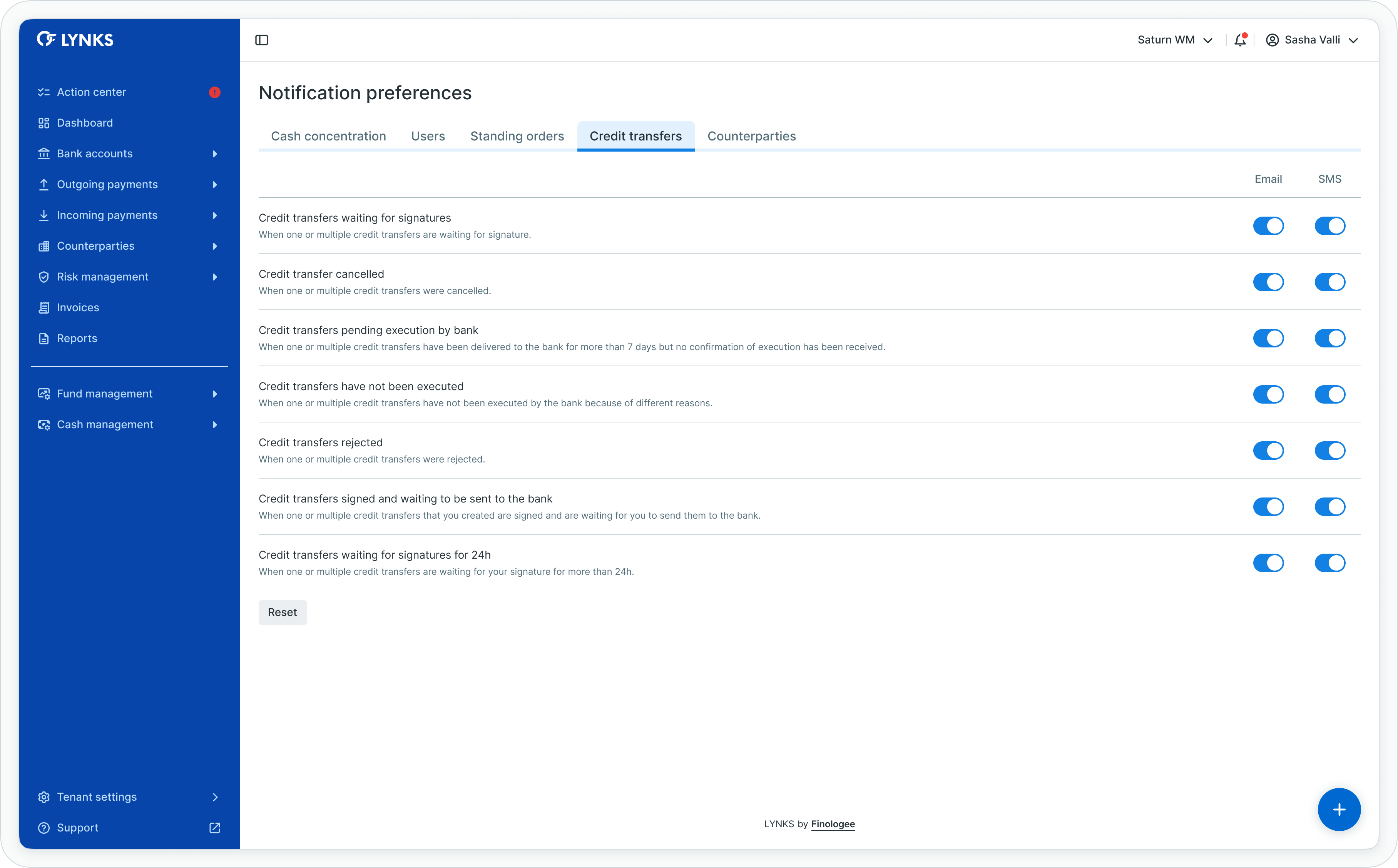
Notification preferences screen for customizing alert channels
Best practice: At minimum, enable notifications for actions requiring your approval or signature to avoid missing time-sensitive tasks.
For detailed notification configuration, see Notifications - Configure notification preferences and channels.
Interface preferences
Language selection - Choose your preferred interface language from the user profile menu
Table views - Your column preferences, filters, and sorting choices save automatically
Dashboard filters - Widget filter preferences persist across sessions
What to explore next based on your responsibilities
Now that you understand the basics of LYNKS, focus on the features most relevant to your role and responsibilities.
For treasury managers
Explore payment creation and account management features:
Core Concepts:
- Platform Navigation - Detailed guide to the head-up display, table views, filters, and search functionality - Master table functionality and navigation patterns
Platform Features:
- Dashboard - Financial overview widgets, charts, and real-time monitoring - Understand dashboard widgets and financial metrics
- Bank Accounts - Account management, balance monitoring, and transaction history - Learn account monitoring and transaction history
- Credit Transfers - Review payment details before approval - Create single and bulk payments
- Standing Orders - Configure recurring payments - Configure recurring payments
- Counterparties - Manage beneficiaries and payment recipients - Manage beneficiaries and payment recipients
- Cash Concentration - Automated liquidity management - Automated liquidity management
For payment approvers
Focus on approval workflows and signature processes:
Core Concepts:
- Approvals - How approval workflows and signature processes function - Understand approval workflows and signature requirements
Platform Features:
- Action Center - Centralized task and approval management - Manage tasks and pending approvals
- Credit Transfers - Review payment details before approval - Review payment details before approval
Security & Authentication:
- Authentication Methods - Detailed setup and usage of SSO, LuxTrust, and mobile app authentication - Configure your signature method
- Digital Signatures - Transaction signing methods and legal validity - Understand transaction signing
For compliance officers
Explore risk management and monitoring features:
Platform Features:
- Blacklisted Accounts - Manage prohibited accounts - Manage prohibited accounts
- KYC Screenings - Review compliance screenings - Review compliance screenings
- Counterparty Monitoring - Configure ongoing monitoring - Configure ongoing monitoring
Security & Authentication:
- Compliance & Audit - Security features, audit trails, and regulatory compliance - Audit trails and regulatory compliance
For system administrators
Review administrative configuration sections:
Core Concepts:
- Tenants & Multi-tenancy - Understanding tenant isolation, data separation, and multi-tenant access - Understand tenant isolation
- Feature Flags - Available features and enablement - Available features and enablement
- Permissions - Comprehensive explanation of access control and role-based permissions - Role-based access control framework
Platform Features:
- User & Groups - User management and access configuration - User management and permissions
- Accounts - Account configuration and groups - Account configuration and groups
- Signatory Rules - Approval workflow configuration - Approval workflow configuration
- Payment Categories - Payment classification setup - Payment classification setup
- Pending Changes - Configuration change management - Configuration change management
- Change History - Audit trail for configuration - Audit trail for configuration
Integrating with LYNKS:
- API - RESTful API for payment automation and integration - Automate payments and accounts programmatically
- Webhooks - Subscribe to platform events and receive real-time callbacks - Integrate external systems with LYNKS events
- LYNKSDrive (WebDAV) - File-based ERP integration via network drive - Set up file-based ERP integration
For all users
These sections provide foundational knowledge beneficial to everyone:
Core Concepts:
- Platform Navigation - Detailed guide to the head-up display, table views, filters, and search functionality - Navigation patterns and table functionality
- Approvals - How approval workflows and signature processes function - How approvals work in LYNKS
- Notifications - Configure notification preferences and channels - Configure notification preferences
Support & Help:
- Support - Customer support portal and assistance - Contact support for assistance
Related documentation
Explore these related sections to continue learning about LYNKS:
Core Concepts:
- Platform Navigation - Detailed guide to the head-up display, table views, filters, and search functionality - Master the LYNKS interface and table functionality
- Tenants & Multi-tenancy - Understanding tenant isolation, data separation, and multi-tenant access - Understand tenant isolation and switching
- Permissions - Comprehensive explanation of access control and role-based permissions - Learn how permissions control feature access
- Approvals - How approval workflows and signature processes function - Understand approval workflows and signatory rules
Platform Features:
- Action Center - Centralized task and approval management - Manage tasks and pending approvals
- Dashboard - Financial overview widgets, charts, and real-time monitoring - Overview of accounts and financial metrics
Security & Authentication:
- Authentication Methods - Detailed setup and usage of SSO, LuxTrust, and mobile app authentication - Configure SSO, LuxTrust, or LYNKS Mobile App
Core Concepts:
- Notifications - Configure notification preferences and channels - Configure notification channels
Integrating with LYNKS:
- API - RESTful API for payment automation and integration - Automate payments, accounts, and invoicing via REST API
- Webhooks - Subscribe to platform events and receive real-time callbacks - React to payment and statement events in real time
- LYNKSDrive (WebDAV) - File-based ERP integration via network drive - Exchange payment files and bank statements with ERP systems
Support:
- Support - Customer support portal and assistance - Contact support for help
Support
If you have questions about getting started with LYNKS or need assistance with your account setup, contact our support team at [email protected]. Our dedicated customer care team is available to help with technical setup, credentials, and platform orientation.
Updated 12 days ago