
Platform navigation
Understanding how to navigate and interact with the LYNKS platform interface, including the sidebar navigation and table functionality.
Introduction
LYNKS provides a consistent, intuitive navigation experience across all modules. The platform uses two primary navigation systems: the sidebar navigation for accessing features and managing your session, and standardized table views for managing and analyzing data across all sections.
Understanding these navigation patterns enables you to work efficiently across payments, accounts, counterparties, and all other LYNKS features. The sidebar navigation provides quick access to key actions and settings, while table functionality offers powerful data filtering, searching, and customization capabilities.
Context-Aware InterfaceContent and actions displayed in the navigation are determined by your assigned permissions and the features enabled for your tenant.
Sidebar navigation
The sidebar navigation provides persistent access to all LYNKS features from any screen in the application.

Platform top bar showing key navigation and account controls
The top bar contains essential controls including notifications, tenant switching (for multi-tenant users), and user profile access. These elements remain consistently accessible regardless of which module or screen you're viewing.
Navigation panel
The left-hand navigation panel displays all available LYNKS modules and features based on your permissions and tenant configuration.
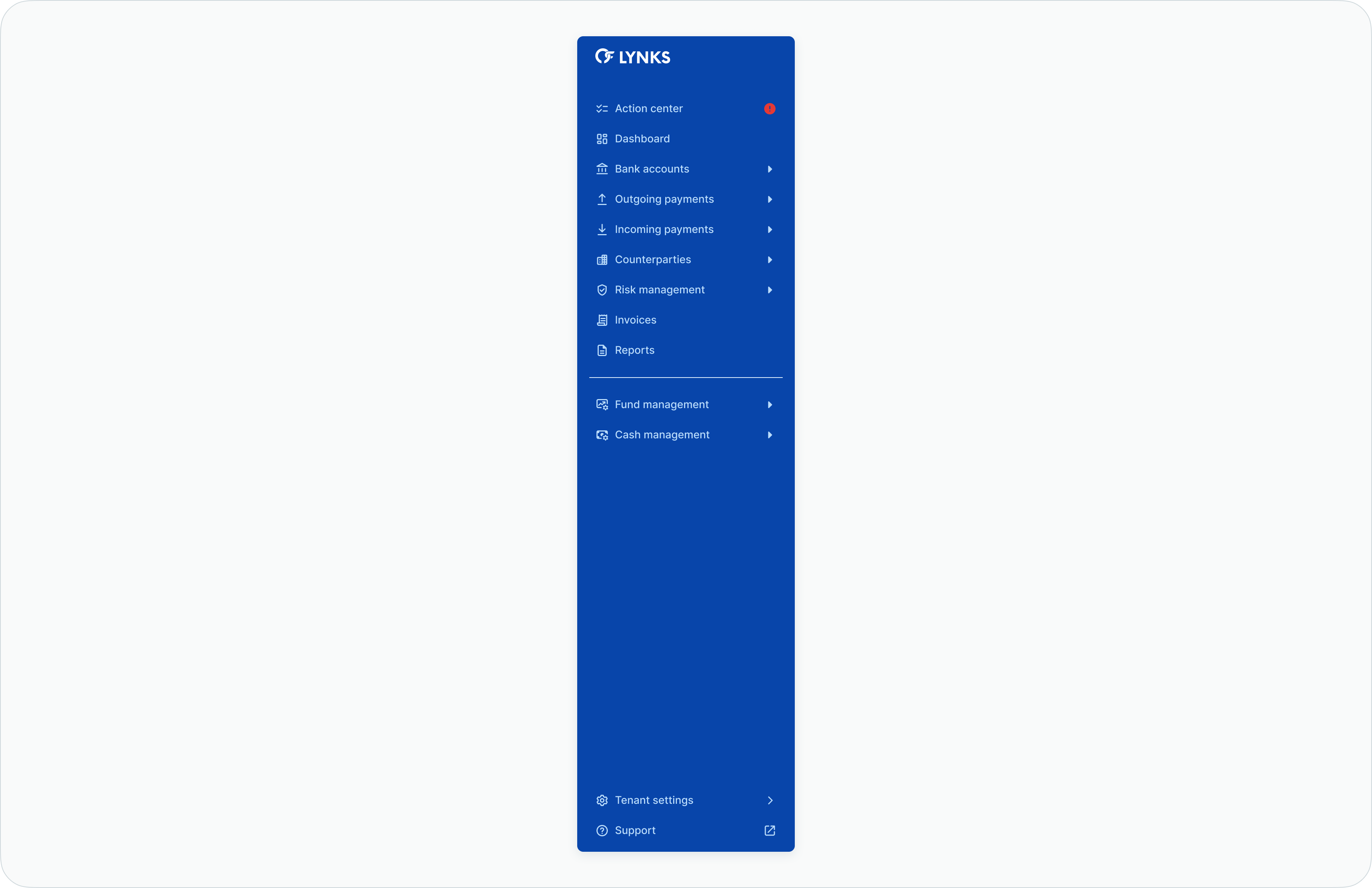
Navigation panel showing available LYNKS modules
Key features:
- Module access - Direct links to all platform sections (Dashboard, Payments, Accounts, Counterparties, etc.)
- Permission-based display - Only shows modules you have access to based on your role
- Feature flag aware - Displays additional modules when tenant features are enabled
- Collapsible sections - Organized by functional area for easier navigation
Quick action button ('new' button)
Located in the bottom right corner, the floating action button provides quick access to create common entities from anywhere in the application.
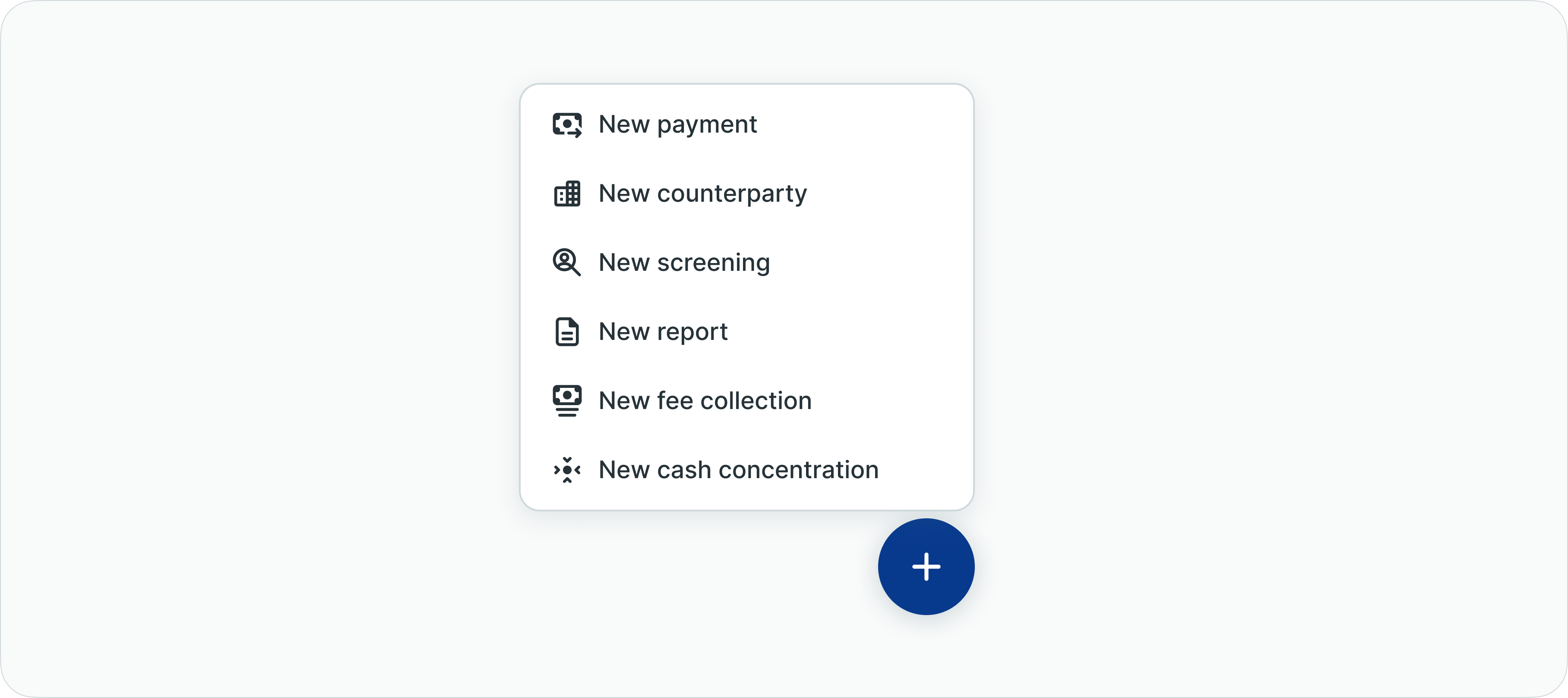
Quick action button expanded showing creation options
Available actions:
- New payment - Create a credit transfer
- New counterparty - Add a beneficiary
- New screening - Initiate KYC screening
- New report - Generate a report
Clicking the '+' button expands the menu, and selecting an option opens the corresponding creation modal.
User profile
Located in the top right corner, the user profile menu provides access to personal settings and session management.
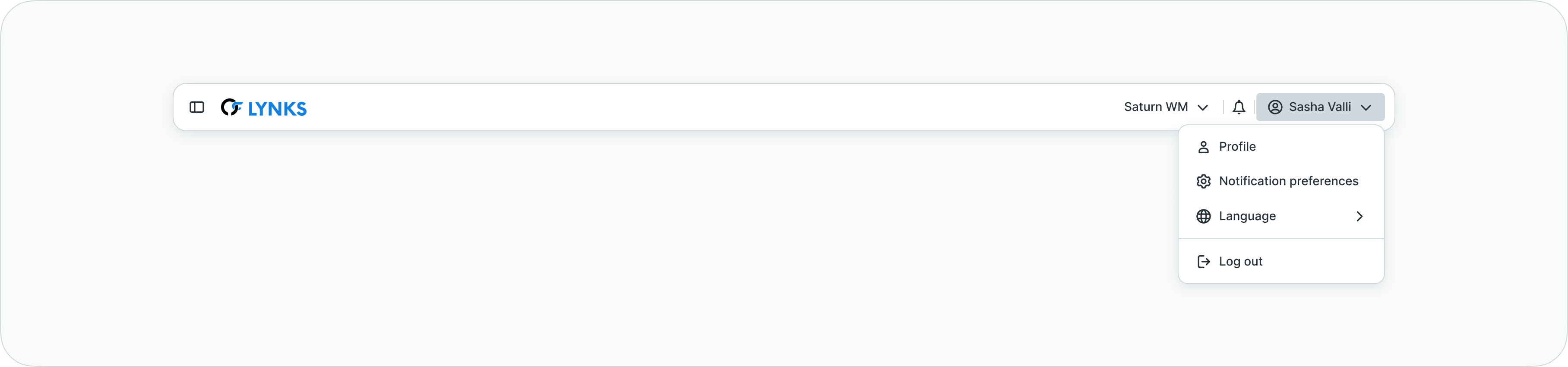
User profile menu expanded
Available options:
- Notification preferences - Configure how you receive notifications
- Language switcher - Change the interface language
- Logout - End your session securely
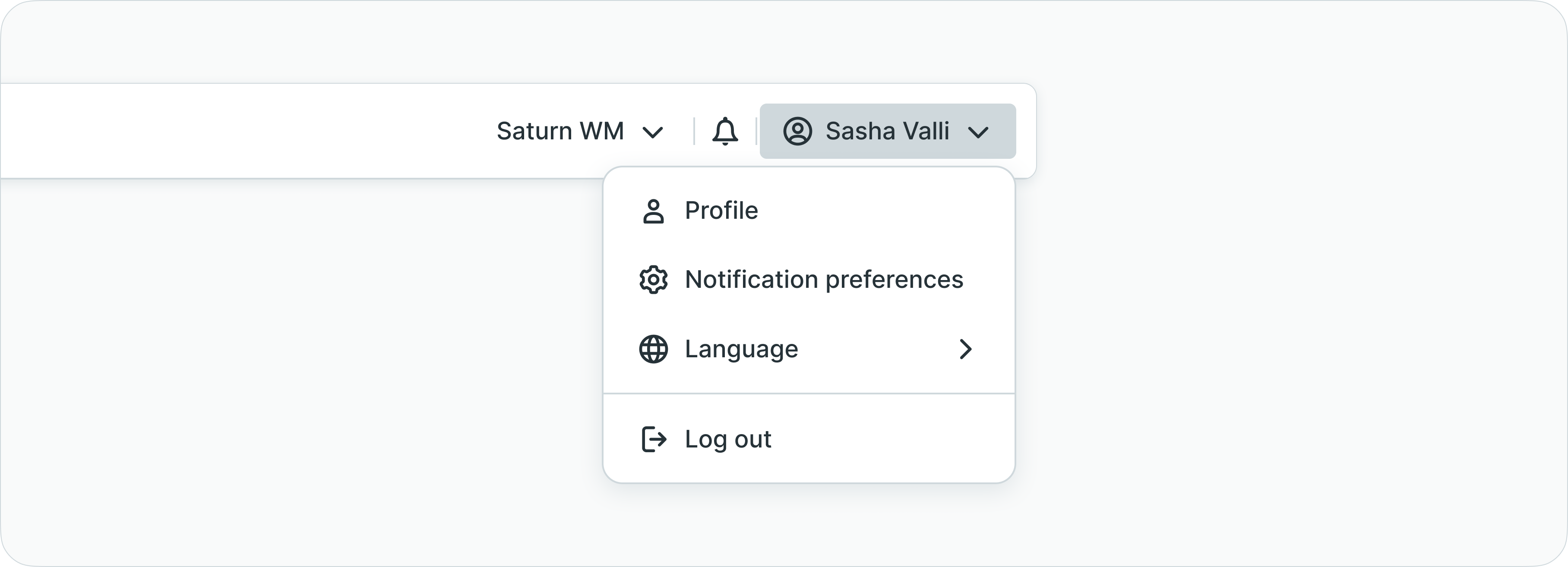
Detailed view of user profile menu options
Notification preferences
Configure how you receive notifications from LYNKS. If notification channels are configured for your tenant, you can customize your notification preferences for different event types.
For complete notification configuration details, see Notifications - Configure notification preferences and channels.
Language switcher
Switch the application interface language between English and French according to your preference.
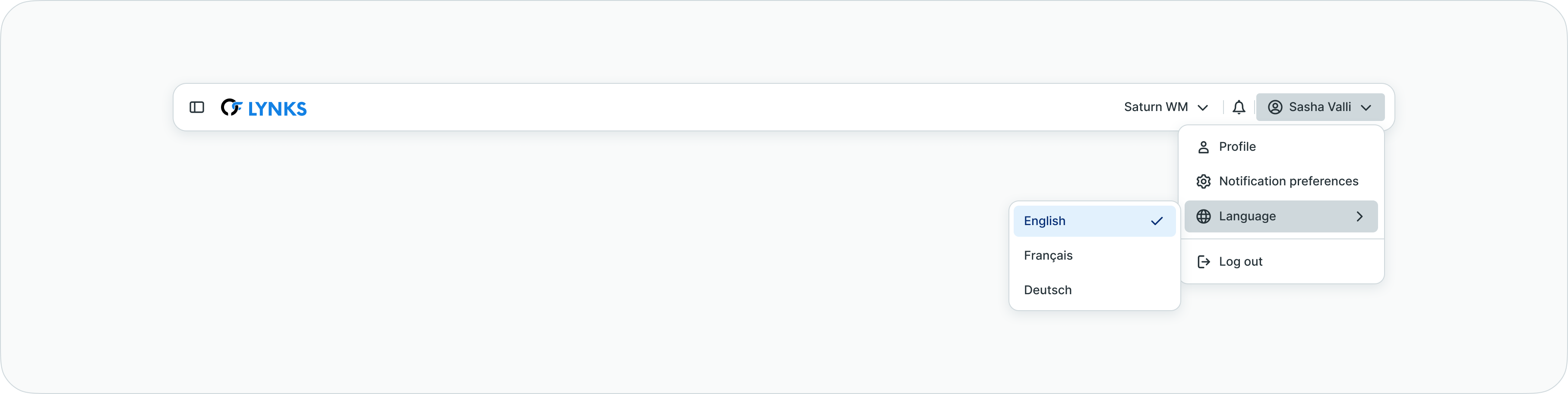
Language selection menu
Logout
End your active session and sign out of LYNKS securely.
Notifications center
The bell icon displays all in-app notifications and provides quick access to recent platform activity requiring your attention.
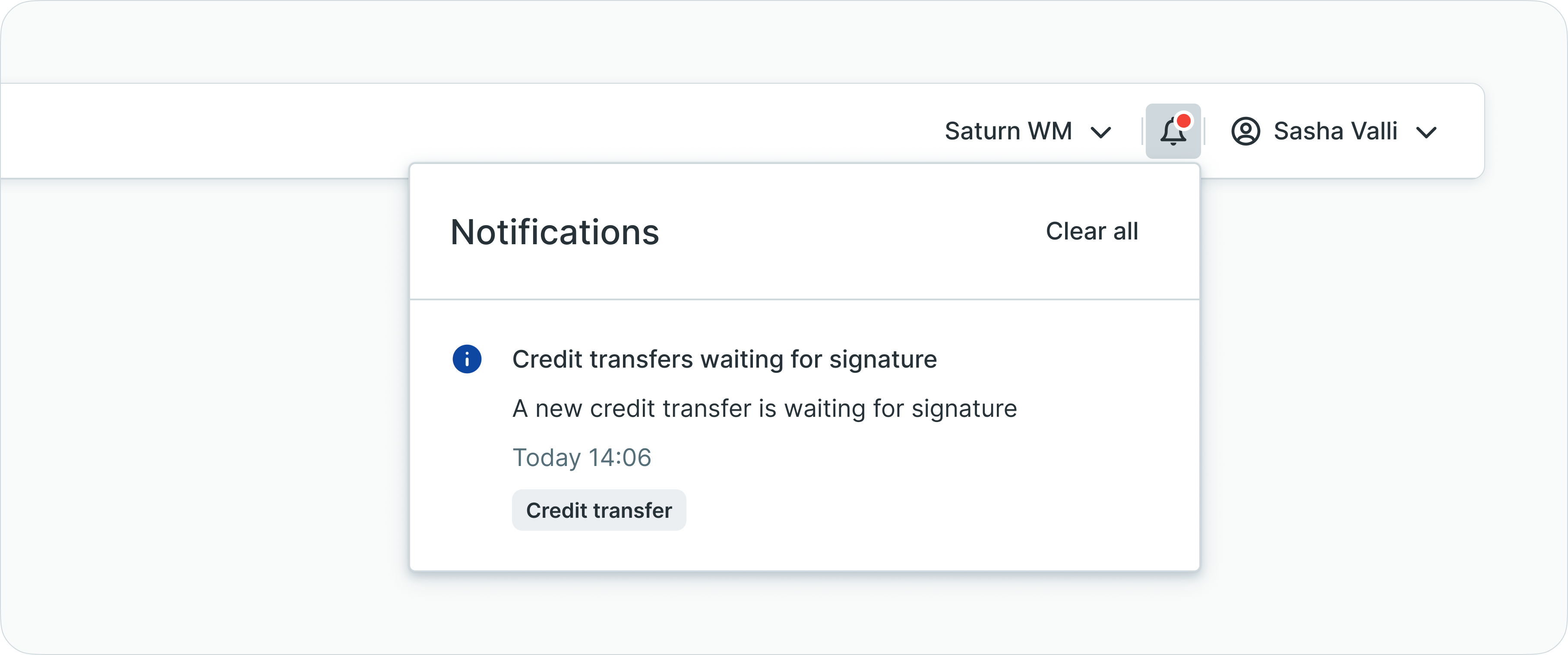
Notifications panel showing recent activity
Notification features:
- In-app notifications - Enabled by default for all users
- Notification count badge - Displays the number of unread notifications
- Permission-based content - Shows notifications relevant to your role and access level
- Event alerts - Notifies you of pending approvals, payment status changes, and other important events
For detailed notification configuration, see Notifications - Configure notification preferences and channels.
Tenant switcher
For users with access to multiple tenants, the tenant switcher enables seamless navigation between different organizations.
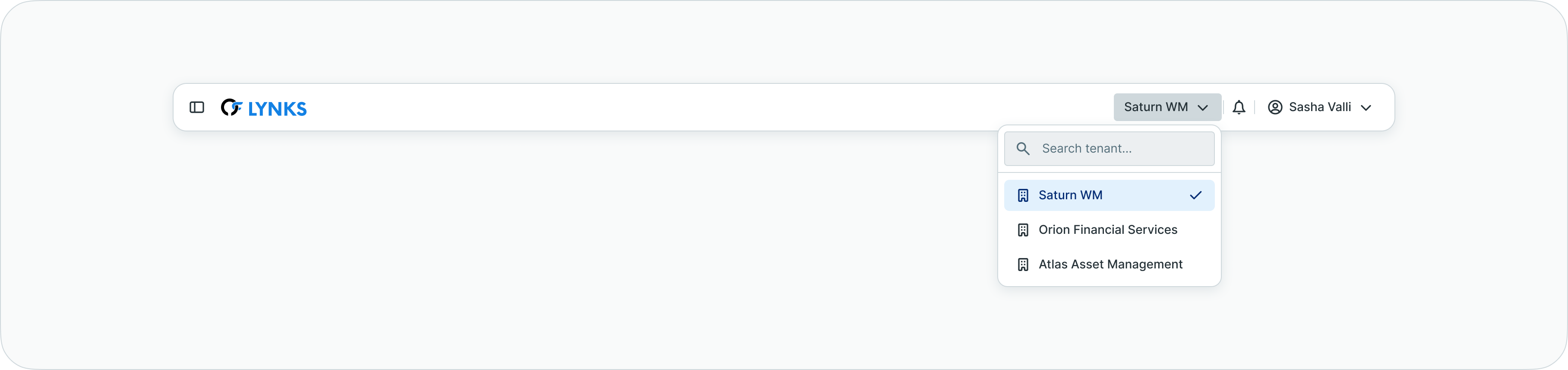
Tenant switcher dropdown showing available organizations
Key characteristics:
- Multi-tenant access - Displays all tenants assigned to your user account
- Current tenant display - Shows the name of the currently selected organization
- Quick switching - Click to view dropdown list and select a different tenant
- Automatic visibility - Only appears if you have access to multiple tenants
- Complete data isolation - Switching tenants changes the entire data context
Single-Tenant UsersIf you have access to only one tenant, the tenant switcher is not displayed. Your session is automatically scoped to your assigned organization.
For more details on how tenants work, see Tenants & Multi-tenancy - Understanding tenant isolation, data separation, and multi-tenant access.
Tables & views
LYNKS provides consistent table functionality across all list views (payments, accounts, counterparties, transactions, etc.), enabling powerful data management and analysis.
Table toolbar
The table toolbar provides access to all table customization and data management features.

Table toolbar showing available actions
Available tools:
- Search - Quick text search across table data
- Filters - Advanced multi-criteria filtering
- Columns - Column visibility and ordering
- Views - Save and load custom table configurations
- Actions - Contextual actions for selected items
Search functionality
The search bar provides quick text-based filtering to locate specific records in the table.
Search capabilities:
- Instant filtering - Results update as you type
- Multi-field search - Searches across multiple columns simultaneously
- Case-insensitive - Matches regardless of capitalization
- Clear button - Quick reset to remove search filter
Advanced filters
Filters enable precise data selection using multiple criteria and conditions.

Filters panel showing available filter options
Filter types
LYNKS supports various filter types based on data attributes:
| Filter Type | Description | Example Use Cases |
|---|---|---|
| Text filters | Match text values with contains, equals, starts with, ends with operators | Search by counterparty name, reference, communication |
| Numeric filters | Filter by amount ranges using greater than, less than, equals, between operators | Amount ranges, balance thresholds |
| Date filters | Filter by date ranges, before/after specific dates, or relative dates | Execution date, creation date, value date |
| Status filters | Single or multi-select status options | Transaction status, approval status |
| Dropdown filters | Select from predefined options | Account selection, currency, category |
| Multi-select filters | Choose multiple values from a list | Multiple accounts, multiple statuses |
Applying filters

Adding a new filter to the table
To apply filters:
- Click the Filters button in the table toolbar
- Select the field you want to filter by
- Choose the filter operator (equals, contains, greater than, etc.)
- Enter or select the filter value
- Click Apply to activate the filter
- Add additional filters as needed for multi-criteria filtering
Active filters display

Active filters displayed in the toolbar
Active filters are displayed as chips in the toolbar, showing:
- The field being filtered
- The filter condition
- The filter value
- A remove (×) button to clear individual filters
Filter management:
- Clear all - Remove all active filters at once
- Remove individual filter - Click the × on a filter chip
- Edit filter - Click on filter chip to modify criteria
- Filter combinations - Multiple filters work together (AND logic)
Column customization
Customize which columns are visible and how they are organized in the table.
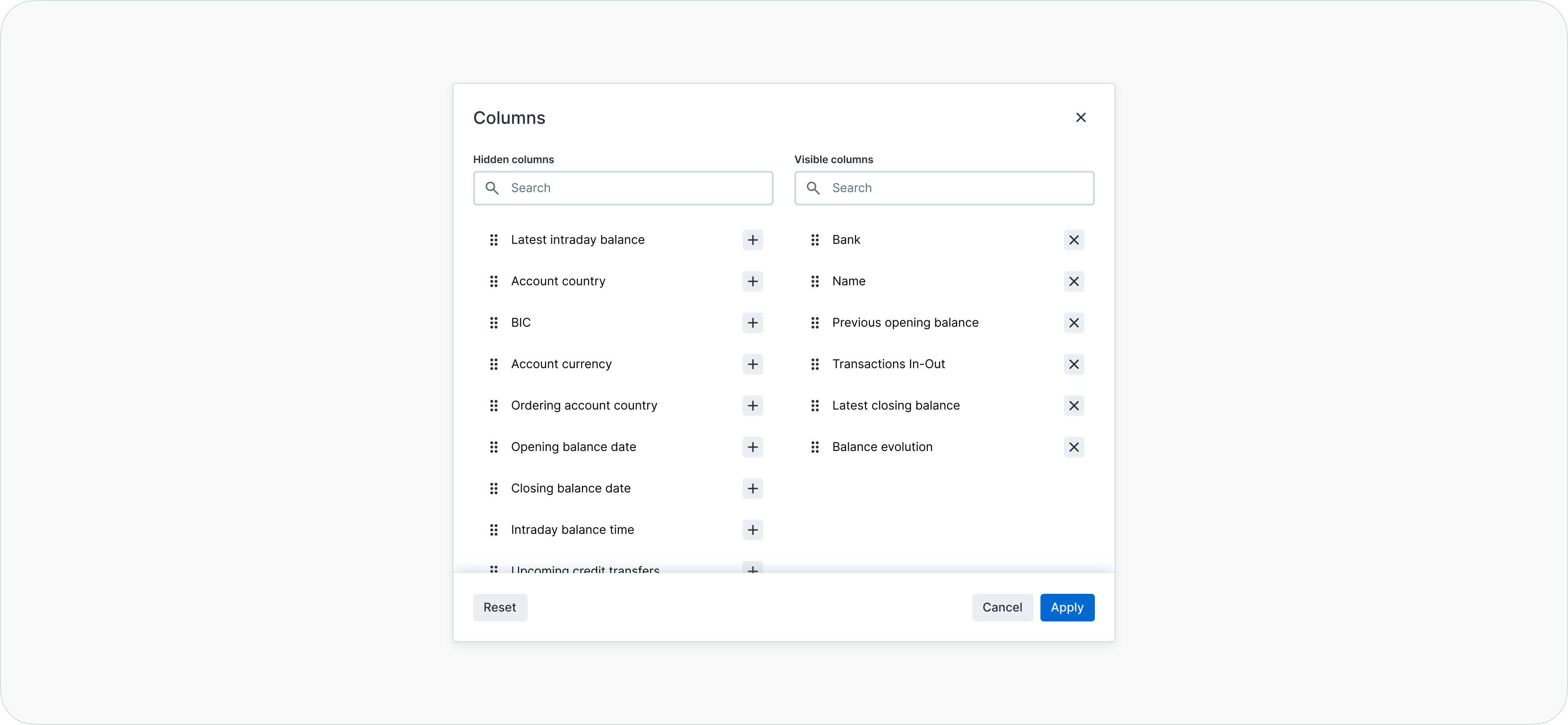
Column customization panel
Column management

Column selection interface
Available actions:
- Show/hide columns - Toggle visibility of individual columns using checkboxes
- Reorder columns - Drag and drop columns to rearrange their order
- Resize columns - Drag column borders to adjust width
- Required columns - Some columns cannot be hidden (e.g., transaction reference, amount)
Column types by section:
- Payments - Transaction reference, amount, currency, beneficiary, execution date, status, category, ordering account
- Accounts - Account alias, IBAN, currency, balance, bank name, account group
- Counterparties - Name, IBAN, BIC, address, status, risk level, creation date
- Transactions - Date, amount, counterparty, reference, communication, value date
Sorting
Sort table data by clicking on column headers.
Sorting behavior:
- Single-column sort - Click column header to sort ascending, click again for descending
- Sort indicator - Arrow icon shows current sort direction (↑ ascending, ↓ descending)
- Multi-column sort - Some tables support sorting by multiple columns
- Default sorting - Each table has a default sort order (usually by date or creation time)
Views management
Save customized table configurations for quick access to frequently used layouts.
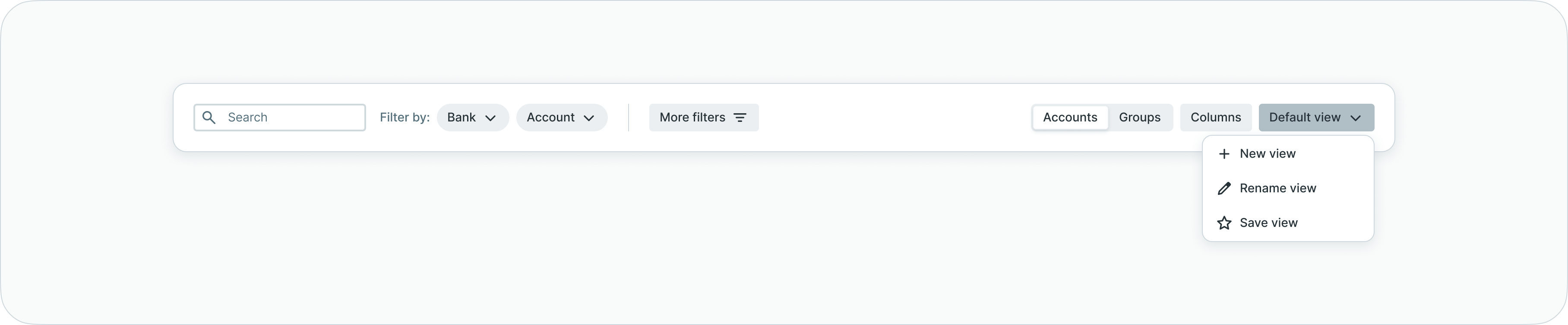
Views management panel
Creating and managing views
A view saves your complete table configuration, including:
- Active filters and filter values
- Visible columns and column order
- Sort settings
- Search criteria
View operations:
- Create new view - Save your current table configuration with a custom name
- Switch views - Select a saved view to instantly apply its configuration
- Update view - Modify and save changes to an existing view
- Rename view - Change the name of a saved view
- Delete view - Remove views you no longer need
- Default view - The standard table configuration before applying any customizations
View scope:
- Views are user-specific and private
- Each user can create their own set of views
- Views are saved per table (credit transfers views, counterparty views, etc.)
- View settings persist across sessions
View use cases
Example view scenarios:
- Payments pending my approval - Filter by "Waiting for signature" status and your signatory group
- High-value EUR payments - Filter by EUR currency, amount > €10,000
- Recent failed payments - Filter by "Failed" status and last 30 days
- Counterparties requiring screening - Filter by screening status and risk level
- Account balances below threshold - Filter accounts with balance < specified amount
Pagination
Navigate through large datasets using pagination controls at the bottom of each table.
Pagination features:
- Rows per page - Select how many items to display (25, 50, 100, or more)
- Page navigation - Move between pages using previous/next buttons or direct page selection
- Total count - Displays total number of items matching current filters
- Page indicator - Shows current page number and total pages
Data export
Export financial data for external analysis, reporting, and record-keeping. LYNKS provides comprehensive report generation with multiple output formats.
Export capabilities:
- Multiple formats - CSV, Excel (XLSX), and PDF (format availability varies by report type)
- Filtered data - Export respects selected accounts, date ranges, and filter criteria
- Standardized banking formats - MT940 and CAMT.053 for account statements
Exports are accessed through the Reports feature, which offers transaction history, account statements, non-executed transactions, and account balances reports.
For detailed export functionality, report types, and file format specifications, see Reports - Account balance reports and statement exports.
Grouped views
Some tables support grouped views, organizing data hierarchically for better visualization.
Grouping examples:
- Accounts grouped by currency - Displays accounts organized under currency headers with subtotals
- Payments grouped by status - Shows payments organized by their current status
- Transactions grouped by account - Groups transactions under their respective accounts
Grouped view features:
- Expand/collapse groups - Click group headers to show or hide items
- Group totals - Displays aggregate information for each group (count, sum, average)
- Hierarchy visualization - Clear visual indication of parent-child relationships
Related documentation
Explore these related sections to learn more about working with LYNKS:
Core Concepts:
- Tenants & Multi-tenancy - Understanding tenant isolation and switching
- Permissions - Comprehensive explanation of access control and role-based permissions - How permissions affect visible features and data
- Approvals - How approval workflows and signature processes function - Understanding approval workflows shown in tables
Platform Features:
- Action Center - Centralized task and approval management - Task and approval management
- Dashboard - Financial overview widgets, charts, and real-time monitoring - Overview widgets and analytics
- Reports - Account balance reports and statement exports - Data export and reporting
Core Concepts:
- Notifications - Configure notification preferences and channels - Configuring notification preferences
Support
For questions about platform navigation, interface customization, or any feature access issues, contact our customer support team at [email protected].
Updated 12 days ago