
Transaction history
View all incoming and outgoing transactions, search and filter transaction data, and download payment confirmations
Introduction
The Transaction History page provides comprehensive access to all incoming and outgoing transactions across your payment accounts, consolidating transaction data from bank statements into a searchable, filterable interface. This centralized view enables users to review payment activity, track transaction flows, analyze patterns, and access detailed information about individual transactions.
The interface displays both transactions initiated through LYNKS and external transactions received from bank statements, presenting a complete picture of account activity. Users can quickly search for specific transactions, apply filters to narrow results, and navigate to detailed payment information for LYNKS-initiated transactions.
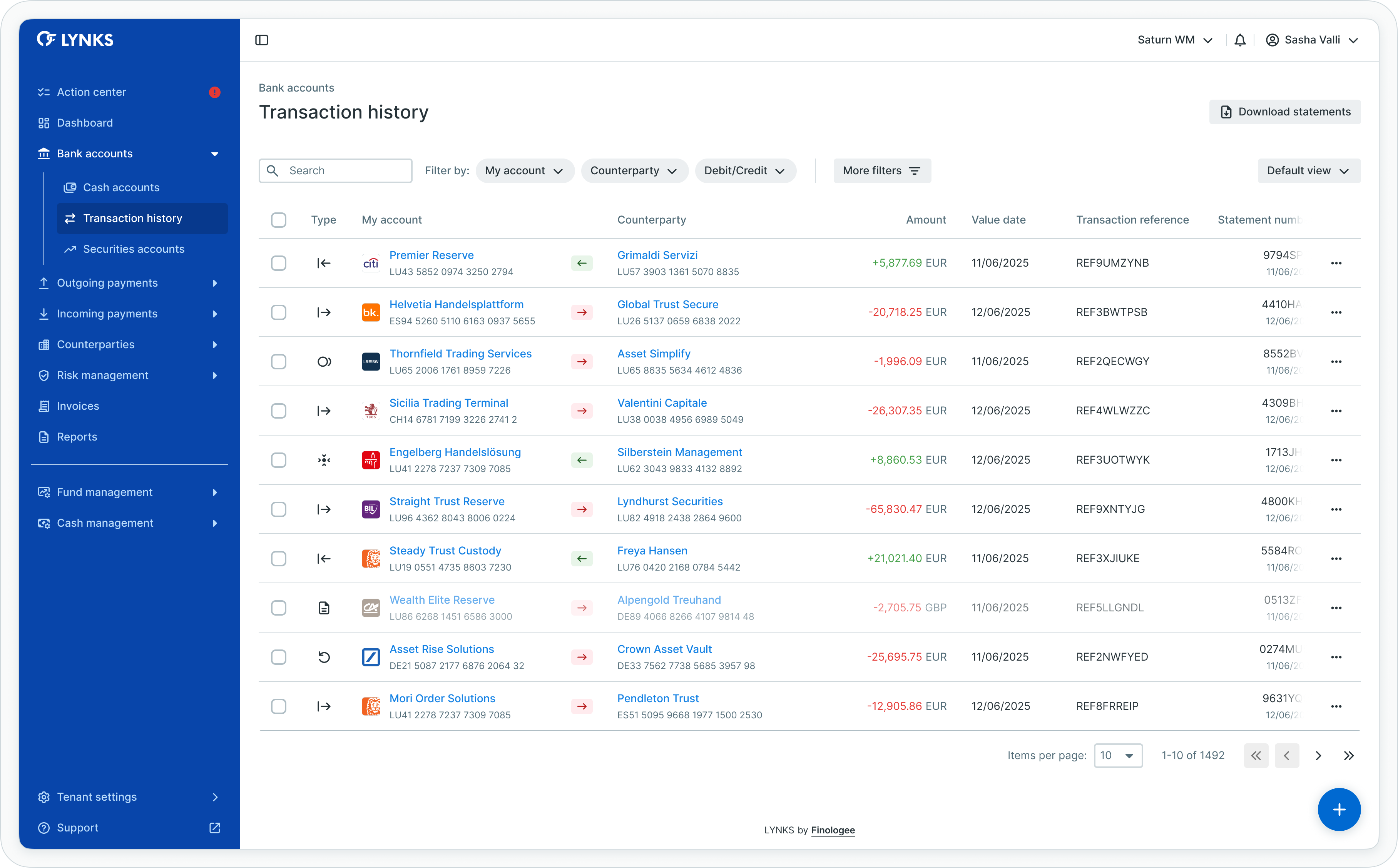
Transaction history list view
Prerequisites
Users must have the appropriate permissions to view transaction history. The interface displays only transactions for accounts to which you have viewing rights.
Permissions
| Permission | Description |
|---|---|
ORDERING_PARTY_BALANCE_READ | View transactions from bank statements and account activity |
PAYMENT_READ | View payment details for LYNKS-initiated credit transfers |
ORDERING_PARTY_STATEMENT_READ | Access and download bank statements containing transactions |
Account scopingUsers see only transactions from accounts they have been granted access to through their permission configuration. Transaction visibility respects account-level scoping for data segregation.
Transaction history overview
The Transaction History page presents all incoming and outgoing transactions in a comprehensive table format, displaying essential transaction information and enabling quick access to payment details and confirmations.
Transaction sources
The page consolidates transactions from two primary sources:
| Source | Description | Interaction |
|---|---|---|
| LYNKS transactions | Credit transfers initiated through the LYNKS platform | Clickable rows that open detailed payment information |
| External transactions | Incoming payments and outgoing transactions initiated outside LYNKS | Display-only rows shown with reduced visual prominence |
This combined view provides complete visibility into all account activity while distinguishing between platform-managed payments and external transactions.
Accessing transaction history
The Transaction History page is accessible from the main navigation menu under Bank Accounts, providing immediate access to all transaction data for accessible accounts.
Navigation
To access Transaction History:
- Locate the main navigation menu on the left side of the LYNKS interface
- Expand the Bank Accounts section
- Click on Transaction History to open the consolidated transaction view
- The interface displays all transactions from accessible accounts in reverse chronological order (newest first)
The page automatically loads transaction data from bank statements and LYNKS payment records.
Using search and filters
Transaction History provides powerful search and filtering tools enabling you to locate specific transactions and narrow results to relevant data.
Searching for transactions
To search for specific transactions:
- Locate the search bar at the top of the transaction list
- Enter your search term:
- Counterparty names (beneficiary or debtor)
- Account numbers (IBAN)
- Reference information or payment descriptions
- Transaction identifiers
- The list updates automatically to display only matching transactions
- Clear the search bar to return to the full transaction list
Applying filters
To filter transactions by specific criteria:
- Locate the filter controls near the search bar or table header
- Click on the filter button or dropdown to open filter options
- Select your desired filter criteria:
- Date range - Choose specific dates or relative periods (last 7 days, last month, custom range)
- Transaction type - Filter by incoming, outgoing, or both
- Account - Select specific ordering party accounts
- Counterparty - Choose specific beneficiaries or debtors
- Currency - Filter by transaction currency
- Amount range - Set minimum and/or maximum amounts
- Status - Filter by transaction status
- Source - Show only LYNKS transactions, external transactions, or both
- Apply multiple filters simultaneously to create precise transaction views
- The table updates to display only transactions matching all applied filters
Clearing filters
To remove applied filters:
- Locate active filter indicators (typically shown as chips or badges near the filter controls)
- Click the "X" or remove button on individual filter chips to remove specific filters
- Or click "Clear all filters" to remove all filters simultaneously
- The table refreshes to display the complete transaction list
Creating saved views
To save frequently used filter combinations:
- Apply your desired filters to the transaction list
- Locate the view management controls (typically near the filter section)
- Click "Save view" or similar option
- Enter a descriptive name for your saved view (e.g., "High-value EUR transactions", "Last month outgoing")
- Click "Save" to store the view configuration
To access saved views later:
- Locate the saved views dropdown or menu
- Select your desired saved view from the list
- The page applies the saved filters automatically
Transaction list view
The transaction list displays all transaction data in a table format, showing key information for each payment with support for customization and advanced filtering.
Information displayed
The transaction list table includes:
- Transaction type indicator (incoming or outgoing)
- Ordering party account details
- Counterparty account information
- Transaction amount and currency
- Value date
- Transaction status
- Reference information
- Bank details
Visual differentiation
The interface visually distinguishes between transaction types:
- LYNKS transactions - Displayed with standard visual prominence and clickable for detailed information
- External transactions - Displayed with reduced opacity to indicate they were not initiated through LYNKS
This visual distinction helps users quickly identify which transactions they can interact with for additional details and confirmations.
Table functionality
The transaction list supports standard table features:
- Column customization - Show, hide, reorder, and resize columns according to preferences
- Filtering - Apply filters by date range, account, counterparty, amount ranges, currency, transaction type, and status
- Search - Quick search across transaction data including references, counterparty names, and account numbers
- Sorting - Sort by any column to organize transaction information
- View persistence - Save customized table configurations for future sessions
Related functionalityFor detailed information about table features, filtering, and view customization, see Platform Navigation - Detailed guide to the head-up display, table views, filters, and search functionality.
Viewing transaction details
LYNKS-initiated transactions provide access to comprehensive payment information through clickable rows in the transaction list.
Opening transaction details
To view detailed information for a LYNKS transaction:
- Identify LYNKS transactions in the list (displayed with standard visual prominence)
- Hover over a LYNKS transaction row to confirm it is clickable
- Click anywhere on the transaction row
- The detailed payment view opens, showing complete payment information
External transactions (displayed with reduced opacity) are not clickable, as they originate from bank statements and do not have associated LYNKS workflow information.
Accessible information
For LYNKS transactions, the detailed view provides:
- Complete payment details including all submitted fields
- Approval workflow and signature history
- Current payment status and processing stage
- Payment timeline visualization
- Related documents and attachments
- Execution timestamps and bank responses
- Download options for payment confirmations
Returning to transaction list
To return to the transaction list:
- Use the browser back button
- Or click the back navigation link in the payment details header
- The transaction list reopens with your previous filters and search criteria preserved
Related functionalityFor comprehensive information about payment details, status tracking, and the complete payment lifecycle, see Outgoing Payments - Creating and managing credit transfers and standing orders.
Downloading payment confirmations
LYNKS-initiated credit transfers provide downloadable payment confirmations for audit purposes, reconciliation, and record keeping.
Downloading from transaction list
To download confirmations directly from the transaction list:
- Locate the LYNKS transaction for which you need confirmation
- Find the download icon or actions menu in the transaction row (typically on the right side)
- Click the download icon or select "Download confirmation" from the actions menu
- The confirmation file downloads to your local system
Not all transactions have available confirmations. Confirmation availability depends on the payment's current status and the bank's response messages.
Downloading from payment details
To download confirmations from the detailed payment view:
- Open the transaction details by clicking the transaction row
- Scroll to the confirmation or documents section
- Locate available confirmations (marked with download icons)
- Click the download button for the desired confirmation type
- The file downloads in its original format
Confirmation types
Available confirmation types vary by payment status:
- Bank acknowledgment (ACK) - Available after bank receives and accepts the payment instruction
- Pain.002 status report - ISO 20022 payment status report providing intermediate status updates before final settlement; banks send these files to confirm receipt, acceptance, or rejection of payment instructions
- Execution confirmation - Available after successful payment execution
Pain.002 status reports
The platform processes pain.002 status report files to provide real-time feedback on payment processing:
- Accepted payments - When a bank accepts a payment, the status updates to "Executed" based on the pain.002 message
- Rejected payments - When a bank rejects a payment, the status updates to "Not executed" with the rejection reason from the pain.002 message
- Early visibility - Pain.002 messages provide status updates before final settlement, enabling users to monitor payment progress and address issues promptly
This intermediate status feedback applies to all payment types including credit transfers, urgent payments, SEPA direct debits, and cash concentration transactions.
Best practices
Follow these recommendations to maximize the value of transaction history monitoring:
- Regular review - Check transaction history daily to monitor account activity and identify unusual patterns
- Use date filters strategically - Focus on relevant time periods to improve performance when analyzing large transaction volumes
- Leverage search - Use search functionality to quickly locate specific transactions by counterparty or reference
- Save custom views - Create and save filter combinations for recurring analysis needs (e.g., high-value transactions, specific counterparties, particular currencies)
- Monitor external transactions - Review non-LYNKS transactions to identify unexpected debits or incoming payments requiring attention
- Download confirmations regularly - Maintain local copies of payment confirmations for audit trails and reconciliation purposes
- Combine with statements - Cross-reference transaction history with bank statements to ensure completeness and accuracy
Related documentation
Explore related sections for more information:
- Platform Navigation - Detailed guide to the head-up display, table views, filters, and search functionality - Tables, filters, search, and view customization
- Permissions - Comprehensive explanation of access control and role-based permissions - Understanding access control and account scoping
- Dashboard - Financial overview widgets, charts, and real-time monitoring - High-level financial overview and transaction analytics
- Cash Accounts - Account balances and bank statements - Account balances and bank statements
- Outgoing Payments - Creating and managing credit transfers and standing orders - Credit transfer creation and payment lifecycle
- Reports - Account balance reports and statement exports - Transaction reports and export functionality
Support
For assistance with transaction history or questions about transaction data, contact [email protected].
Updated about 2 months ago