
Pending changes
Review and approve configuration changes with four-eyes principle compliance
Introduction
The Pending changes section provides a centralized view of all tenant settings modifications awaiting approval. Changes to your organization's configuration must go through a review and approval process to comply with the four-eyes principle applied across LYNKS, ensuring that no single user can unilaterally modify critical settings.
When administrators make changes to tenant settings such as users, groups, signatory rules, or account configurations, these modifications are stored in a temporary draft state. Changes only become effective after an authorized approver reviews and approves them, providing an additional layer of security and oversight for your organization's configuration.
Prerequisites
The tenant settings approval feature must be enabled for your organization, and users require specific permissions to view, edit, or approve pending changes.
Permissions
| Permission | Description |
|---|---|
TENANT_SETTINGS_READ | View pending changes and current tenant settings |
TENANT_SETTINGS_WRITE | Make changes to tenant settings and discard pending changes |
TENANT_SETTINGS_APPROVE | Approve or discard pending changes made by other users |
Feature flag
Feature flag requiredThe tenant settings approval workflow requires the TENANT_SETTINGS_FOUR_EYES_REVIEW tenant flag to be enabled. Contact [email protected] to enable this feature for your tenant.
Pending changes overview
The Pending changes interface displays all modifications that have been made to tenant settings but have not yet been approved. This provides approvers with a consolidated view of what will change when they approve, including both direct changes and dependent changes that result from modifications to related entities.
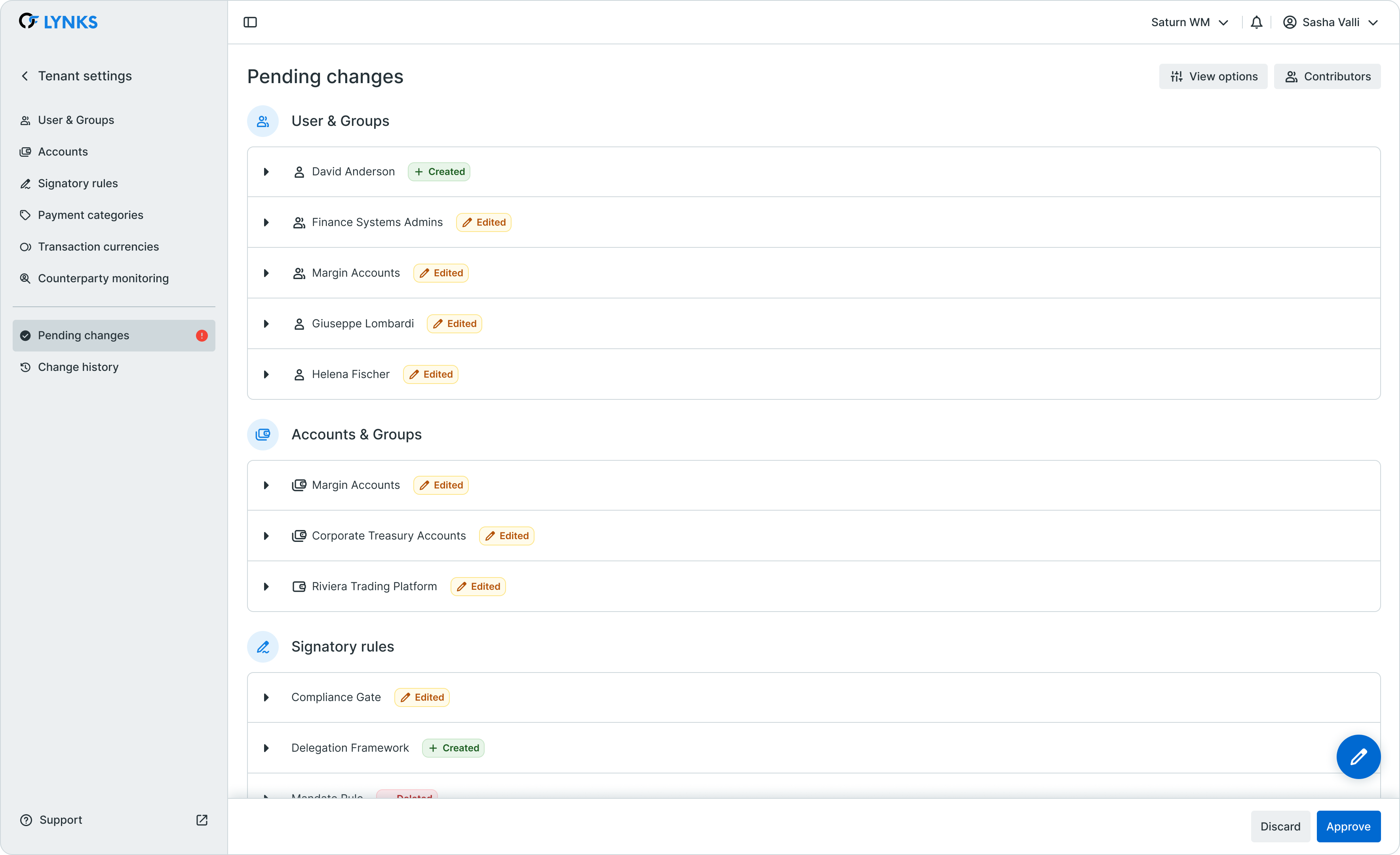
Pending changes overview showing accumulated changes awaiting approval
Key components
The pending changes view consists of:
- Change summary - Overview of all pending modifications grouped by entity type
- Change indicators - Visual markers showing added (green), removed (red), and edited (orange) items
- Dependent changes - Related modifications that result indirectly from direct changes
- Action buttons - Options to approve all changes or discard all changes
- Contributors - Information about which users made the pending changes
Accessing pending changes
Pending changes are accessed within the Tenant Settings area of LYNKS.
Navigation
To access pending changes:
- Navigate to Tenant Settings from the main menu
- Select Pending changes from the settings menu
- The interface displays all changes awaiting approval
Alternatively, when changes exist, a notification indicator appears in the Tenant Settings area alerting users that pending changes require attention.
Understanding the approval workflow
The tenant settings approval workflow implements the four-eyes principle, requiring that changes made by one user must be approved by a different user before becoming effective.
Live mode vs edit mode
Tenant settings operate in two distinct modes:
| Mode | Description | Actions Available |
|---|---|---|
| Live mode | Current effective configuration applied to your organization | View settings, open edit mode |
| Edit mode | Temporary draft environment for making changes | Create, edit, delete settings; changes are not yet effective |
When you enter edit mode by clicking the edit button, a temporary version of your organization's settings opens where you can implement changes. These changes are accumulated and stored as pending changes when you exit the editor.
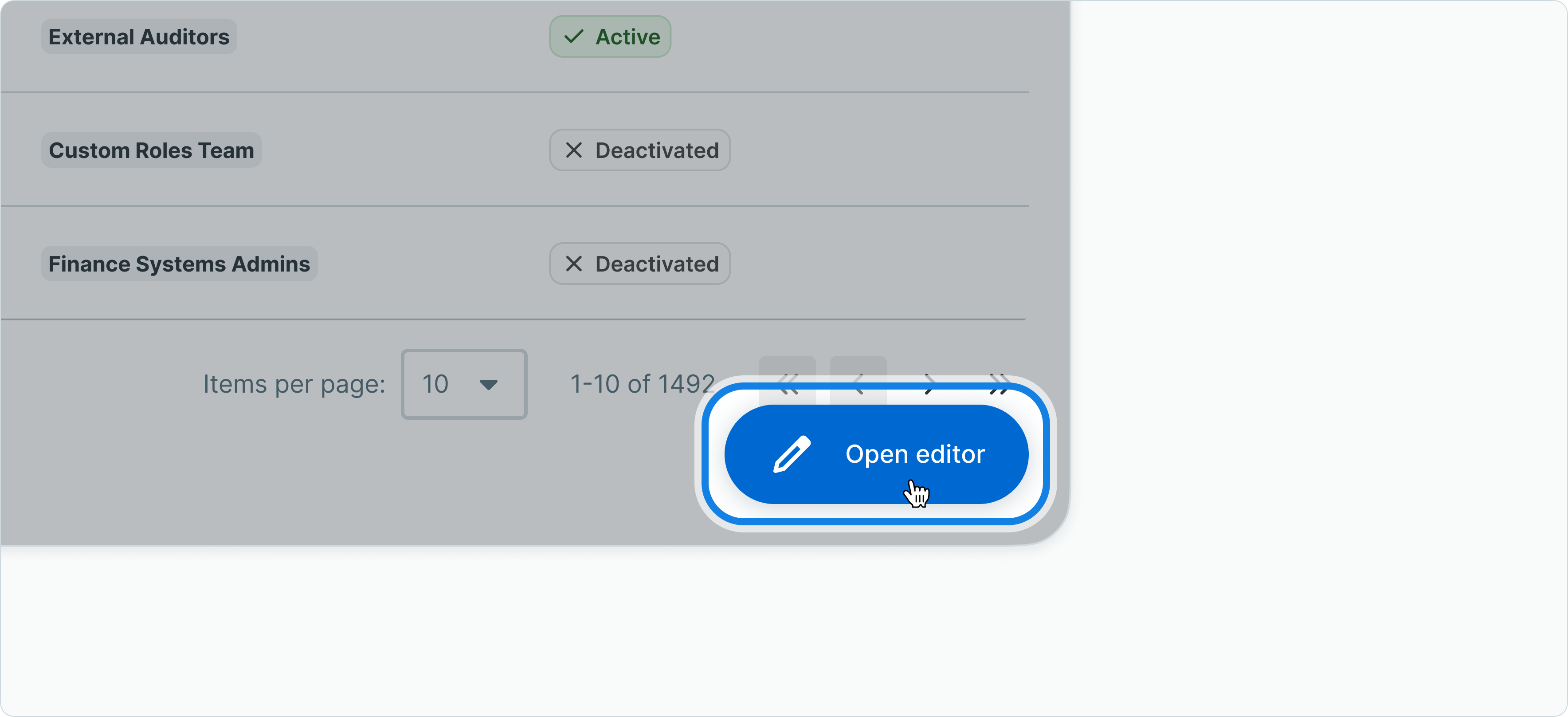
Opening edit mode to make tenant settings changes
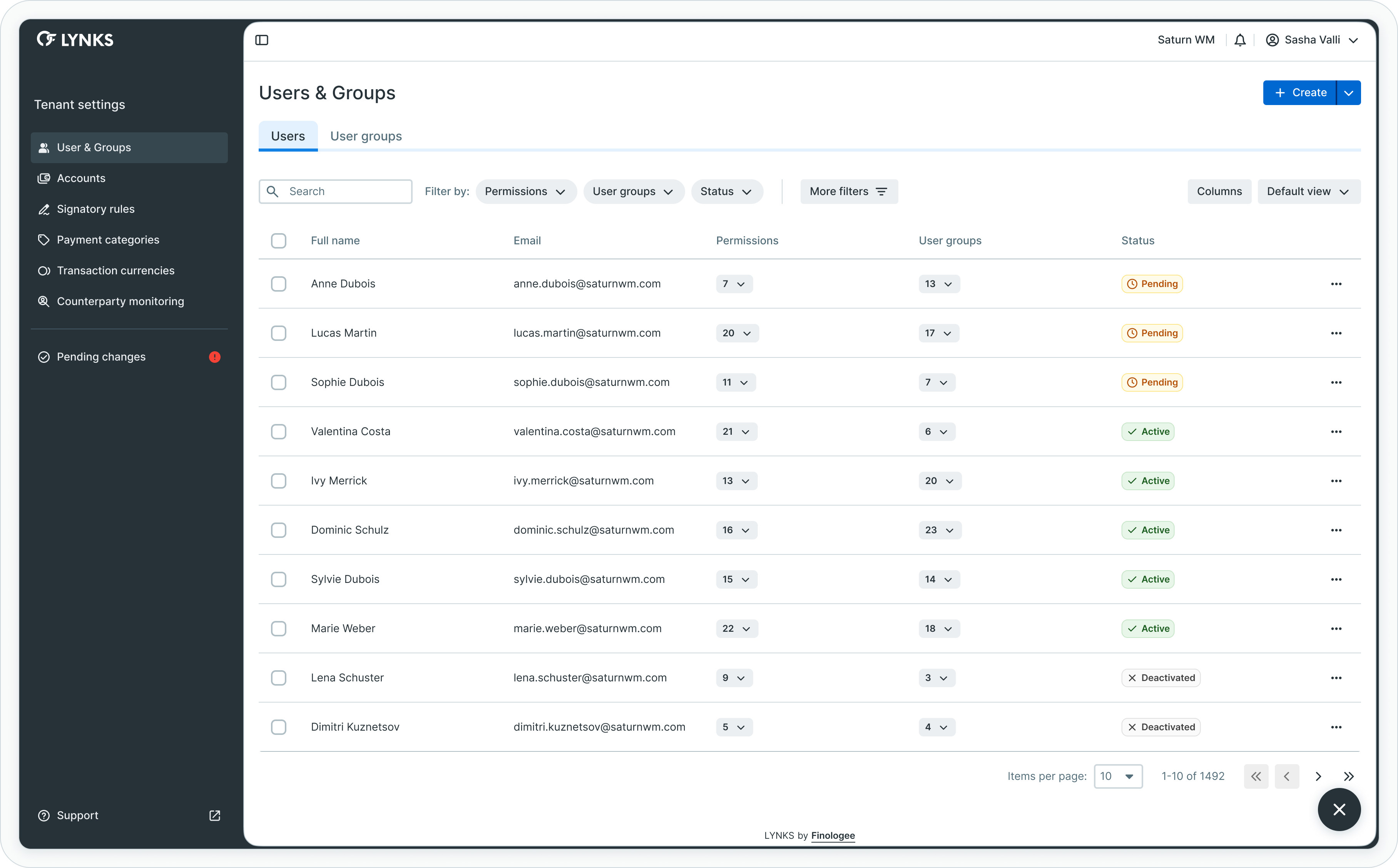
Edit mode interface for modifying tenant settings
Four-eyes principle enforcement
The system enforces the four-eyes principle through flexible approval rules that adapt based on who made changes and who is approving:
| Scenario | Approval Requirements |
|---|---|
| Single administrator made all changes | One approval required from a different administrator |
| Multiple administrators contributed | One approval from an uninvolved administrator OR two approvals from administrators who contributed to the changes |
| User who made changes | Cannot approve their own changes unless another contributor also provides approval (in multiple contributor scenario) |
| Single administrator organization | System allows skip of four-eyes if only one admin exists |
The system tracks which administrators contributed to the pending changes. To view this information, click the Contributors button in the pending changes interface, which opens a panel displaying the list of administrators who made changes. Contextual warnings and confirmation dialogs guide approvers by showing how many approvals are needed and from whom, ensuring the four-eyes principle is maintained while optimizing for different collaboration scenarios.
ImportantChanges that have been made but not approved are not effective. For example, if a new signatory is added to a rule, they can only sign payments once the change has been approved by an authorized approver.
Reviewing pending changes
The pending changes view provides detailed information about each modification, allowing approvers to understand exactly what will change when they approve.
Change types
Changes are categorized and displayed with visual indicators:
| Indicator | Type | Description |
|---|---|---|
| 🟢 Green | Added | New entities created (users, groups, rules, etc.) |
| 🔴 Red | Removed | Entities deleted or deactivated |
| 🟠 Orange | Edited | Existing entities modified |
| ⚪ Gray | Dependent | Indirect changes resulting from other modifications |
Direct vs dependent changes
The system distinguishes between two types of changes:
Direct changes are modifications explicitly made by an administrator, such as creating a new user or editing a signatory rule.
Dependent changes are modifications that occur indirectly as a result of direct changes. For example, if you add a user to a signatory group, the signatory rules that reference that group are shown as dependent changes, helping approvers understand the full impact of the modifications.
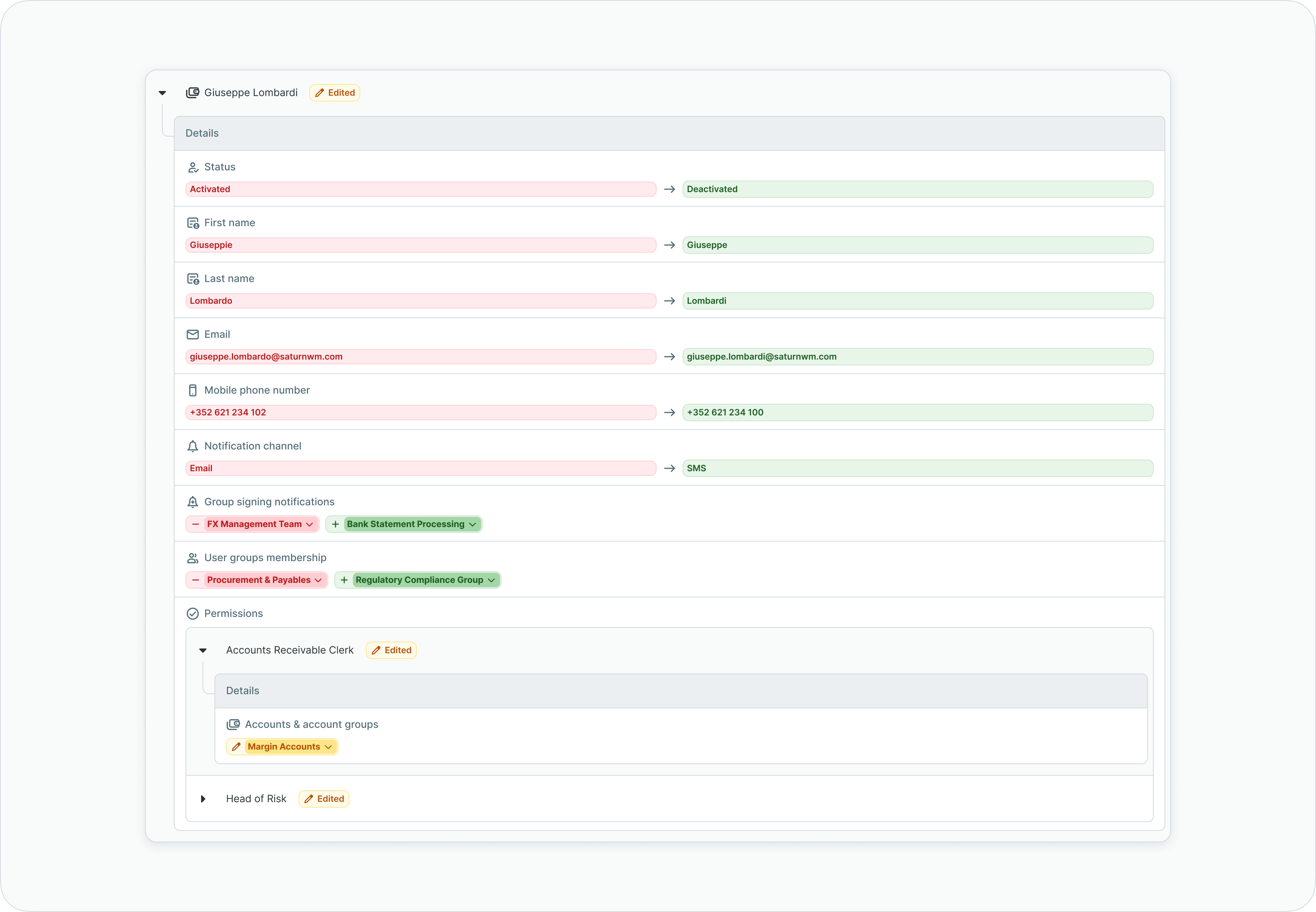
Pending changes showing user modifications with change details
Entities covered
Pending changes track modifications to the following tenant settings:
- Users and user groups
- User permissions and access rights
- Account configurations and account groups
- Signatory rules and signature requirements
- Payment categories
- Transaction currencies
- Counterparty monitoring rules
Approving pending changes
When pending changes are ready for review, an authorized approver can approve them to make the modifications effective.
Approval process
To approve pending changes:
- Navigate to Tenant Settings > Pending changes
- Review all listed changes and their impact
- Verify the changes are legitimate and desired
- Click Approve to apply all pending changes
- Changes become effective immediately upon approval
Upon approval, all pending changes are applied to the live tenant settings simultaneously. The system copies the draft configuration to the main settings, replacing the previous configuration.
Approval requirements
| Requirement | Description |
|---|---|
| Different user | Approver must be different from the user(s) who made the changes |
| Appropriate permission | Approver must have TENANT_SETTINGS_APPROVE permission |
| Review all changes | All pending changes are approved together as a single batch |
NotificationsUsers with approval permissions receive notifications when changes are pending. A daily reminder is sent if pending changes remain unapproved. Configure notification preferences in Notifications - Configure notification preferences and channels.
Discarding pending changes
If pending changes are not desired or contain errors, they can be discarded instead of approved.
Discard process
To discard pending changes:
- Navigate to Tenant Settings > Pending changes
- Review the changes to confirm they should be discarded
- Click Discard to reject all pending changes
- Optionally provide a reason for discarding (recorded in change history)
- All pending changes are removed and the draft is reset to match live settings
When discarding changes, the system records the action in the change history along with any reason provided. This creates an audit trail of rejected changes for compliance purposes.
Who can discard
Both users with TENANT_SETTINGS_WRITE and TENANT_SETTINGS_APPROVE permissions can discard pending changes. This allows either the original editor to cancel their own changes or an approver to reject changes they do not approve.
Discard is finalDiscarding pending changes permanently removes all accumulated modifications. If the changes are needed, they must be re-created through the edit mode. There is no undo function for discarded changes.
Change effectiveness
Understanding when changes take effect is critical for managing your organization's configuration.
Before approval
| Entity | Behavior Before Approval |
|---|---|
| New users | Cannot log in or perform actions |
| Permission changes | Original permissions remain in effect |
| New signatory rules | Payments follow existing rules |
| Signatory additions | Cannot sign payments until approved |
| Account changes | Original configuration applies |
After approval
Once approved, changes take effect immediately:
- New users can log in and perform their assigned functions
- Updated permissions apply to all subsequent actions
- New signatory rules govern matching payments
- Added signatories can sign payments under applicable rules
- Account modifications are reflected across the platform
Audit trail
All pending changes activities are recorded for compliance and audit purposes.
Recorded events
The system tracks:
- When changes were made and by whom
- When changes were approved or discarded
- Who approved or discarded the changes
- Reason provided for discarding (if any)
- Detailed list of all changes in each approval or discard action
This information is available in the Change History section of tenant settings. See Change History - Audit trail for configuration for detailed information about reviewing historical changes.
Best practices
Follow these recommendations for effective pending changes management:
- Review regularly - Check pending changes frequently to avoid accumulating large batches of modifications that are difficult to review
- Coordinate with colleagues - Communicate with other administrators before making changes to avoid conflicts or redundant modifications
- Approve promptly - Do not leave changes pending for extended periods, as this creates confusion about the current effective configuration
- Document reasons - When discarding changes, always provide a clear reason to maintain a useful audit trail
- Test in sequence - For complex changes, consider making and approving changes in logical groups rather than accumulating many unrelated modifications
- Verify impact - Pay attention to dependent changes to understand the full scope of modifications before approving
Related documentation
Explore related sections for more information:
- Approvals - How approval workflows and signature processes function - Understanding approval workflows in LYNKS
- User & Groups - User management and access configuration - Managing users and groups in tenant settings
- Accounts - Account configuration and groups - Configuring ordering party accounts
- Signatory Rules - Approval workflow configuration - Setting up payment approval rules
- Change History - Audit trail for configuration - Reviewing historical configuration changes
- Compliance & Audit - Security features, audit trails, and regulatory compliance - Audit trail and compliance features
- Notifications - Configure notification preferences and channels - Configuring approval notifications
Support
For assistance with pending changes or tenant settings approval workflows, contact [email protected].
Updated about 2 months ago