
Action center
Centralized task and approval management for pending actions and signatures
Introduction
The LYNKS Action center consolidates all tasks requiring your attention into one centralized interface, providing a comprehensive overview of pending actions across the platform. This unified workspace displays credit transfers awaiting authorization, counterparties pending approval, and KYC screenings requiring review, organized by urgency and priority to help you focus on the most critical tasks first.
The Action center serves as your primary workflow management tool, automatically updating as new tasks arrive and existing tasks progress through approval stages. By presenting all pending actions in a structured, easy-to-navigate interface, it streamlines your daily operations and ensures nothing falls through the cracks.
Prerequisites
Users must have the appropriate permissions to view and act on items displayed in the Action center. The interface displays only those tasks for which you have viewing or approval rights.
Permissions
| Permission | Description |
|---|---|
PAYMENT_READ | View pending credit transfers and standing orders |
PAYMENT_APPROVE | Authorize and sign credit transfers |
COUNTERPARTY_ACCOUNT_READ | View pending counterparties |
COUNTERPARTY_ACCOUNT_AUTHORISE | Approve counterparties awaiting authorization |
KYC_SCREENING_READ | View KYC screening results |
KYC_SCREENING_WRITE | Review and resolve pending KYC screenings |
Action center overview
The Action center interface organizes pending tasks into three main sections, each focused on a specific type of action. Users can expand any section to view detailed information and quickly navigate to the relevant pages to complete their tasks.
Key components
The Action center provides quick access to filtered views of pending items. Selecting a counter or expanding a section redirects you to a pre-filtered table view where you can review details and take action on multiple items simultaneously.
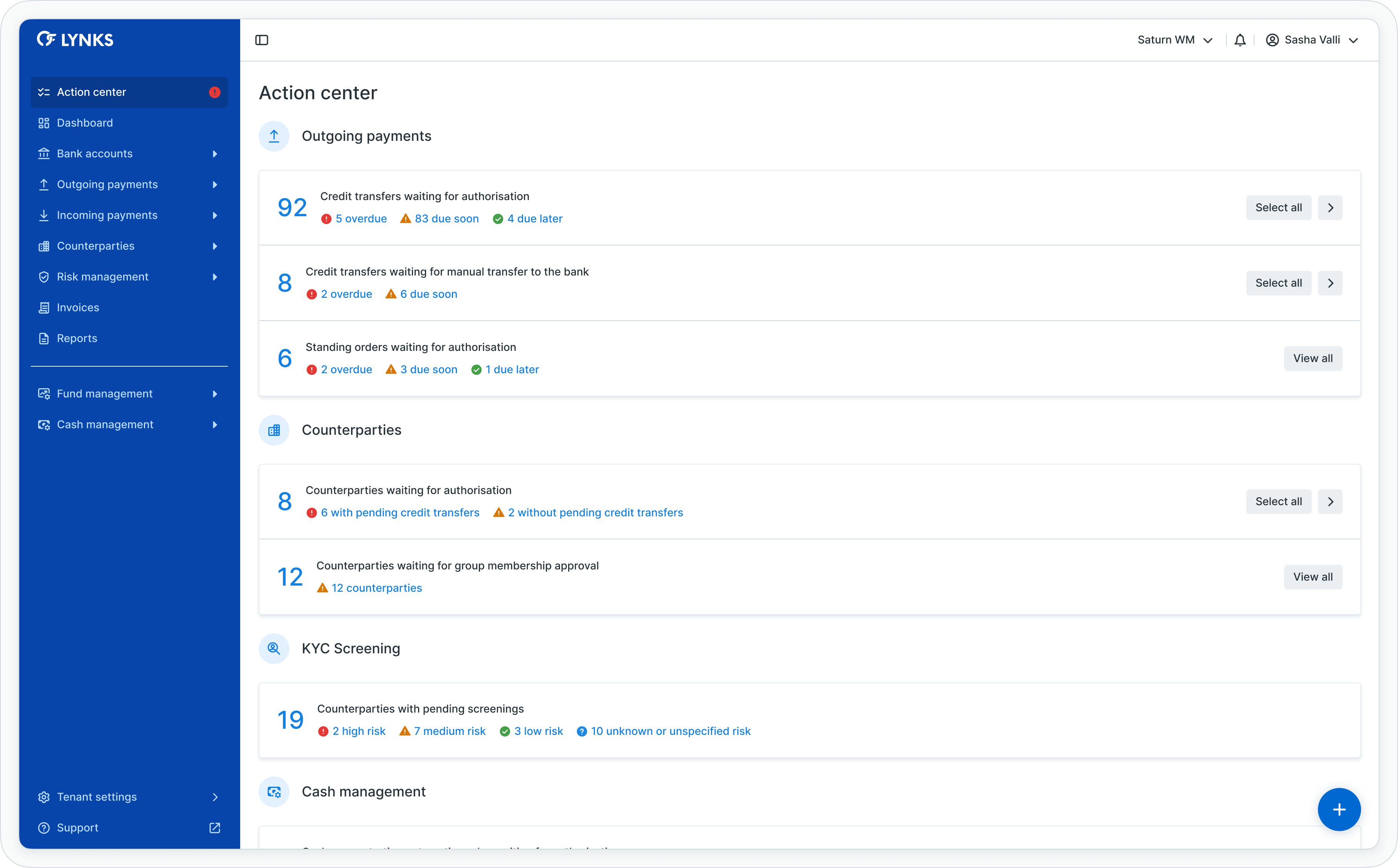
Action center overview
Accessing the action center
The Action center is accessible from the main navigation menu in LYNKS, providing immediate visibility into tasks requiring your attention.
Navigation
To access the Action center:
- Locate the main navigation menu on the left side of the LYNKS interface
- Click on Action center to open the centralized task management view
- The interface displays all pending tasks organized by category
The Action center automatically refreshes as tasks progress through workflows or new items arrive requiring your attention.
Using the action center
The Action center interface enables you to review pending tasks and navigate to detailed views where you can complete your actions.
Viewing task details
Each section (Payments, Counterparties, KYC screenings) can be expanded or collapsed:
- Collapsed view - Shows the section name with total count of pending items
- Expanded view - Displays breakdown by urgency, risk level, or status with individual counters
Click the section header or expansion arrow to toggle between collapsed and expanded views.
Navigating to filtered views
The Action center provides two ways to access detailed task views:
Click section counters
- Locate the counter showing the number of pending items in a category (e.g., "12 Overdue")
- Click the counter to redirect to a pre-filtered table view showing only those items
- Review details and take action on individual items or use bulk actions for multiple items
Click section headers
- Click the main section header (e.g., "Payments") to redirect to the full list view
- Apply additional filters or search criteria to refine your view
- Use table functionality to sort, filter, and manage items
Pre-filtered viewsWhen you navigate from the Action center to a list view, LYNKS automatically applies filters based on the counter or section you selected. These filters can be modified or cleared once you reach the destination page.
Taking action on pending items
The Action center provides overview and navigation functionality. Actual approval and authorization actions are performed on the detailed pages for each item type.
Workflow overview
- Review pending items - Check the Action center to identify tasks requiring attention
- Prioritize by urgency - Focus on overdue and due soon items first
- Navigate to details - Click counters to access pre-filtered views
- Complete actions - Authorize payments, approve counterparties, or review screenings on their respective detail pages
- Verify completion - Return to Action center to confirm tasks have been removed from pending lists
Approval workflows
Different item types require different approval actions:
- Credit transfers - Provide signatures according to signatory rules to authorize payments
- Counterparties - Review and approve counterparty details following four-eyes principle
- KYC screenings - Review screening results and resolve compliance flags
Detailed approval instructionsFor step-by-step instructions on authorizing specific item types, see:
- Credit Transfers - Review payment details before approval for payment authorization workflows
- Counterparties - Investor and beneficiary management for counterparty approval procedures
- Risk Management - KYC screening and risk assessment for KYC screening review processes
Payments section
The Payments section displays credit transfers and standing orders awaiting your authorization. This section helps you prioritize payment approvals based on their requested execution dates and urgency levels.
Urgency categories
Payments are automatically organized into three urgency categories:
| Urgency | Definition | Description |
|---|---|---|
| Overdue | Requested authorization date in the past | Payments that should have been authorized already, requiring immediate attention |
| Due soon | Requested authorization date from today to today + 7 days | Payments requiring authorization within the next week |
| Due later | Requested authorization date from today + 8 days onwards | Payments with authorization dates more than one week in the future |
Payment types included
The Payments section tracks:
- Credit transfers waiting for authorization - Single payments and bulk payments requiring signatures
- Credit transfers waiting for manual transfer to the bank - Authorized payments pending bank submission
- Standing orders waiting for authorization - Recurring payment configurations requiring approval
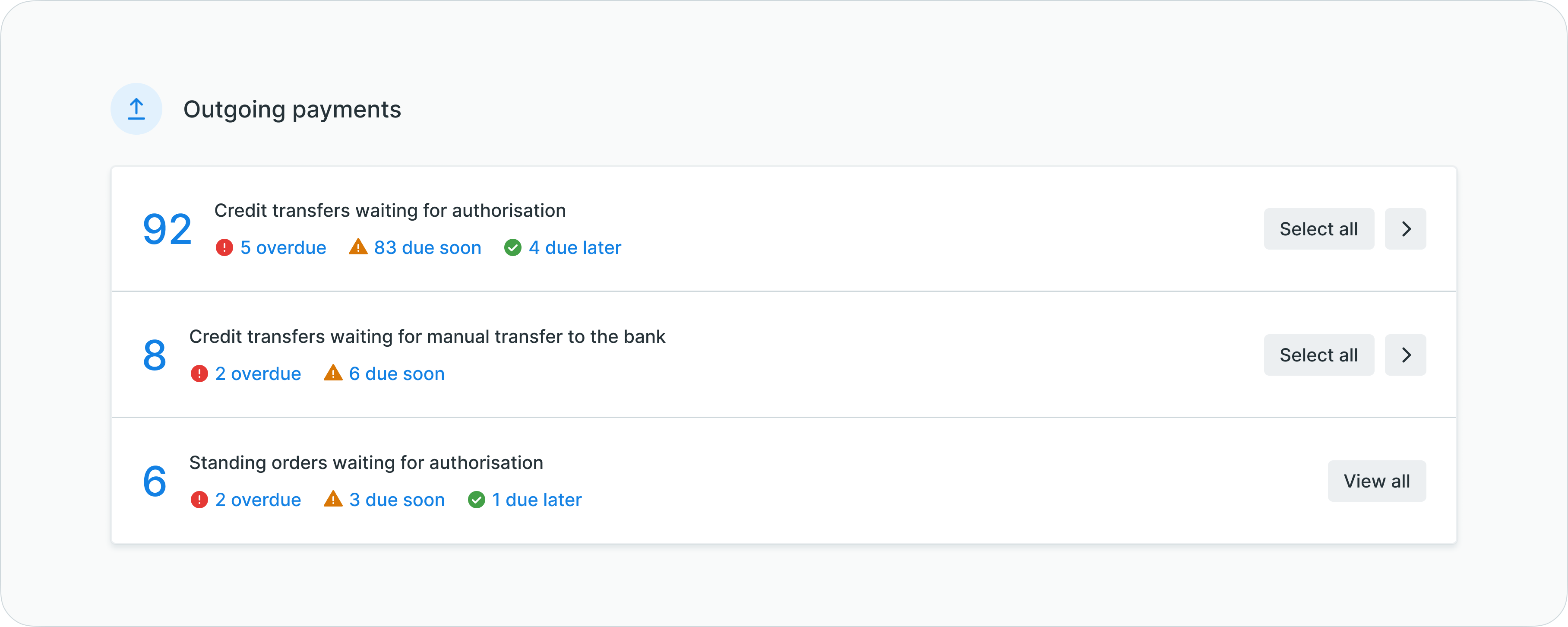
Payments section collapsed view
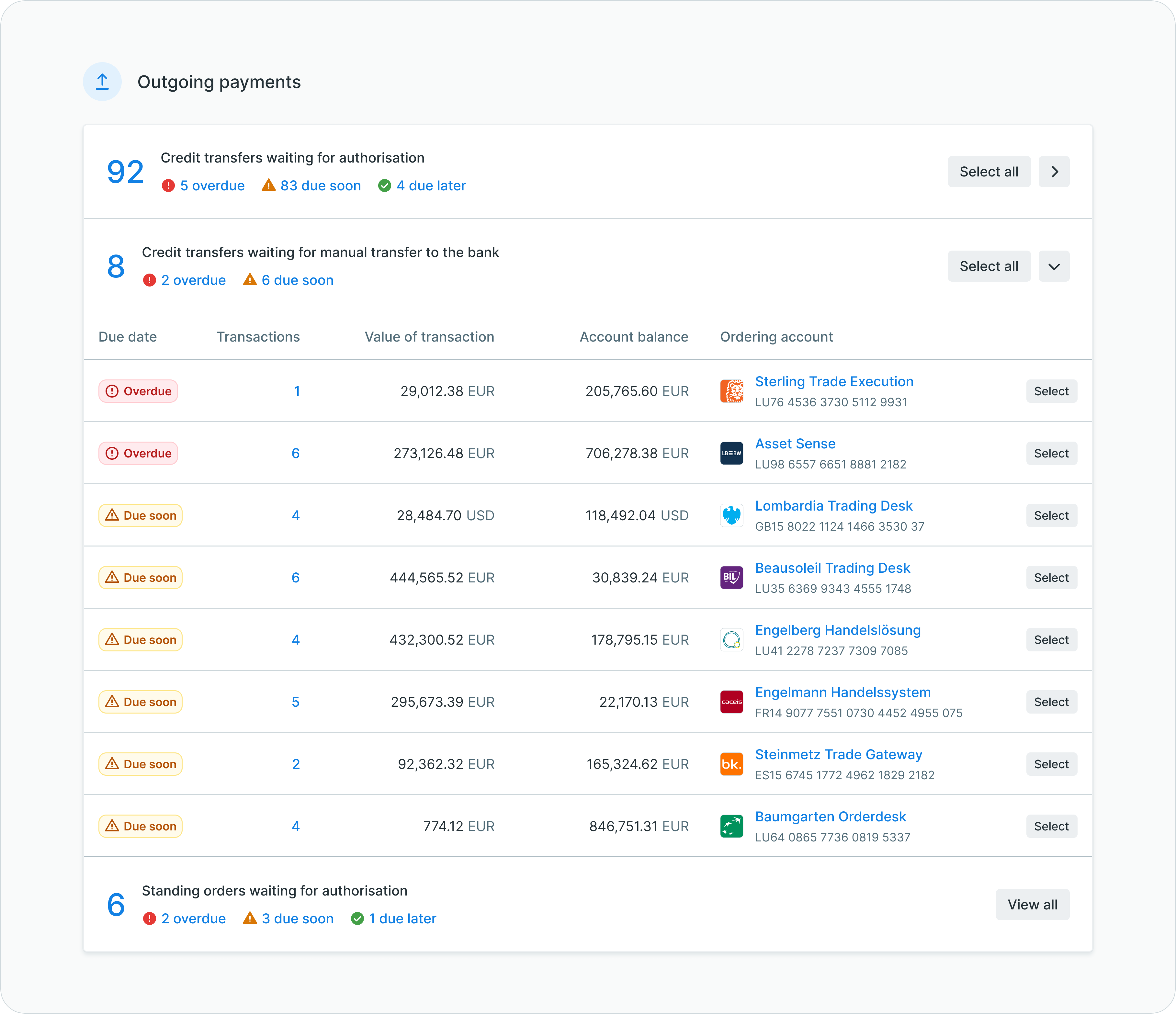
Payments section expanded with urgency breakdown
Related functionalityFor detailed information about payment creation, approval workflows, and status tracking, see Outgoing Payments - Creating and managing credit transfers and standing orders.
Counterparties section
The Counterparties section displays beneficiaries awaiting authorization. Counterparties are organized based on whether they have associated pending payments, helping you prioritize approvals for counterparties linked to waiting credit transfers.
Counterparty categories
Counterparties pending approval are divided into:
| Category | Definition | Description |
|---|---|---|
| With pending credit transfers | Counterparty status: Pending, created by another user, with pending payments | Counterparties requiring approval that are already linked to payments awaiting execution |
| Without pending credit transfers | Counterparty status: Pending, created by another user, no pending payments | Counterparties requiring approval with no associated pending payments |
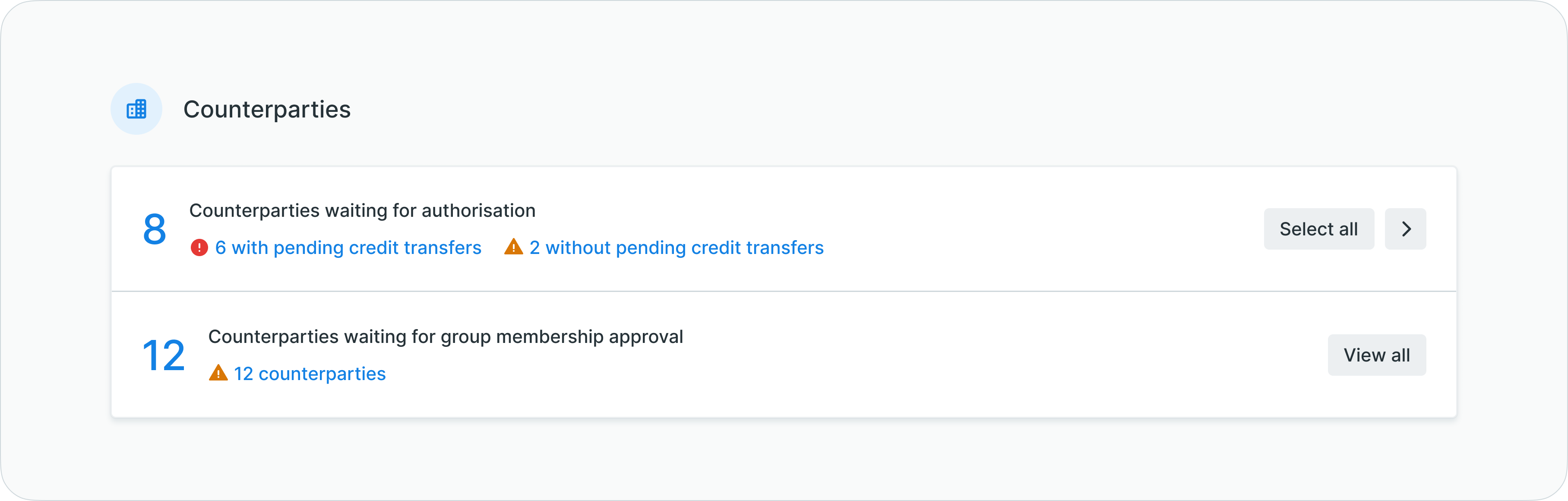
Counterparties section collapsed view
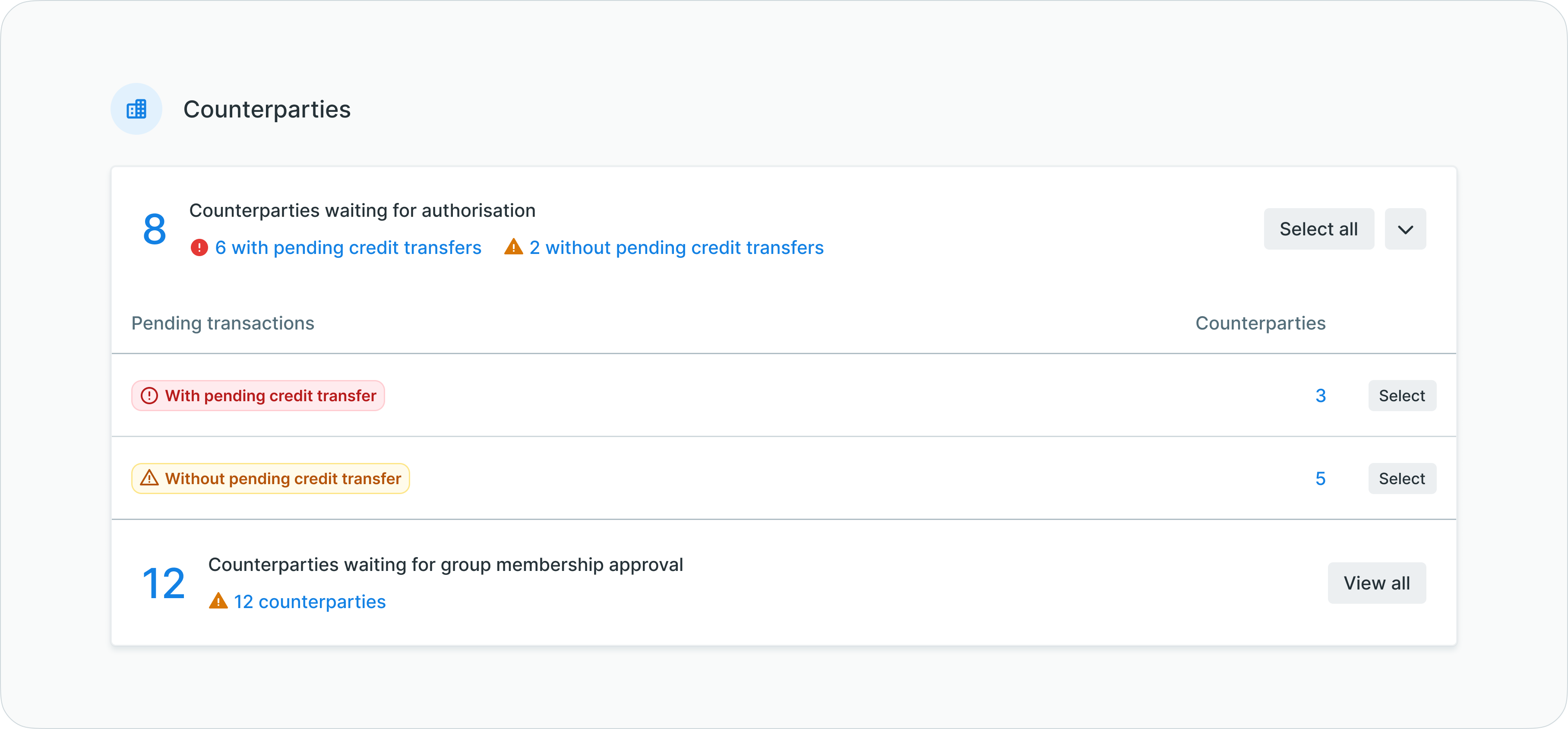
Counterparties section expanded with category breakdown
Four-eyes principleCounterparty approvals follow the four-eyes principle, requiring authorization from a user other than the one who created or modified the counterparty record.
Related functionalityFor detailed information about counterparty management, approval workflows, and bulk imports, see Counterparties - Investor and beneficiary management.
KYC screenings section
The KYC screenings section displays counterparties with pending screening results requiring your review. Screenings are organized by risk level, allowing you to prioritize reviews based on your organization's risk management policies.
Risk level categories
KYC screenings pending review are organized by the counterparty's assigned risk level:
| Risk Level | Definition | Description |
|---|---|---|
| High risk | Screening status: Pending review, Risk level: High | High-risk counterparties requiring immediate compliance review |
| Medium risk | Screening status: Pending review, Risk level: Medium | Medium-risk counterparties requiring standard compliance review |
| Low risk | Screening status: Pending review, Risk level: Low | Low-risk counterparties requiring routine compliance review |
| Unknown or unspecified risk | Screening status: Pending review, Risk level: Undefined or unknown | Counterparties without an assigned risk level requiring classification and review |

KYC screenings section with risk level breakdown
Feature flag requiredKYC screening functionality requires the KYC_SCREENING tenant flag to be enabled. Contact [email protected] to enable this feature for your tenant.
Related functionalityFor detailed information about KYC screening processes, risk assessment, and compliance workflows, see Risk Management - KYC screening and risk assessment.
Cash management section
The Cash management section displays pending automation rules and cash concentration tasks that require your review or authorization. This section appears when the Cash Concentration feature is enabled for your tenant.
Pending automations
Cash concentration automation rules requiring authorization are displayed with key information including source accounts, master accounts, and rule status:
| Status | Description |
|---|---|
| Pending authorization | New or modified automation rules awaiting approval before activation |
| Review required | Automation rules flagged for review due to execution issues or threshold breaches |
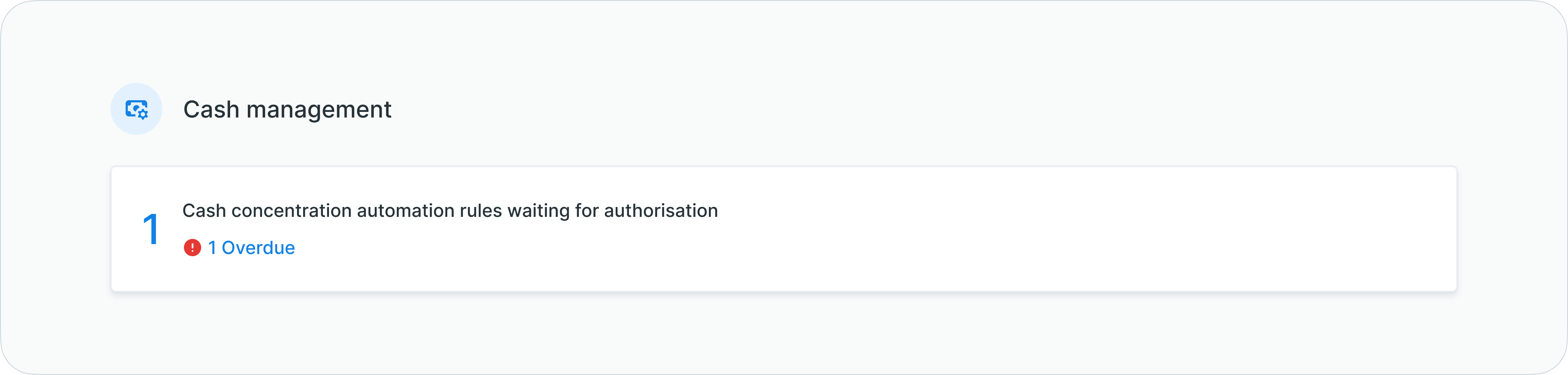
Cash management section with pending automations
Feature flag requiredCash management functionality requires the CASH_CONCENTRATION tenant flag to be enabled. Contact [email protected] to enable this feature for your tenant.
Related functionalityFor detailed information about cash concentration rules, automation workflows, and liquidity management, see Cash Management - Automated payment rules and cash concentration.
Notifications and workflow
The Action center automatically updates as tasks progress through approval workflows or new items require your attention. Users receive notifications through their configured notification channels when new tasks appear in the Action center.
Notification integration
The Action center integrates with LYNKS notification system to alert you about:
- New payments requiring authorization
- Counterparties awaiting approval
- KYC screenings pending review
- Overdue items requiring immediate attention
Notification preferencesConfigure your notification channels and preferences to stay informed about Action center updates. See Notifications - Configure notification preferences and channels for configuration instructions.
Best practices
Follow these recommendations to manage your Action center tasks efficiently:
- Check regularly - Review your Action center daily to stay on top of pending tasks and avoid overdue items
- Prioritize by urgency - Address overdue payments first, then focus on items due soon
- Use bulk actions - When redirected to filtered views, use bulk selection to authorize multiple items simultaneously
- Monitor risk levels - Prioritize high-risk KYC screenings to maintain compliance and mitigate potential issues
- Leverage filters - Once redirected to detailed views, apply additional filters to focus on specific accounts, amounts, or counterparties
Related documentation
Explore related sections for more information:
- Approvals - How approval workflows and signature processes function - Understanding approval workflows and signatory requirements
- Outgoing Payments - Creating and managing credit transfers and standing orders - Credit transfers, standing orders, and payment lifecycle
- Counterparties - Investor and beneficiary management - Counterparty management and approval processes
- Risk Management - KYC screening and risk assessment - KYC screening processes and compliance workflows
- Signatory Rules - Approval workflow configuration - Configuring approval rules and signature requirements
- Authentication Methods - Detailed setup and usage of SSO, LuxTrust, and mobile app authentication - Authentication methods for signing transactions
- Notifications - Configure notification preferences and channels - Configuring notification preferences
Support
For assistance with the Action center or questions about your pending tasks, contact [email protected].
Updated 3 months ago