
Cash accounts
Monitor account balances, track balance evolution, organize accounts into groups, and access bank statements
Introduction
The Cash Accounts page provides comprehensive access to all payment accounts configured within your LYNKS tenant. This interface displays essential account information including IBANs, BICs, currencies, balances, and balance evolution, enabling users to track and monitor their financial positions across multiple banks and accounts.
The page organizes accounts based on user access rights and permissions, presenting both summary-level insights through widgets and detailed account information through expandable views. Users can switch between standard list view and group view to analyze accounts according to their organizational structure.
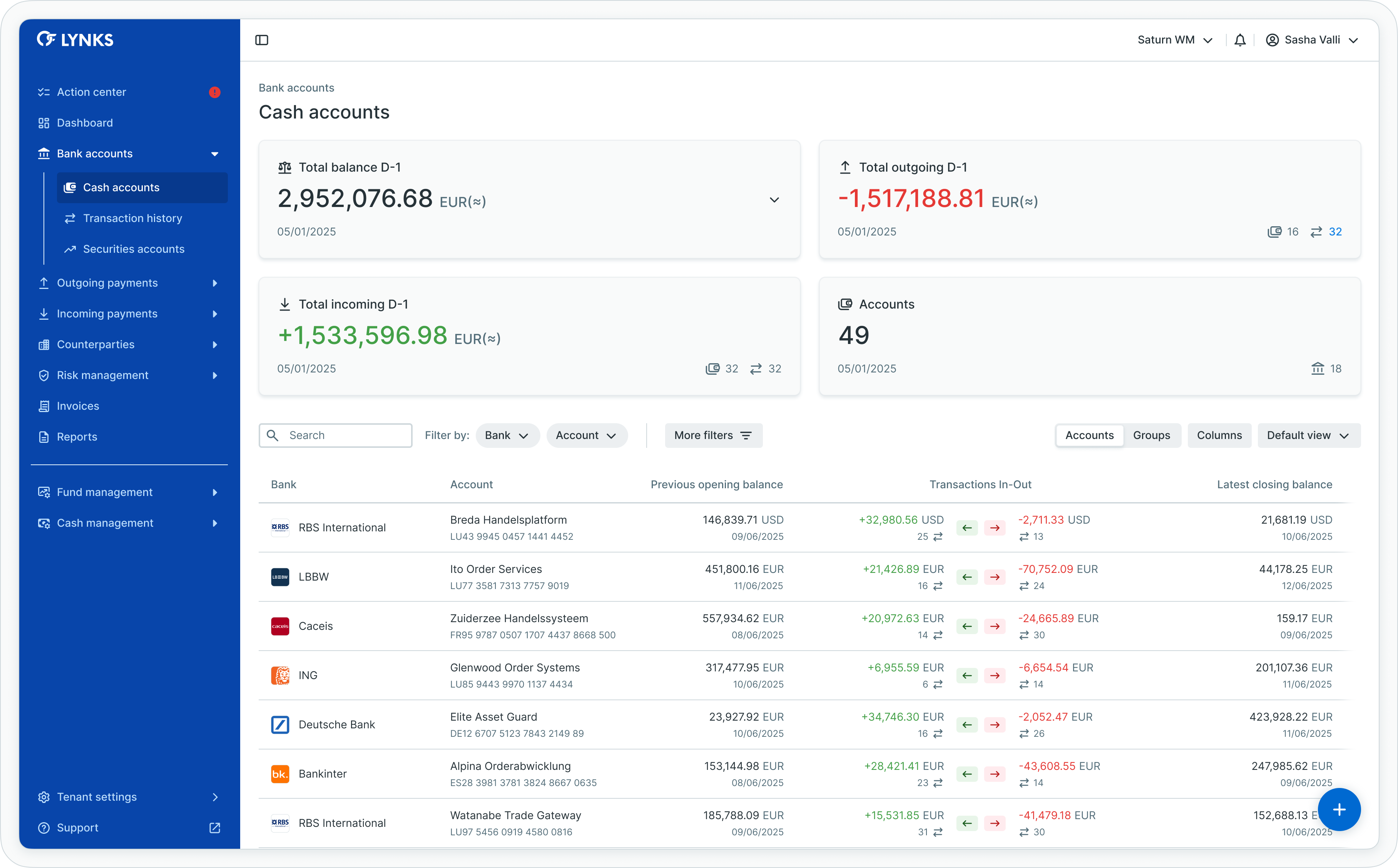
Cash accounts list view
Prerequisites
Users must have the appropriate permissions to view and access cash account information. The interface displays only accounts for which you have viewing rights.
Permissions
| Permission | Description |
|---|---|
ORDERING_PARTY_BALANCE_READ | View account balances, balance evolution, and account details |
ORDERING_PARTY_STATEMENT_READ | Access and download bank statements |
TENANT_SETTINGS_READ | View account configuration details in settings |
TENANT_SETTINGS_WRITE | Edit account details and manage account group membership (in Tenant Settings) |
Account scopingUsers see only accounts they have been granted access to through their permission configuration. Account-level scoping ensures data segregation and appropriate access control.
Cash accounts overview
The Cash Accounts page presents account information through two primary views: a standard list view showing all accessible accounts in a table format, and a group view organizing accounts by their assigned account groups. Both views provide summary widgets at the top of the page displaying aggregated financial metrics.
Accessing cash accounts
The Cash Accounts page is accessible from the main navigation menu under Bank Accounts, providing immediate access to all account information for which you have viewing rights.
Navigation
To access Cash Accounts:
- Locate the main navigation menu on the left side of the LYNKS interface
- Expand the Bank Accounts section
- Click on Cash Accounts to open the accounts overview page
- The interface displays all accessible accounts organized by your selected view (list or group)
The page automatically loads current balance information and refreshes data as new statements are received.
Switching between views
The Cash Accounts page provides two viewing modes enabling you to analyze accounts either individually or organized by account groups.
Changing views
To switch between list view and group view:
- Locate the view toggle button in the top right area of the page (near the filter controls)
- Click the toggle to switch between:
- List view - Displays all accounts in a flat table structure
- Group view - Organizes accounts hierarchically by assigned account groups
- The page refreshes to display accounts in the selected format
Your view preference persists during your session, maintaining the selected view as you navigate away and return to the Cash Accounts page.
Using list view
List view displays all accessible accounts in a single table:
- Scroll through the complete account list
- Use column headers to sort accounts by any attribute
- Apply filters to focus on specific accounts by bank, currency, or balance ranges
- Click any account row to open the detailed account view
Using group view
Group view organizes accounts by their assigned groups:
- Each account group appears as an expandable module showing group-level metrics
- Click the expansion arrow or group module to reveal accounts within that group
- Review aggregated balances at the group level
- Click individual account rows within expanded groups to view account details
Viewing account details
Each account row in either list or group view provides access to comprehensive account information through the detail screen.
Opening account details
To view detailed information for an account:
- Locate the desired account in either list view or group view
- Click anywhere on the account row
- The account details screen opens, displaying expandable information sections
Navigating account sections
The account details screen organizes information into expandable sections:
- Click section headers to expand or collapse information panels
- Account details section - Expand to view holder information, bank details, cut-off times, and configuration
- Balance monitoring section - Expand to view current balances, upcoming payments counter, and balance evolution graph
- Statements section - Expand to view all received bank statements
Interacting with balance evolution
The balance evolution graph displays historical closing balances:
- Hover over data points to view specific balance amounts and dates
- Observe trends and patterns in account activity over time
- Use the graph to identify unusual balance fluctuations
Accessing bank statements
The statements section within account details provides access to all received bank statements, enabling you to review transactions and download statement files.
Viewing statement lists
To access statements for an account:
- Open the account details screen by clicking an account row
- Scroll to the Statements section (typically the third expandable panel)
- Expand the section if not already open
- The statements list displays all received statements in reverse chronological order (newest first)
Expanding statement content
Each statement appears as an expandable row:
- Locate the statement you want to review in the statements list
- Click the expansion arrow or anywhere on the statement row
- The expanded view displays all transactions included in that statement
- Review individual transaction details, amounts, and dates
- Click the expansion arrow again to collapse the statement
Downloading statements
To download bank statement files:
- Locate the desired statement in the statements list
- Find the download icon or action button (typically on the right side of the statement row)
- Click the download button
- The statement file downloads in its original format (MT940, CAMT.052 or CAMT.053)
- Save the file to your local system for reconciliation or audit purposes
Using statement filters
The statements table supports filtering and search:
- Use the search bar to find statements by date or transaction content
- Apply filters to show only specific statement types (final vs. intraday)
- Filter by date ranges to focus on statements from specific periods
- Sort by any column to organize statements by date, balance, or transaction count
Managing accounts and groups
Account administration tasks are performed in Tenant Settings by users with appropriate administrative permissions.
Administrative actions
The following account management tasks are performed in Accounts (Tenant Settings) - Account configuration and group management:
- Adding new accounts - Contact customer support to add bank accounts to your organization
- Editing account details - Modify account configuration, aliases, and properties
- Creating account groups - Define logical groupings for account organization
- Managing group membership - Assign accounts to groups or remove them from groups
- Deactivating accounts - Permanently deactivate accounts no longer in use
Account deactivation warningDeactivating an account is permanent and cannot be reversed. Pending payments associated with a deactivated account will be cancelled. Contact customer support before deactivating accounts.
Administrative permissions requiredAccount management tasks require
TENANT_SETTINGS_WRITEpermission. Users withORDERING_PARTY_BALANCE_READcan view accounts but cannot modify account configuration or group membership.
Summary widgets
At the top of the page, widgets display key financial metrics providing a quick overview of your account portfolio.
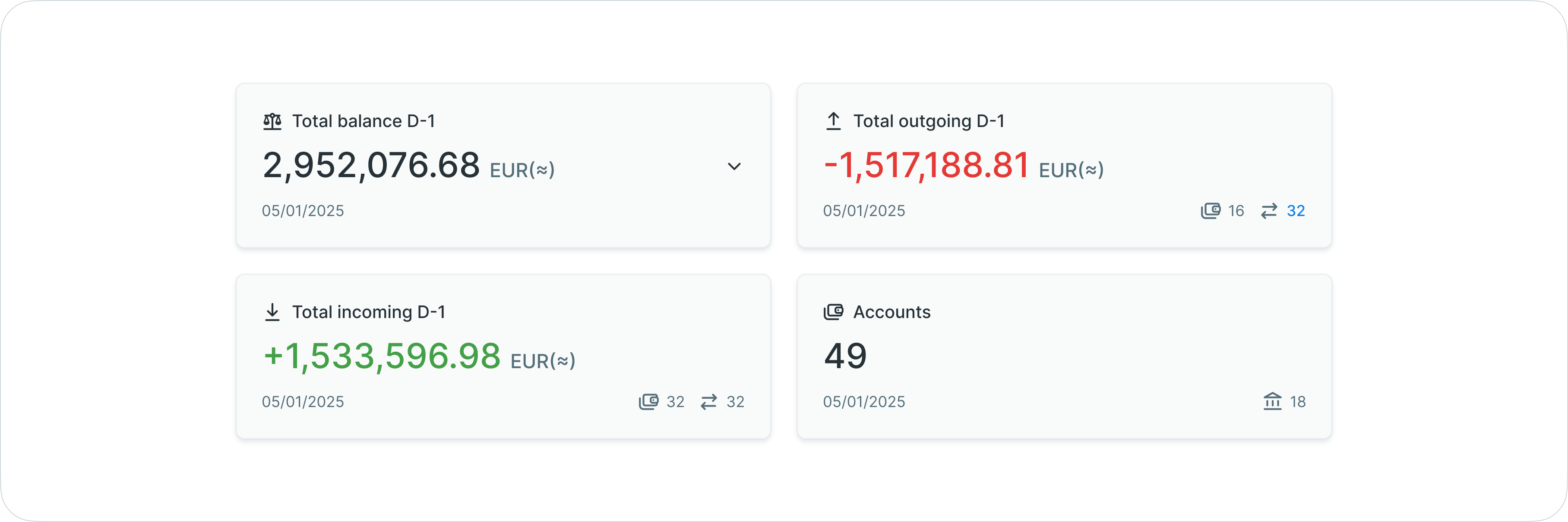
Summary widgets displaying aggregated metrics
| Widget | Description |
|---|---|
| Total balance | Latest final closing balance aggregated across all accessible accounts |
| Total outgoing | Aggregated outgoing transaction values from yesterday's statements |
| Total incoming | Aggregated incoming transaction values from yesterday's statements |
| Accounts | Total number of accounts accessible to the user |
| Banks | Total number of banking institutions represented |
These widgets present aggregated data, offering an up-to-date overview of essential information as users navigate the page.
Account list view
The standard list view displays all accessible accounts in a comprehensive table format, showing essential banking information and financial details for each account.
Information displayed
The account list table includes:
- Bank name and logo
- Account number (IBAN)
- BIC/SWIFT code
- Account currency
- Ordering party name and alias
- Closing balance (latest final balance from statements)
- Intraday balance (current day's balance)
- Balance evolution (visual indicator of balance changes)
- Upcoming payments (aggregated value of planned outgoing payments)
Table functionality
The account list supports standard table features:
- Column customization - Show, hide, reorder, and resize columns according to preferences
- Filtering - Apply filters by bank, currency, country, balance ranges, and more
- Search - Quick search across account data
- Sorting - Sort by any column to organize account information
- View persistence - Save customized table configurations for future sessions
Related functionalityFor detailed information about table features, filtering, and view customization, see Platform Navigation - Detailed guide to the head-up display, table views, filters, and search functionality.
Account group view
The group view organizes accounts by their assigned account groups, providing a hierarchical display that consolidates information at the group level while maintaining access to individual account details.
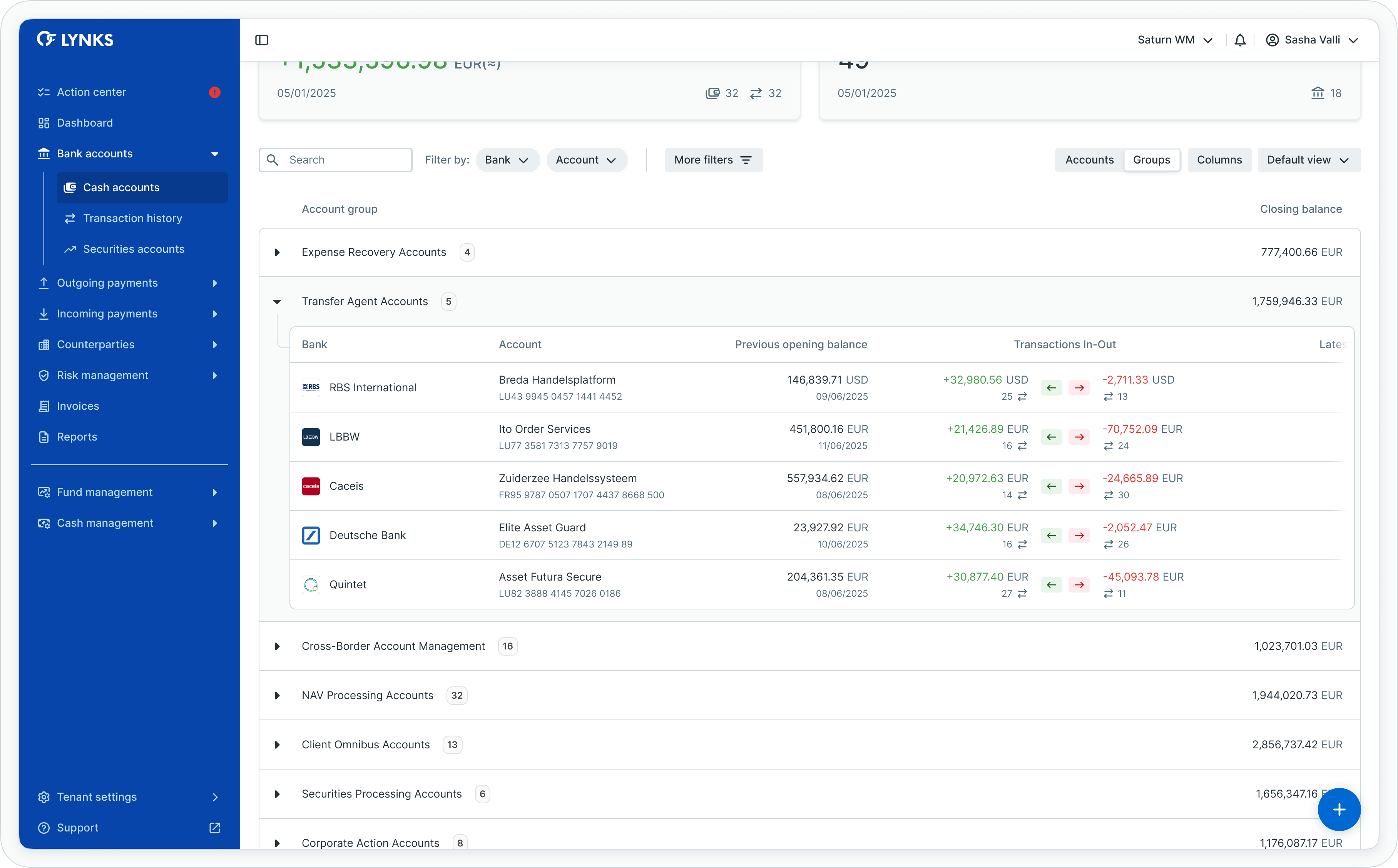
Accounts organized by account groups
Activating group view
Users can switch to group view using the toggle button beside the view selector. This view filters and condenses account information based on account group membership.
Group-level information
Each account group appears within an expandable module displaying:
- Group name
- Number of accounts within the group
- Total closing balance across all accounts in the group (converted to default currency)
Individual account details
Expanding a group module reveals the complete list of accounts within that group, showing all standard account information and metrics for each individual account.
Account group management
Account groups are created and managed in Tenant Settings. Users with appropriate permissions can assign accounts to groups, enabling logical organization by business unit, purpose, currency, region, or any custom criteria relevant to the organization.
Account group configurationFor information about creating account groups and managing group membership, see Accounts (Tenant Settings) - Account configuration and group management.
Account details view
Selecting an account from either the list view or group view opens the account details screen, providing comprehensive information organized into expandable sections.
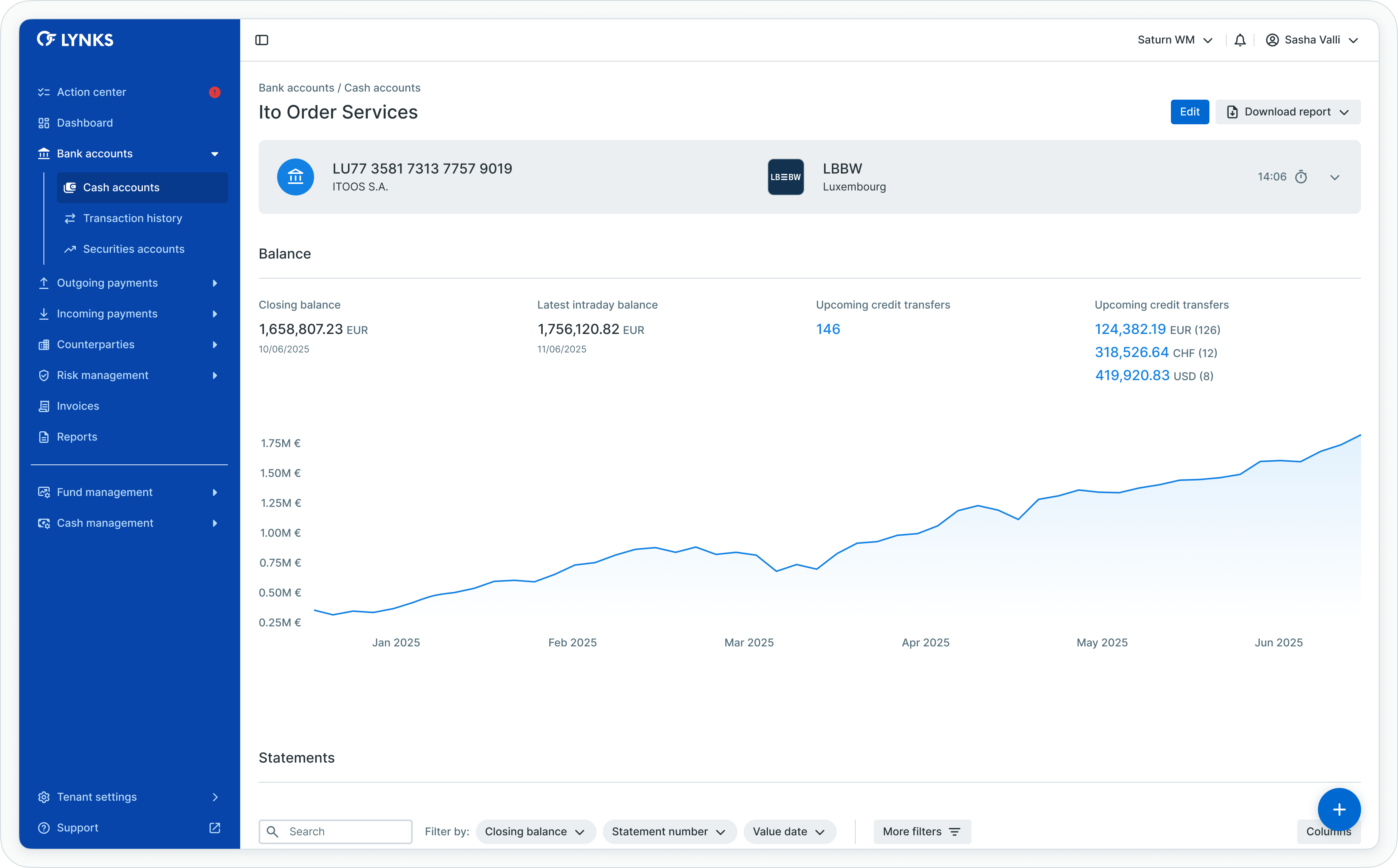
Account details screen
Account details section
The details section displays comprehensive account information in an expandable panel:
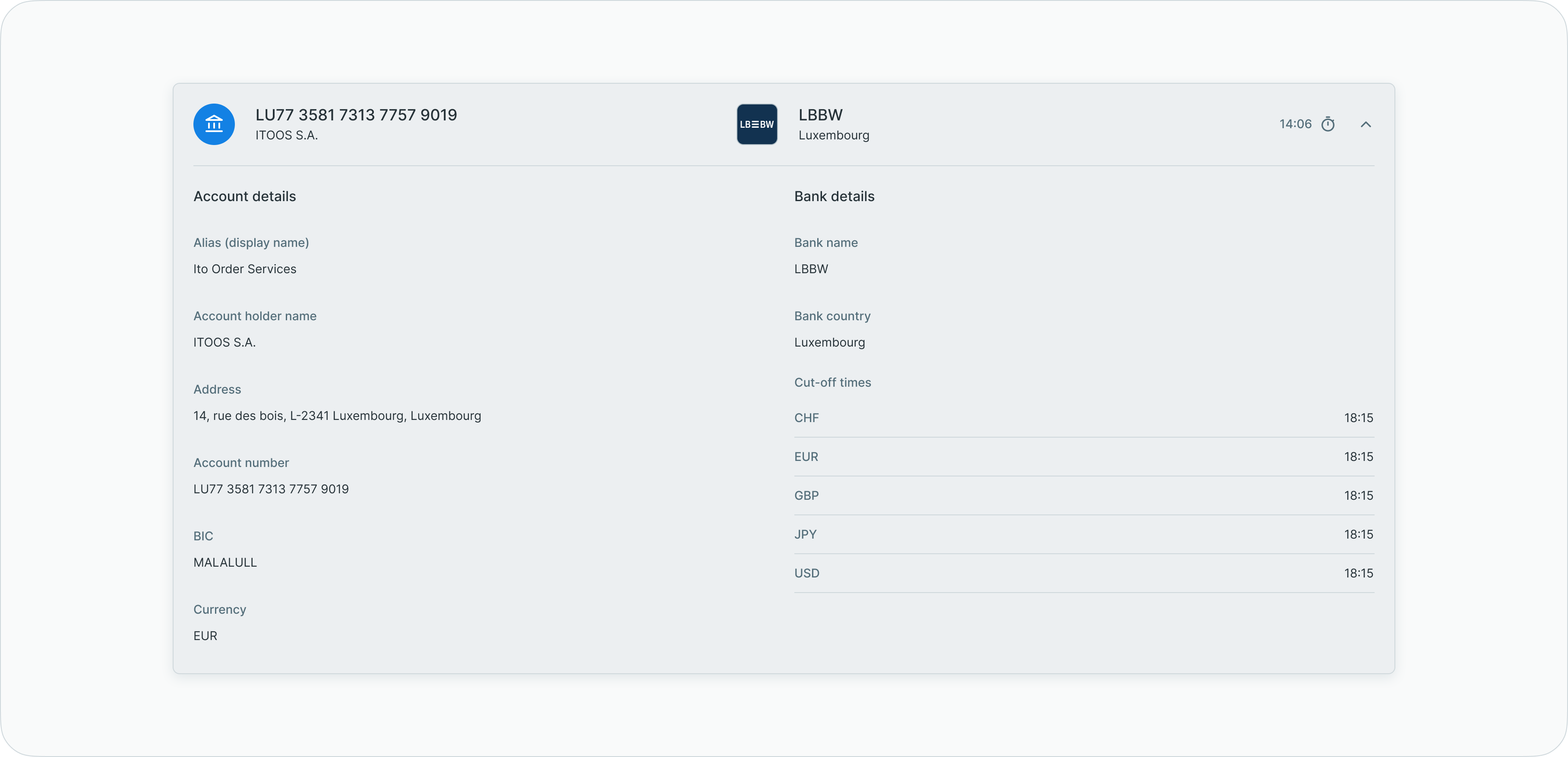
Account details expanded
- Account holder information
- Bank details and contact information
- Account status and configuration
Balance monitoring section
The balance section provides detailed balance information and visualization:
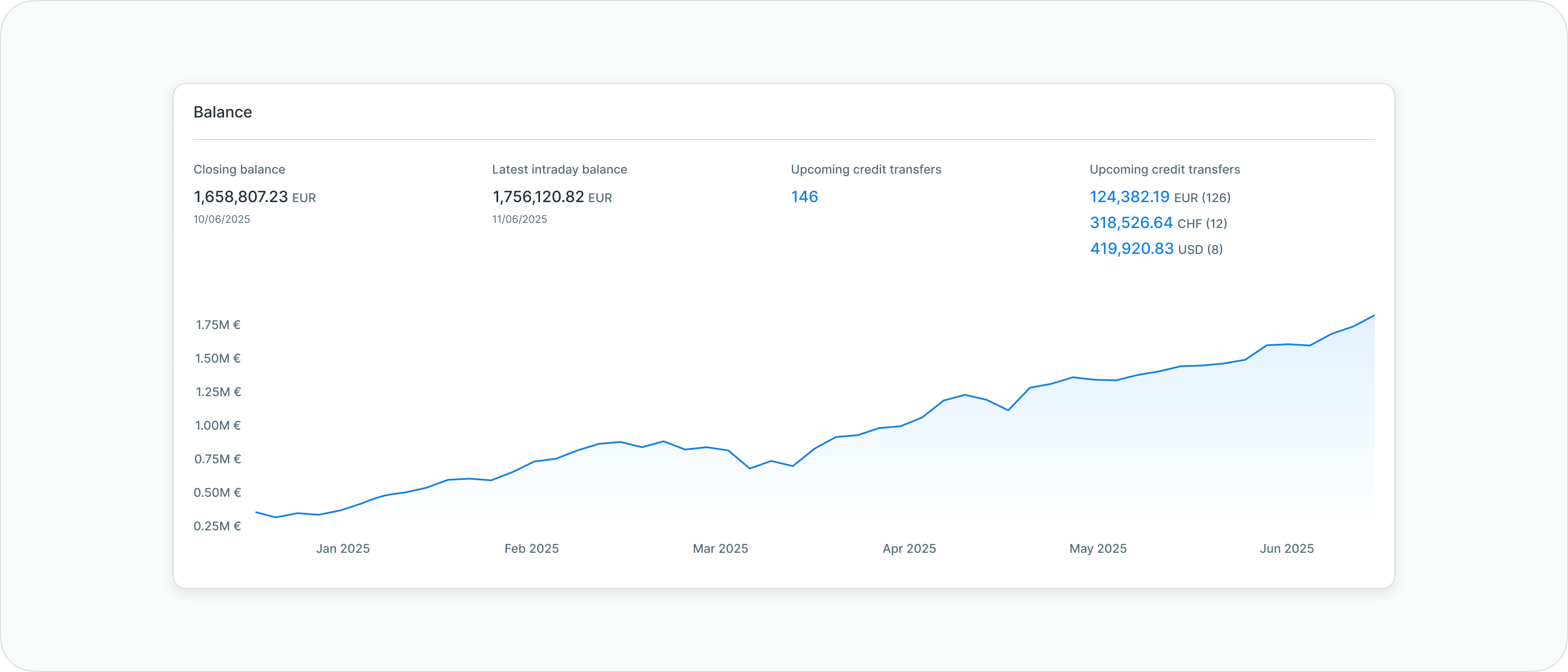
Balance monitoring and evolution
| Balance Type | Description |
|---|---|
| Closing balance | Most recent closing balance received from bank statements with date indication |
| Intraday balance | Latest intraday balance from bank statements with timestamp |
| Upcoming payments | Counter and aggregated value of planned credit transfers by currency |
Balance evolution graph
Below the balance summary, an interactive graph displays balance evolution over time based on received bank statements. This graphical representation helps visualize account balance fluctuations and identify trends in account activity.
The graph shows historical closing balances, enabling users to:
- Track balance changes over custom time periods
- Identify patterns in cash flow
- Monitor account activity trends
- Assess liquidity positions over time
Bank statements access
The statements section displays all bank statements received for the selected account, providing access to detailed transaction data and downloadable statement files.
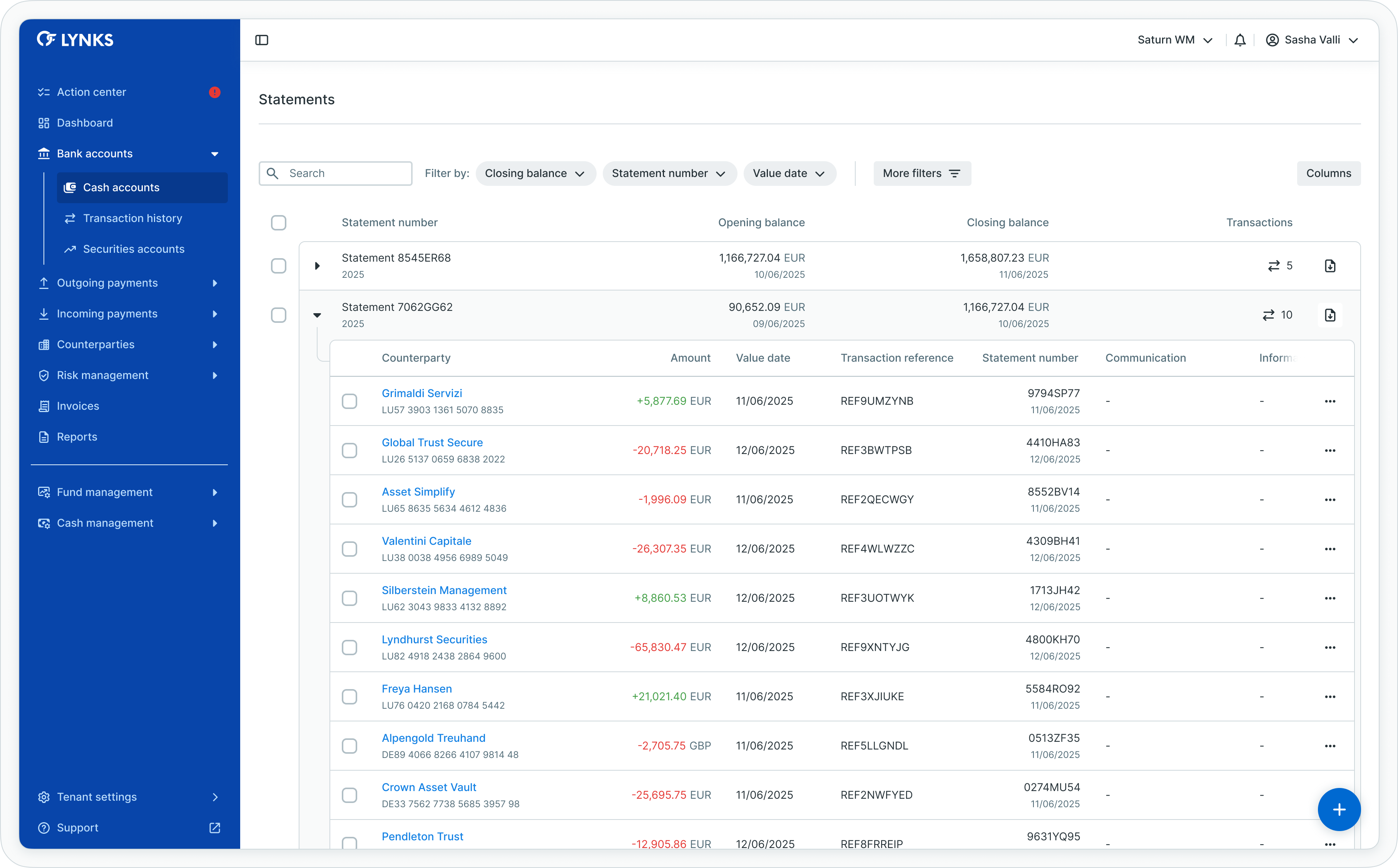
Bank statements list
Statement information
Each bank statement appears as an expandable row displaying key information:
- Statement date and sequence number
- Opening and closing balances
- Number of transactions
- Statement type (final or intraday)
- Statement format (MT940, CAMT.052, CAMT.053)
Statement content
Expanding a statement row reveals the complete statement content, showing a detailed list of all transactions included in that statement. Users can review individual transaction details directly from the expanded view.
Statement downloads
Users can download bank statements in their original format for reconciliation, audit purposes, or integration with accounting systems. The download functionality provides access to the complete statement file as received from the bank.
Table features
The statements table supports:
- Column customization and reordering
- Filtering by date range, statement type, or balance ranges
- Search across statement data
- Sorting by date, balance, or transaction count
Related functionalityFor comprehensive transaction analysis across all accounts, see Transaction History - Review incoming payment details.
Best practices
Follow these recommendations to maximize the value of cash account monitoring:
- Regular monitoring - Review account balances daily to maintain awareness of your liquidity position
- Use group view strategically - Organize accounts into logical groups by business unit, purpose, or responsibility area for efficient oversight
- Track balance evolution - Monitor balance evolution graphs to identify unusual patterns or unexpected changes
- Leverage upcoming payments - Check upcoming payment values to anticipate future account positions and ensure sufficient funds
- Customize table views - Create and save custom table configurations for different analysis needs (e.g., high-balance accounts, specific currencies, particular banks)
- Review statements regularly - Access and review bank statements to verify transaction accuracy and reconcile discrepancies
- Monitor intraday balances - Check intraday balances throughout the day when managing time-sensitive payments or tight liquidity
Related documentation
Explore related sections for more information:
- Platform Navigation - Detailed guide to the head-up display, table views, filters, and search functionality - Tables, filters, search, and view customization
- Permissions - Comprehensive explanation of access control and role-based permissions - Understanding access control and account scoping
- Dashboard - Financial overview widgets, charts, and real-time monitoring - High-level financial overview across accounts
- Transaction History - Review incoming payment details - Detailed transaction analysis and search
- Cash Management - Automated payment rules and cash concentration - Cash concentration and automated liquidity management
- Accounts (Tenant Settings) - Account configuration and group management - Account configuration and group management
- Reports - Account balance reports and statement exports - Account balance reports and statement exports
Support
For assistance with cash account monitoring or questions about account access, contact [email protected].
Updated about 1 month ago